
Use the following procedure to create a new Apple iOS or tvOS project to build the basic player for app development using Swift.
Alternative example code is provided for Objective-C development (not described here).
-
Unzip the opy-sdk-ios-fps-5.1.x-integration.zip or opy-sdk-tvos-fps-5.1.x-integration.zip file, and copy the OPYSDKFPS.framework or OPYSDKFPSTv.framework file to an appropriate location (for example, the project root).
-
In Xcode, create a new Single View project for your iOS/tvOS platform.
-
In project options, select Swift as the language.
-
On the General tab, add the framework to Frameworks, Libraries, and Embedded Content, ensuring Embed & Sign is selected.
-
-
To connect to non-HTTPS URLs, add Application Transport Security (ATS) settings to info.plist. Open the info.plist file and add an App Transport Security entry for your content (replacing www.example.com with the actual URL):
XML<key>NSAppTransportSecurity</key> <dict> <key>NSExceptionDomains</key> <dict> <key>www.example.com</key> <dict> <key>NSIncludesSubdomains</key> <true/> <key>NSExceptionAllowsInsecureHTTPLoads</key> <true/> </dict> </dict> </dict> -
Add the following import in
ViewController.swift.AppleScriptimport OPYSDKFPS // or OPYSDKFPSTv for tvOSBelow the imports, add the code for the
PlayerViewclass:AppleScriptclass PlayerView: UIView { var player: AVPlayer? { get { return playerLayer.player } set { playerLayer.player = newValue } } var playerLayer: AVPlayerLayer { return layer as! AVPlayerLayer } override class var layerClass: AnyClass { return AVPlayerLayer.self } } -
Add members for the player and player view below the
ViewControllerclass definition.AppleScriptlet otvPlayer: OTVAVPlayer @IBOutlet weak var playerView: PlayerView!Add the content URL:
AppleScriptlet assetURL = URL(string: "https://d3bqrzf9w11pn3.cloudfront.net/basic_hls_bbb_clear/index.m3u8")! -
Instantiate an
OTVAVPlayerEnsure SDK has been loaded before constructing the player.
Initialise the player in the
initmethod by passing in the asset url:AppleScriptrequired init?(coder aDecoder: NSCoder) { OTVSDK.load() otvPlayer = OTVAVPlayer(url: assetURL) super.init(coder: aDecoder) }The
OTVAVPlayer takes either anOTVAVPlayerItemobject or the URL of a content stream. -
Inside the
viewDidAppearmethod, assign our player to theplayerViewand start playback:AppleScriptoverride func viewDidAppear(_ animated: Bool) { super.viewDidAppear(animated) playerView.player = otvPlayer otvPlayer.play() }Your
ViewControllerclass should look like the following:AppleScriptclass ViewController: UIViewController { let otvPlayer: OTVAVPlayer @IBOutlet weak var playerView: PlayerView! let assetURL = URL(string: "https://d3bqrzf9w11pn3.cloudfront.net/basic_hls_bbb_clear/index.m3u8")! required init?(coder aDecoder: NSCoder) { OTVSDK.load() otvPlayer = OTVAVPlayer(url: assetURL) super.init(coder: aDecoder) } override func viewDidAppear(_ animated: Bool) { super.viewDidAppear(animated) playerView.player = otvPlayer otvPlayer.play() } } -
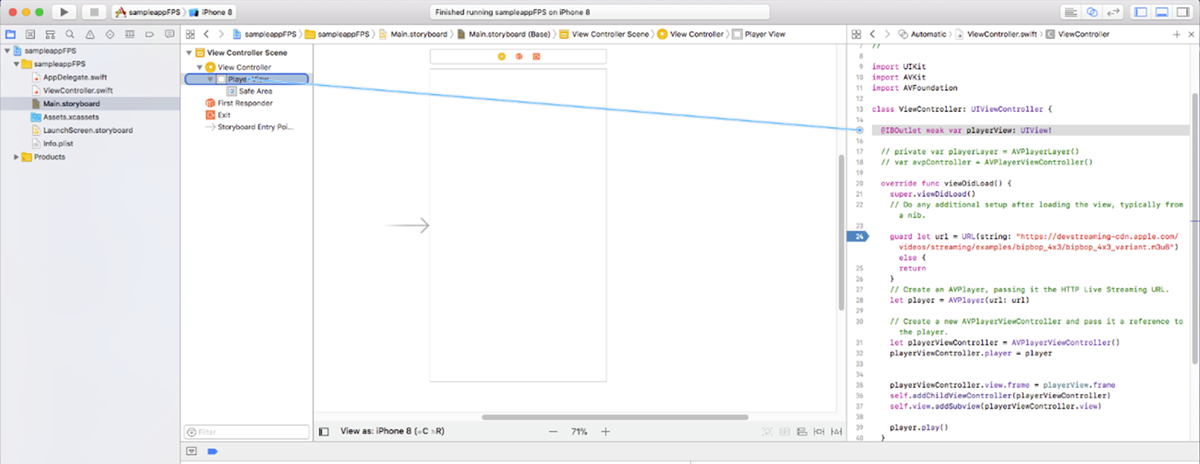
Link the view to the player:
Open Main.storyboard and open the assistant editor. Drag from the small blue circle next to the
IBOutletthat you added inViewController.swiftto theViewControllerview:
Next step: Run the app in clear playback mode.