
Viewing records
To view a record, from the List page either:
-
Click the required row for the record.
-
Select the View option from the relevant

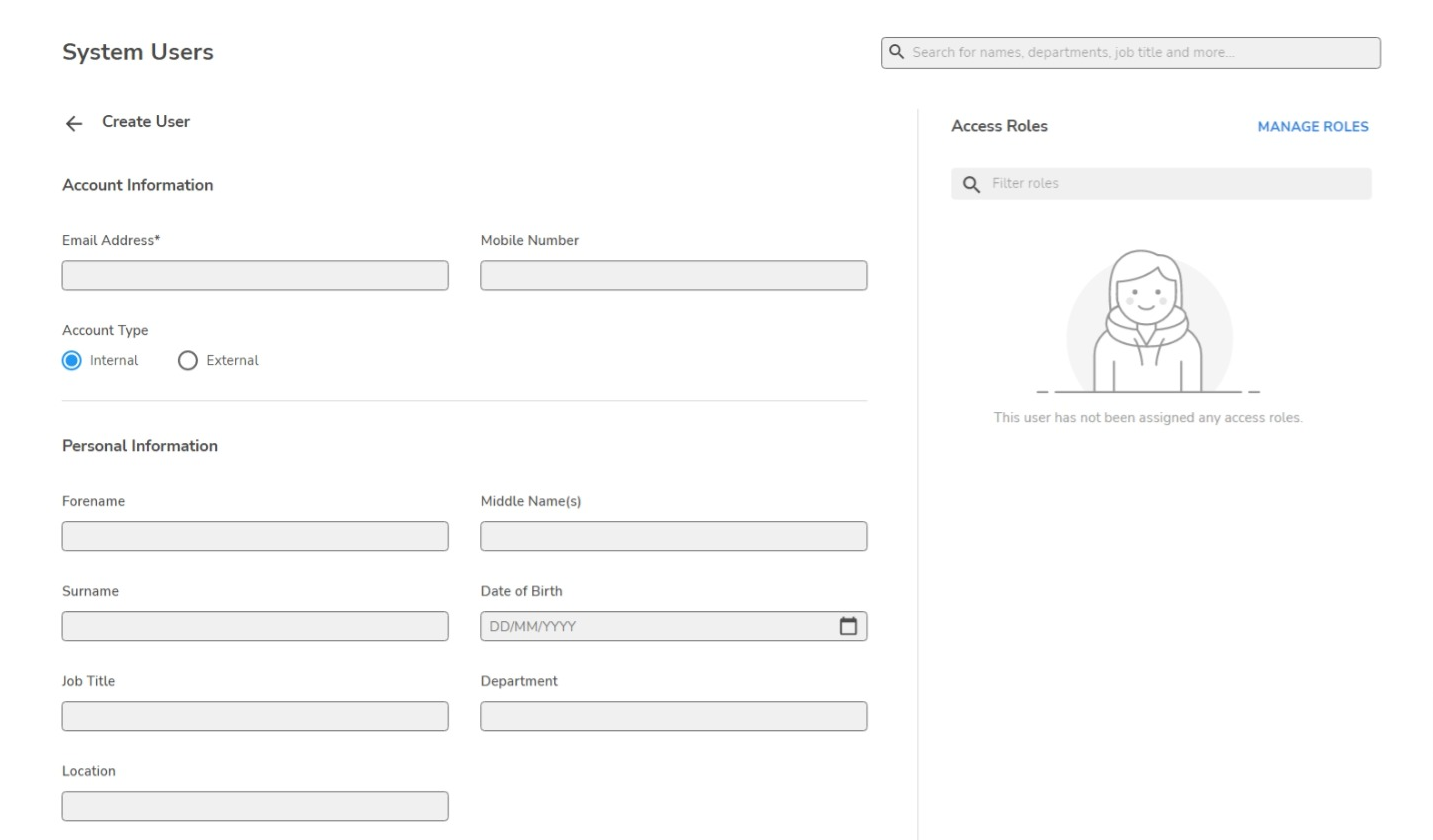
The screen below shows the System User page, however, the view details are similar for all records.
Editing records
To edit a record, from the List page either:
-
Click the required row for the record.
-
Select the Edit option from the relevant
Enter and select the relevant details in the fields and click the SAVE CHANGES button to save the details.
Bulk edit
Where applicable, the multi-select feature enables you to bulk-edit records.
-
Select the checkboxes for the items to be edited, and then click the edit events option in the banner.
-
Update the information in the relevant fields and click the SAVE CHANGES button to save the details.
Only fields that can be bulk edited will be displayed.
Creating records
To create a new record, from the List page, click CREATE (RECORD).
Enter and select the relevant details in the fields and click the CREATE (RECORD) button to save the record.
In the right-panel, MANAGE (RECORD) lets you add items to the record; see Adding and removing items.
Deleting records
To edit a record, on the List page, select the Delete option from the relevant