
To create a new role for a service:
-
Open the Permissions Management app and select the Roles tab.
-
Use the Service dropdown list to select the service for which you want to create the new role.
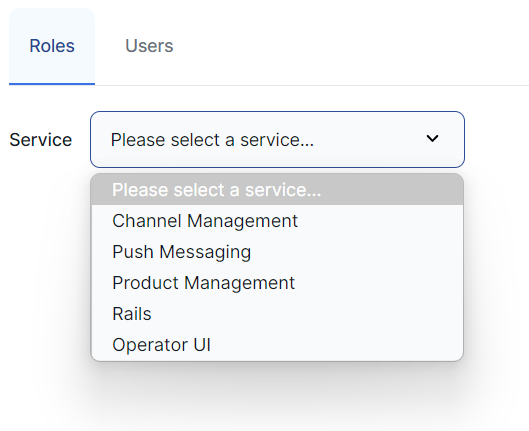
-
Click the Create Role button.
-
In the Role Name field, enter the name of the role.
-
Click the Create button.
Define role permissions
To define the permissions to be included in the role:
-
Select the Permissions page from the sidebar.
-
Click the Edit Permissions button.
-
Select the permissions required for the role.
-
Click Save.
(Note that the available options are different for each service.)
Manage identity providers
To add an identity provider for the role:
-
Select the Identity Providers page from the sidebar.
-
Click the Add IDP Mapper button.
-
Complete the fields:
|
|
|
|---|---|
|
Identity Provider |
Select the required identity provider from the dropdown list. |
|
Claim |
Enter the name of the claim. |
|
Claim Value |
Enter the claim value. |
-
Click Review to review the changes.
-
Click Save.
Note that this process does not assign any users to the role.
To assign a user to a role, see Manage user roles