
Content is displayed in the catalogue under nodes. These are configurable containers that you can create based on the type of content; for example, genre, trending, news and so on.
To display the catalogue, select Content from the dashboard page.
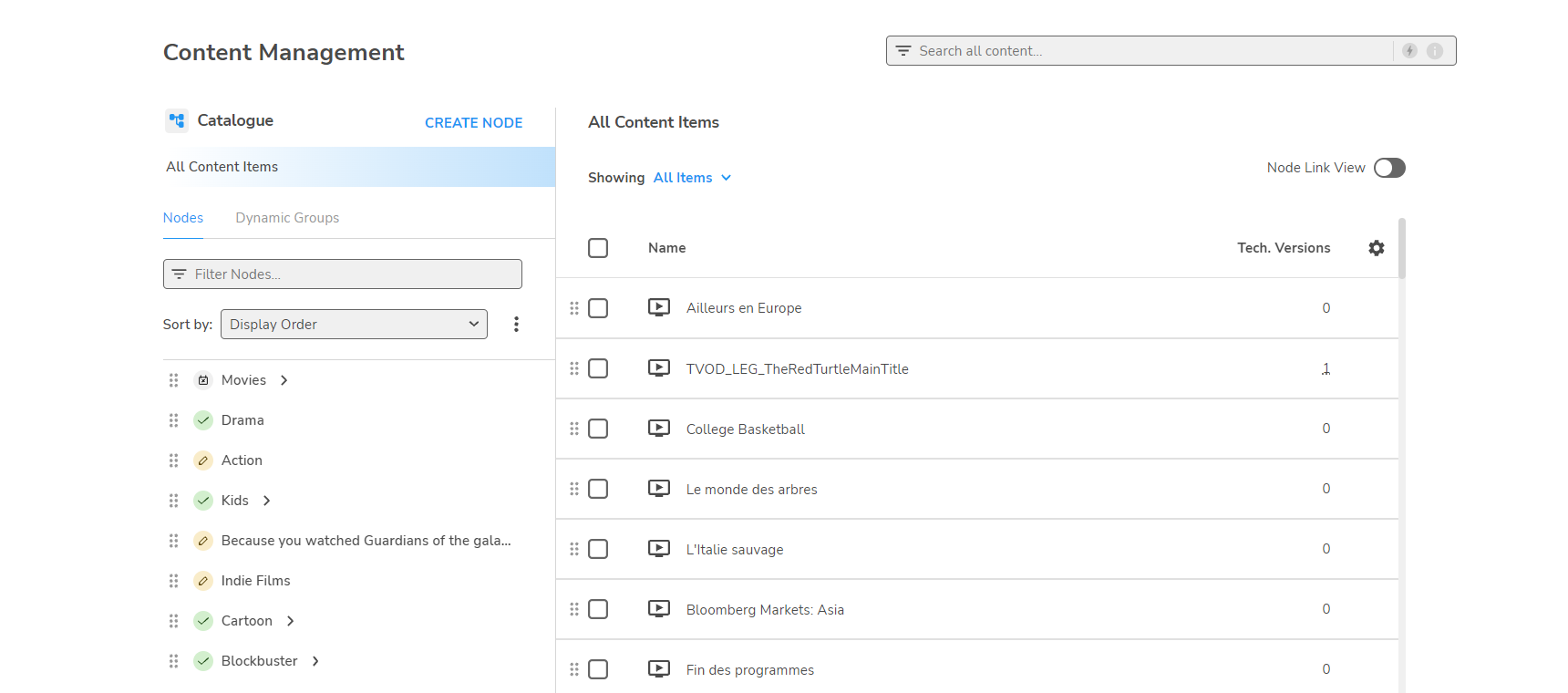
You can filter this page to only show content belonging to a particular Status:
-
All
-
New
-
Scheduled
-
Active
-
Expired/Invalid
Nodes
Nodes are displayed in the left-panel Nodes tab. Clicking a node displays the content for that node, and also shows any child nodes.
Node status is indicated by the following icons:



To create new nodes, edit node details, or delete a node, see Configuring nodes.
Node Link View
This is an alternative view featuring the Node link details. You can also filter this page by the Status of the Node Link Valid From and Node Link Valid To dates.
Content
When a node is selected, its content items are displayed in the right-panel; click an event to view the details.
In the events panel, you can choose which fields are displayed by selecting Table preferences... from the Settings 
In addition, you can list the events by status, apply filters and sort the columns.
-
The Showing menu enables you to display by: all content items, series, season, dynamic group or editorial content.
-
To add or remove content to or from a node, see Adding and removing content items.
-
To change the properties of content items within a node, see Editing Editorial information.
Running your mouse over the number of Technical versions field displays a popup showing the status of the configured Technical versions.
In Node Link View, the node link ID and validity dates are displayed; see Node link.
Status
The current status of series, seasons, content items or node links, based on the Valid from / Valid to dates is denoted by:





You can sort and filter series, seasons, content items and node links by status; you cannot filter node links.
Dynamic content groups
You can also create groups based on search criteria rather than associating individual items directly; see Configuring dynamic content groups.