
The TVDemo is designed to be easily configurable to demonstrate the user's chosen streams being played with their associated headend DRM settings through a set of embedded player systems with a wide variety of player engine settings that can be adjusted.
The configuration can be seen in an overlaid panel on the streams menu. Due to the nature and number of parameters, the configuration will not be fully visible.
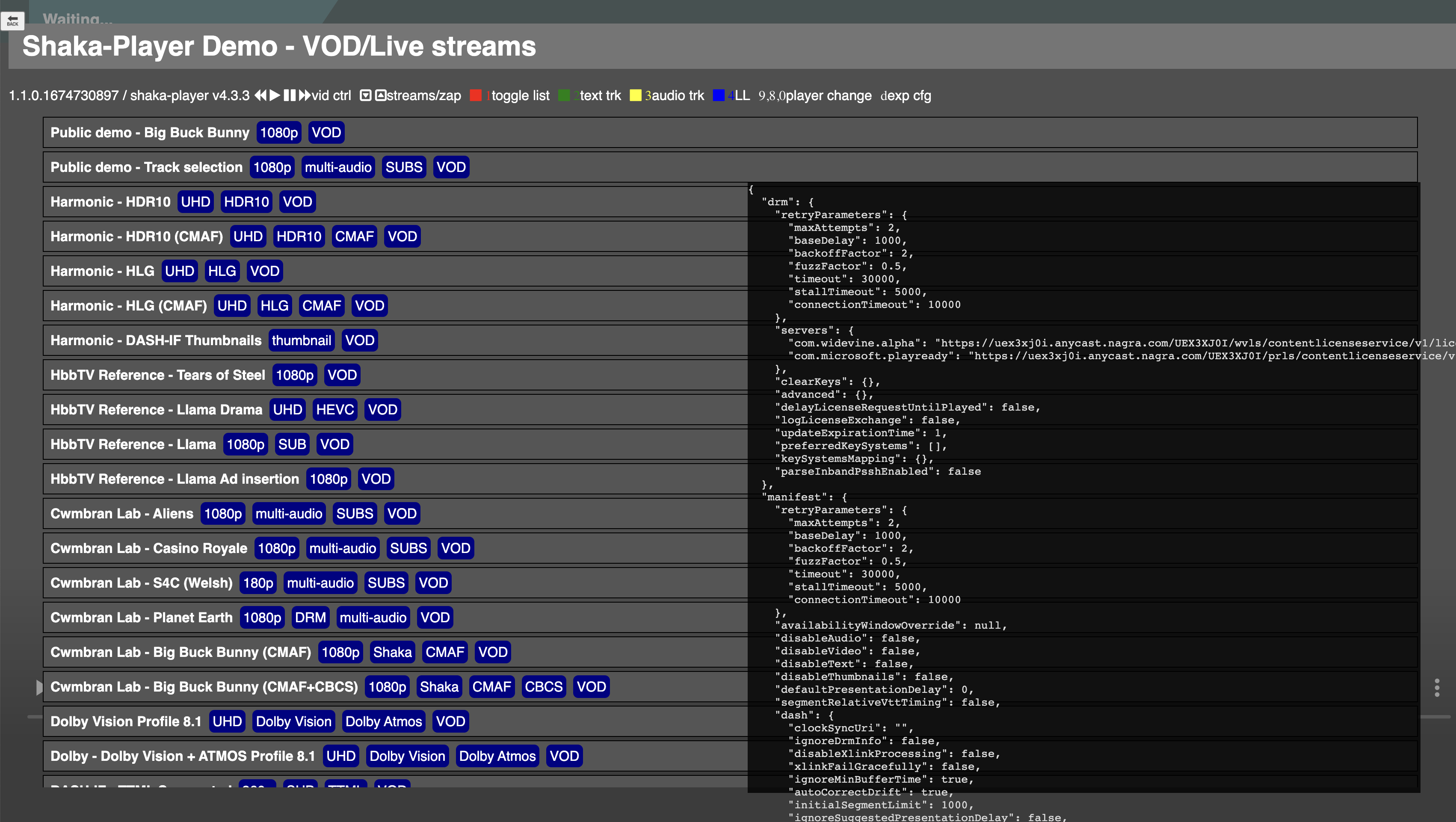
Configuration changes
The most basic configuration changes can be instigated through shortcuts. Full flexibility of configuration can only be controlled through the contents of a JSON file.
Player shortcuts
Different players can be enabled by pressing the following buttons on the remote control or keyboard, and the page will reload:
|
Key |
Player |
|---|---|
|
0 |
opy-sdk-js |
|
8 |
dash.js |
|
9 |
shaka-player |
Drag and drop
All configurations can be controlled via the flexible nature of a JSON structure. This ranges from the simplest choice of player engine to the fine granularity of Shaka-Player DASH.js timer lengths or thresholds.
Player engine selection
A simple case-sensitive string field reflecting your choice of player technology for the current context of the TVDemo:
-
Nagra CONNECT Player:
"opy-sdk-js" -
Shaka Player:
"shaka-player" -
DASH.js:
"dash.js"
Changing this will reload the page with the appropriate HTML and JS.
Session identification
Remote configuration session management; see TVDemo Remote Configurability
Watchdog interval
The interval length in milliseconds of the watchdog, which is useful to see regular clock timing events in the JavaScript engine when the Visual Timeline is used.
Visual Timeline
Attributes that affect the embedding of the Visual Timeline tool are within a sub-object called visualTimeline : Set show to true (enable) or false (disable). See TVDemo with Visual Timeline.
Reset on zap
Attributes that affect the use and behaviour of the experimental API are within a sub-object called resetOnZap : Set use to true (enable) or false (disable) and the timeout value to the number of milliseconds required.
Streams
This is broken down into sub-sections as follows:
-
DRM
The chosen DRM headend configuration, i.e.tenantId,baseUrletc. -
Live
A JSON array of live streams. -
VOD
A JSON array of VOD streams following the same structure as Live. -
OPF
The NAGRA OPF system can be queried to provide a list of live streams. This section specifies the OPF instance name, username and password credentials. When this section is fully populated, the TV Demo will reload and query the OPF instance for a list of live streams. You should reflect the suitable DRM headend configuration in the DRM section to play streams retrieved from OPF.Due diligence on the sensitivity of these credentials must be carried out.
OPF streams are considered instead of those which can be configured through the immediately previous Live and VOD sections which are discarded.
Parameters
Anything that can be changed by one of the embedded player engines can be changed through this route. The variety of settings is out of scope here as it will likely change as the players develop, but any parameters supported by the respective player are indirectly handled through this interface in their respective structures. The player-specific parameters must be within a block entitled to match your chosen player.
Shaka-Player
For more information, refer to the Shaka-Player documentation.
{
...
  "parameters": {
    "shaka-player": {
      "streaming": {
        "rebufferingGoal": 10,
        "inaccurateManifestTolerance": 20
...
opy-sdk-js
This follows the same structure as Shaka-Player due to their common heritage.
{
...
  "parameters": {
    "opy-sdk-js": {
      "streaming": {
        "rebufferingGoal": 0,
        "inaccurateManifestTolerance": 0
...
DASH.js
For more information, refer to the DASH.js documentation.
{
...
  "parameters": {
    "dash.js": {
      "debug": { "logLevel": 4, "dispatchEvent": false },
      "streaming": {
        "abandonLoadTimeout": 10000,
        "wallclockTimeUpdateInterval": 100,
        "manifestUpdateRetryInterval": 100,
        "cacheInitSegments": false,
...
Exporting configuration
When used in a desktop browser, the d key can export the current configuration to a file that will appear in your local Downloads folder. You can archive, share or further adapt the configuration to import again.
Re-importing previously archived configuration is only supported when the export and import are carried out on matching versions of the TVDemo tool.
Additional information in the export
The exported JSON file contains a few other pieces of information which may be helpful when sharing or archiving configurations. This indicates where and when it was exported, for example:
{
  "exported": {
    "at": "Thu, 26 Jan 2023 13:45:19 GMT",
    "from": {
      "url": "https://otvplayer.nagra.com/internal/tvdemo/integration/1.1.0.1674730897/build/",
      "tvDemoVersion": "1.1.0.1674730897",
      "playerVersion": "opy-sdk-js v5.15.0.1673011359",
      "userAgent": "Mozilla/5.0 (Macintosh; Intel Mac OS X 10_15_7) AppleWebKit/537.36 (KHTML, like Gecko) Chrome/109.0.0.0 Safari/537.36"
    }
  },
...