
Stream selection
The first view of the TVDemo App renders a title bar and a list of the configured selectable streams. Each stream has tags highlighting the specific features exercised by the stream. Using the remote control ⬆️ / ⬇️ buttons, a user can highlight the stream they want to play.
Video playback
When ready, the remote control 🆗 button makes the selection and plays the stream.
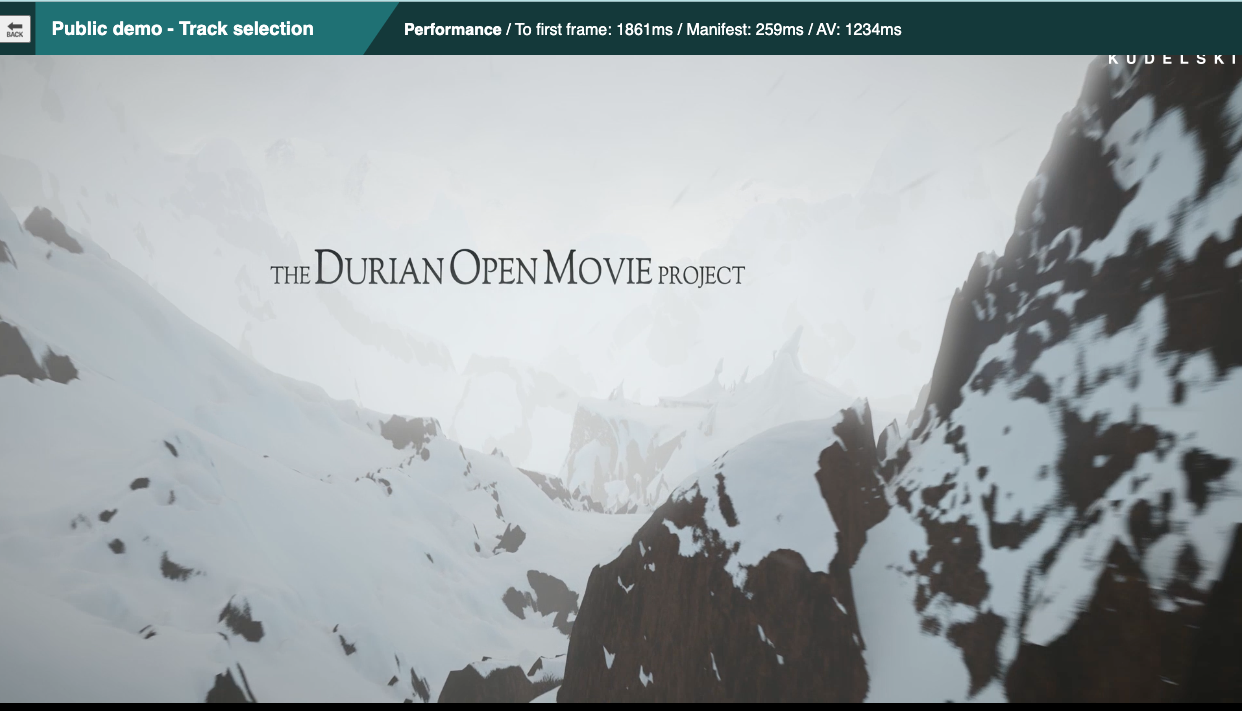
Key performance event timings are displayed on the title bar.
The title bar will be red if an error has been observed.
Remote Control Key operations during playback
-
red Toggles the visibility of the stream list overlay
-
green Cycles through subtitle tracks if available
-
yellow Cycles through audio tracks if available
-
blue Toggles low latency mode - it will take effect on the next zap to a live stream
-
⬆️ / ⬇️ Zaps to the next/previous stream or navigates the stream list menu
-
⬅️ / ➡️ or ⏪ / ⏩ Seek ±30 seconds
-
⏸ / ▶️ Pause/Resume
Advanced features
Two QR Codes are displayed to allow interaction with other services.
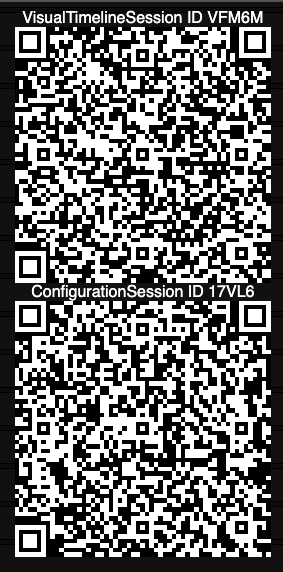
Configuration
When pairing with the Configuration Companion Service, the QR labelled with ConfigurationSession ID is important. Refer to the specific TVDemo Configurability section.
Visual Timeline
When pairing with the Visual Timeline, the QR labelled with VisualTimelineSession ID is important. Refer to the specific TVDemo with Visual Timeline section.