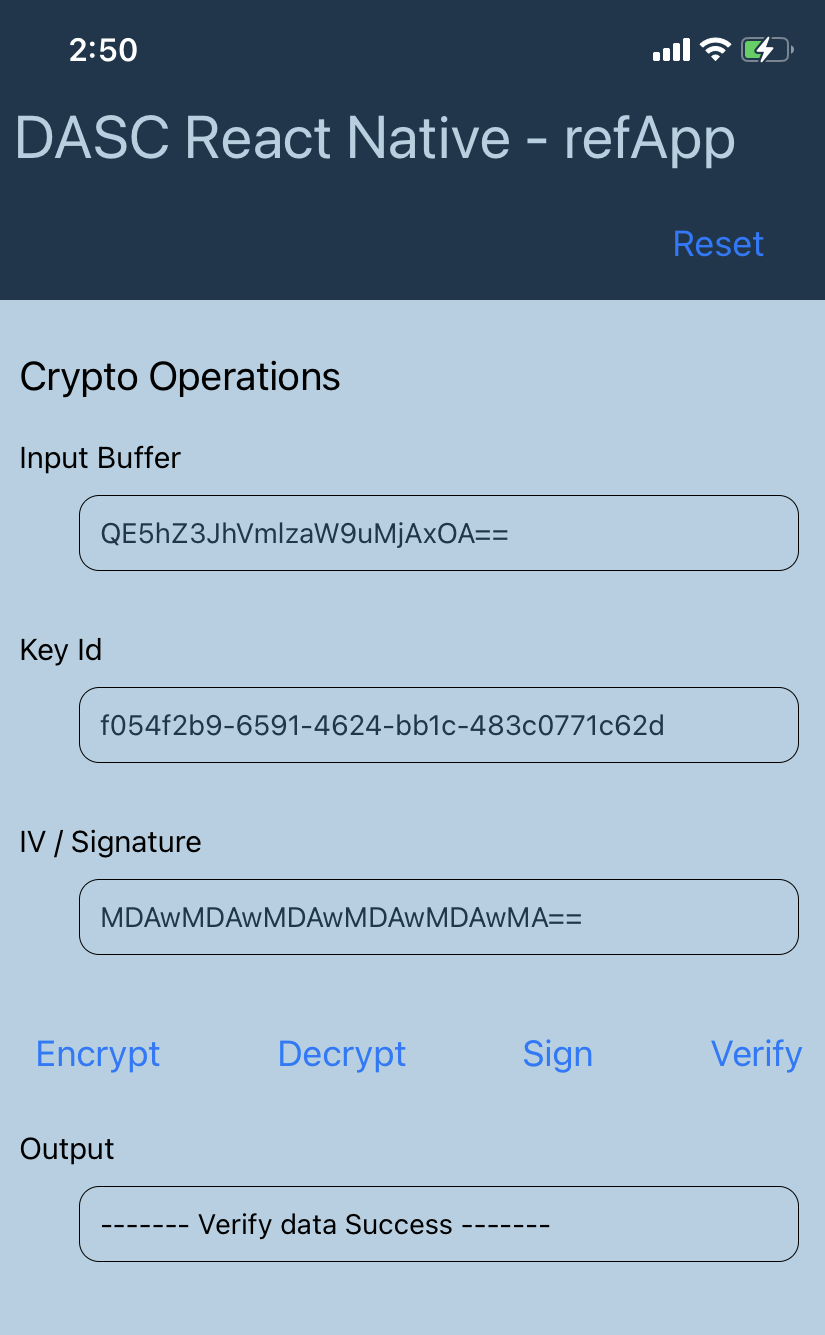
The Android and Apple (iOS/tvOS) Reference Applications for the DAS React Native Client SDK look like this:
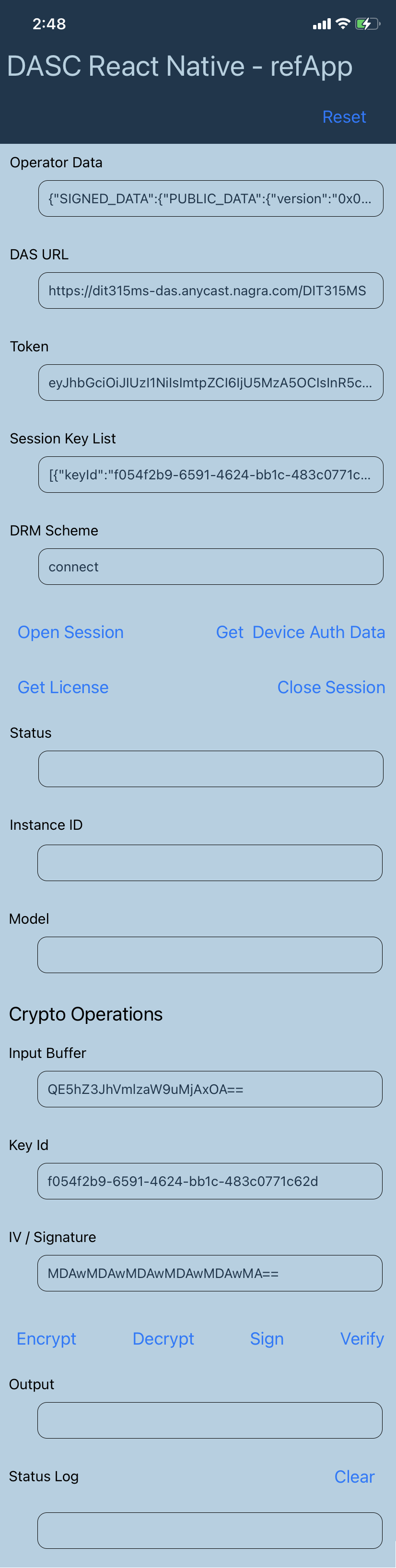
The text fields are pre-populated with input data which can be edited.
Initialisation and Session Management
To open a new session that can be used in subsequent operations, click Open Session.
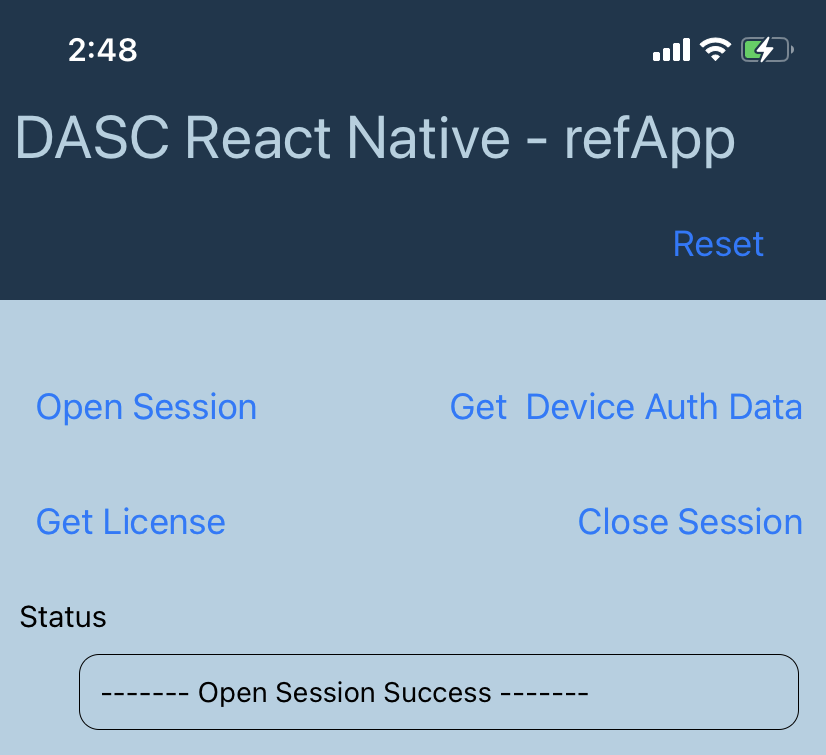
The status of the Open Session operation is displayed in the Status field.
Get Challenge and Authenticate device
To obtain the challenge used for secure communication with the backend, click GET Device Auth Data. This operation will also communicate with the backend using this challenge, Gateway URL in DAS URL text field and token in Token text field to authenticate the device.
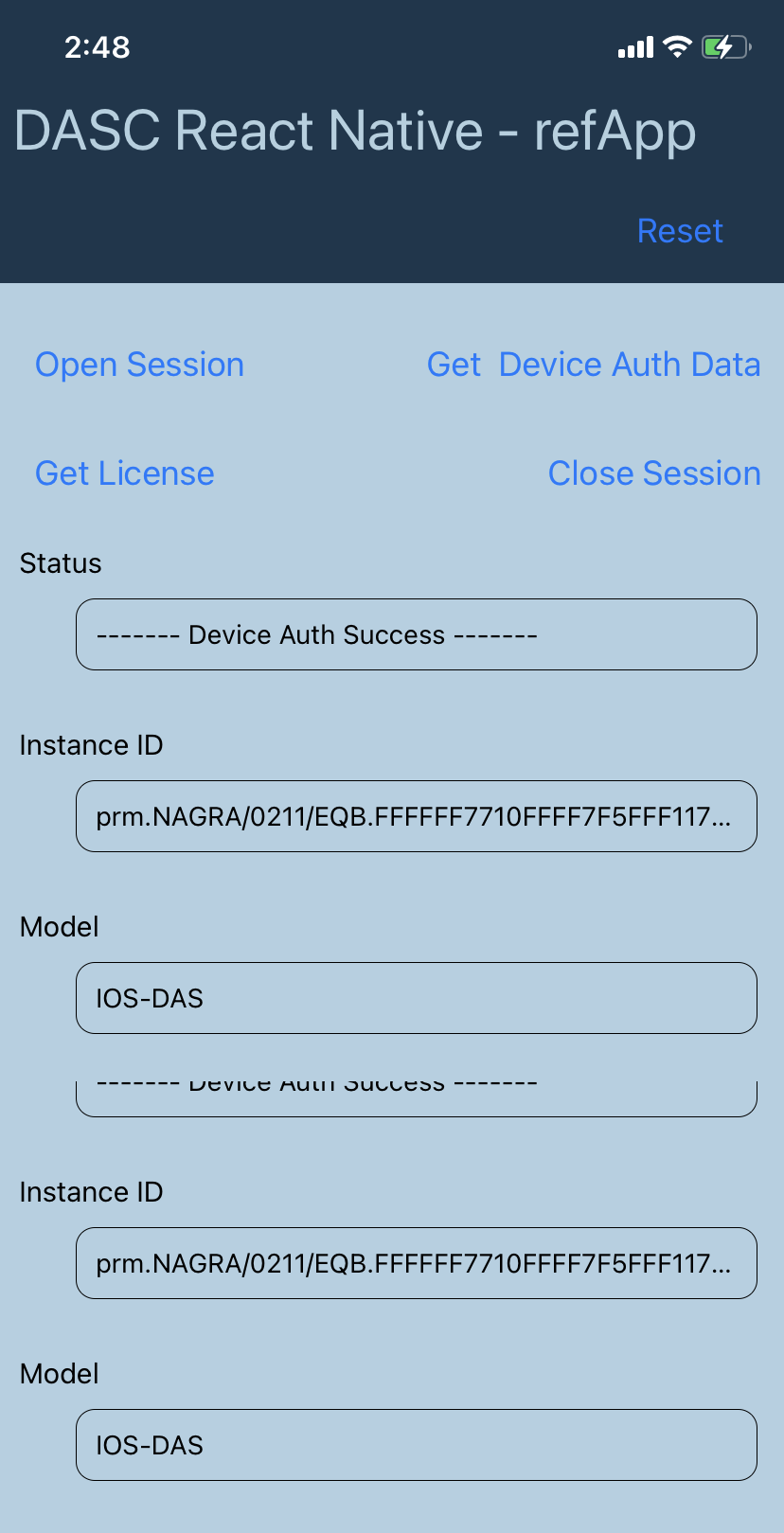
The resulting Model Id and Instance Id are displayed in the Instance ID and Model text fields respectively.
Secure Key Exchange and License Import
Once the device is authorised, click Get License to perform key exchange via the Gateway on behalf of the DAS service and import the encrypted session right obtained from the key exchange.
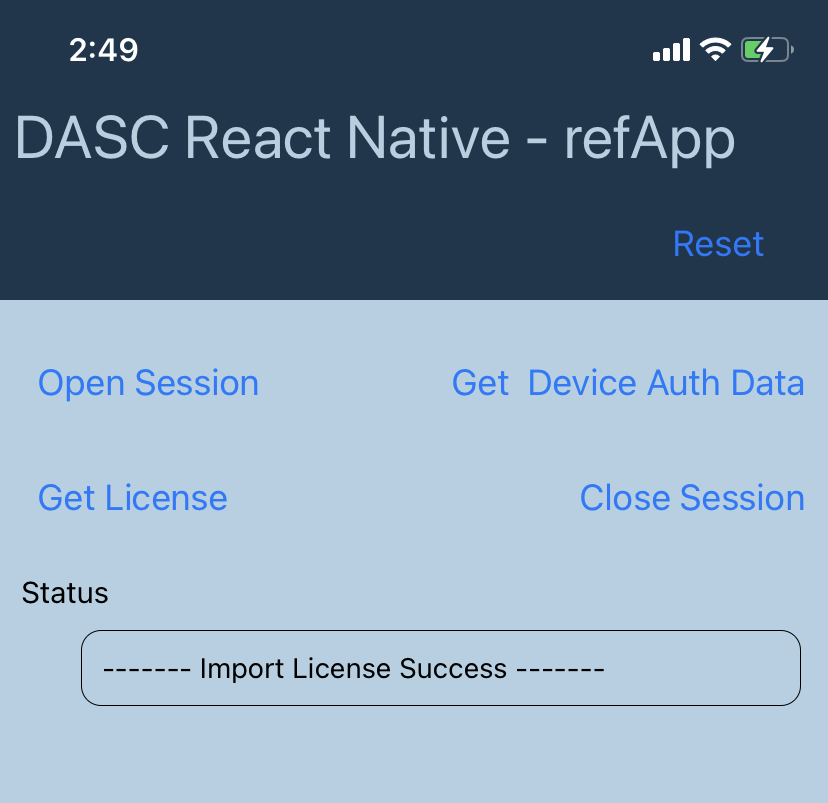
The status of the Get License operation is displayed in the Status field.
Encrypt/Decrypt
To encrypt the data in the Input Buffer text field using the key in the Key Id text field and IV in the IV/Signature text field, click Encrypt.
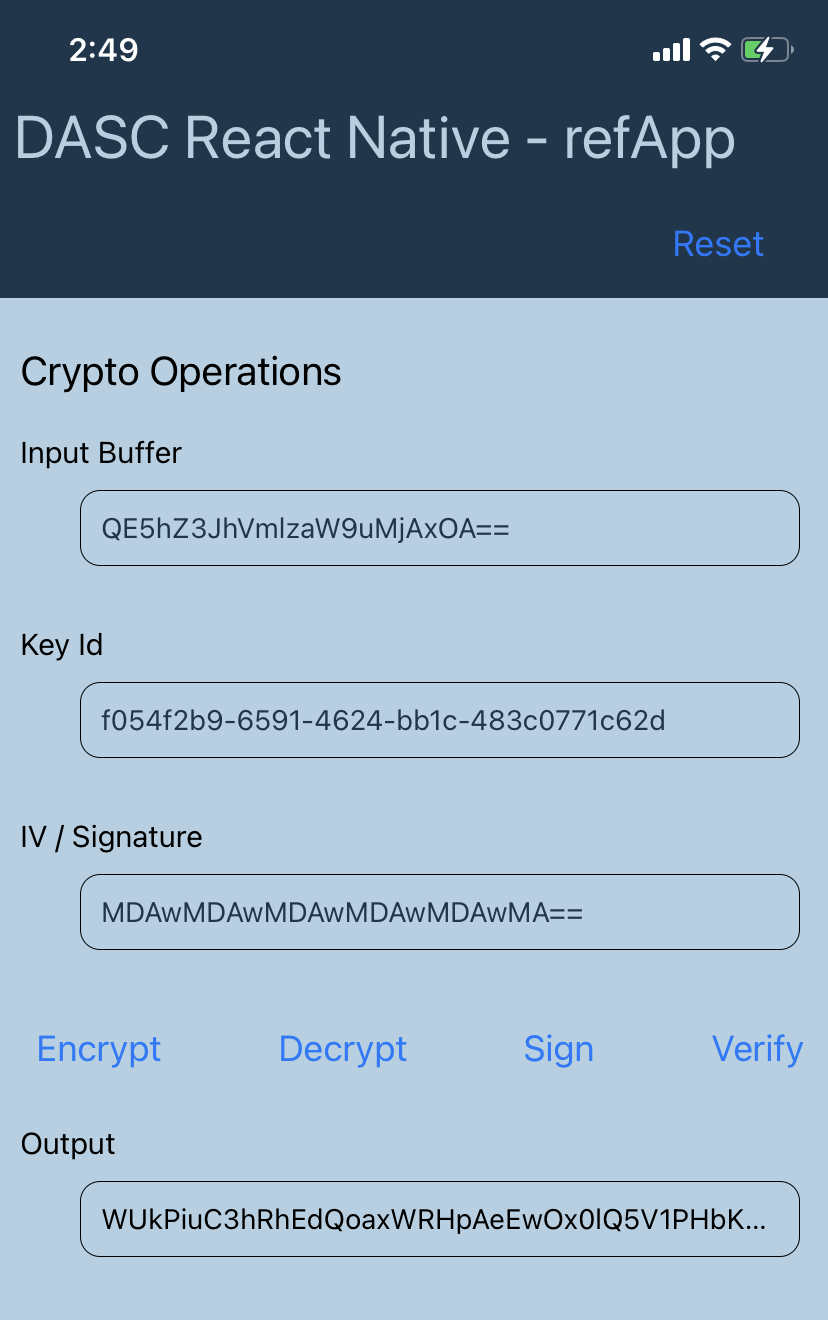
Encrypted buffer data is displayed in the Output text field.
To decrypt the Encrypted buffer data back to the original input using the same key (in the Key Id text field) and IV (in the IV/Signature text field) used for encryption, click Decrypt.
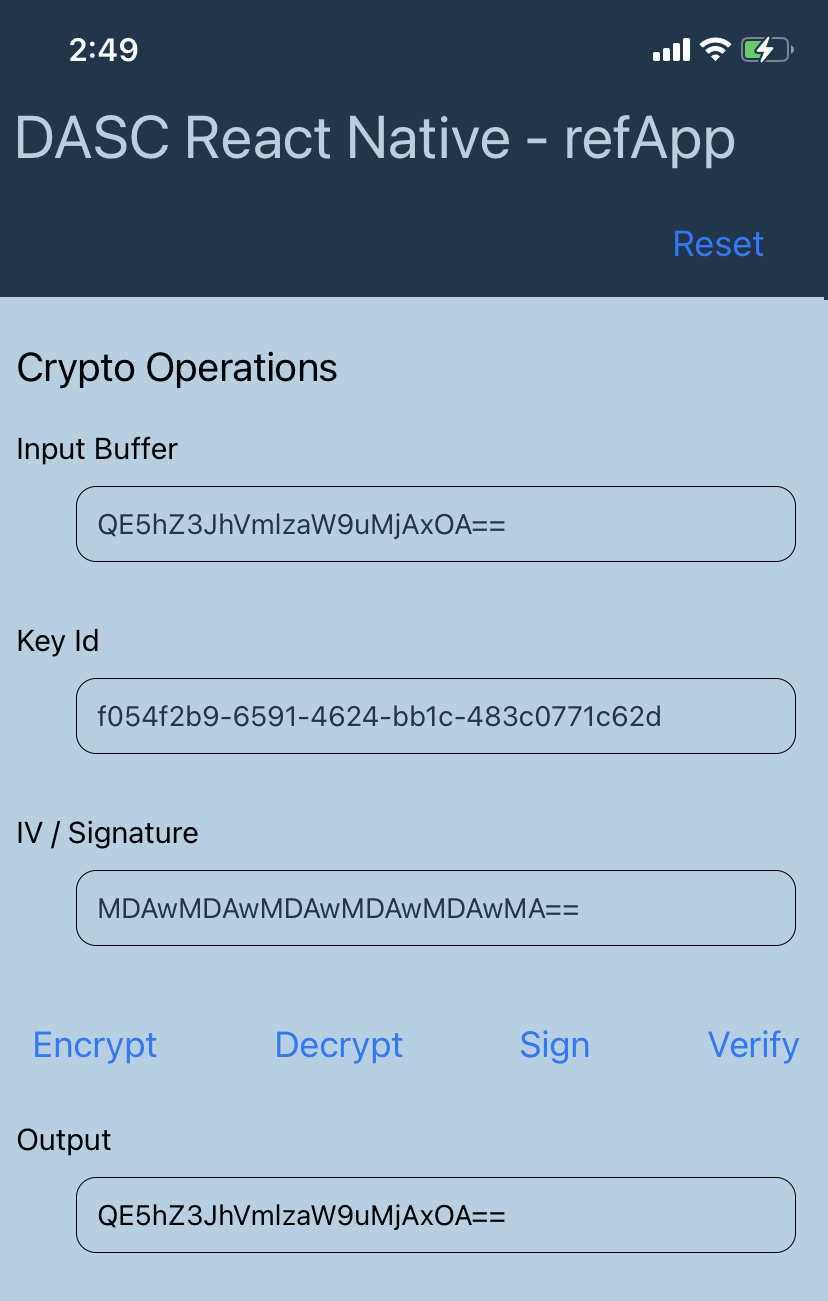
The original input data is displayed in the Output text field.
Sign/Verify
To get the signature data using input data in the Input Buffer text field and key in the Key Id text field, click Sign.
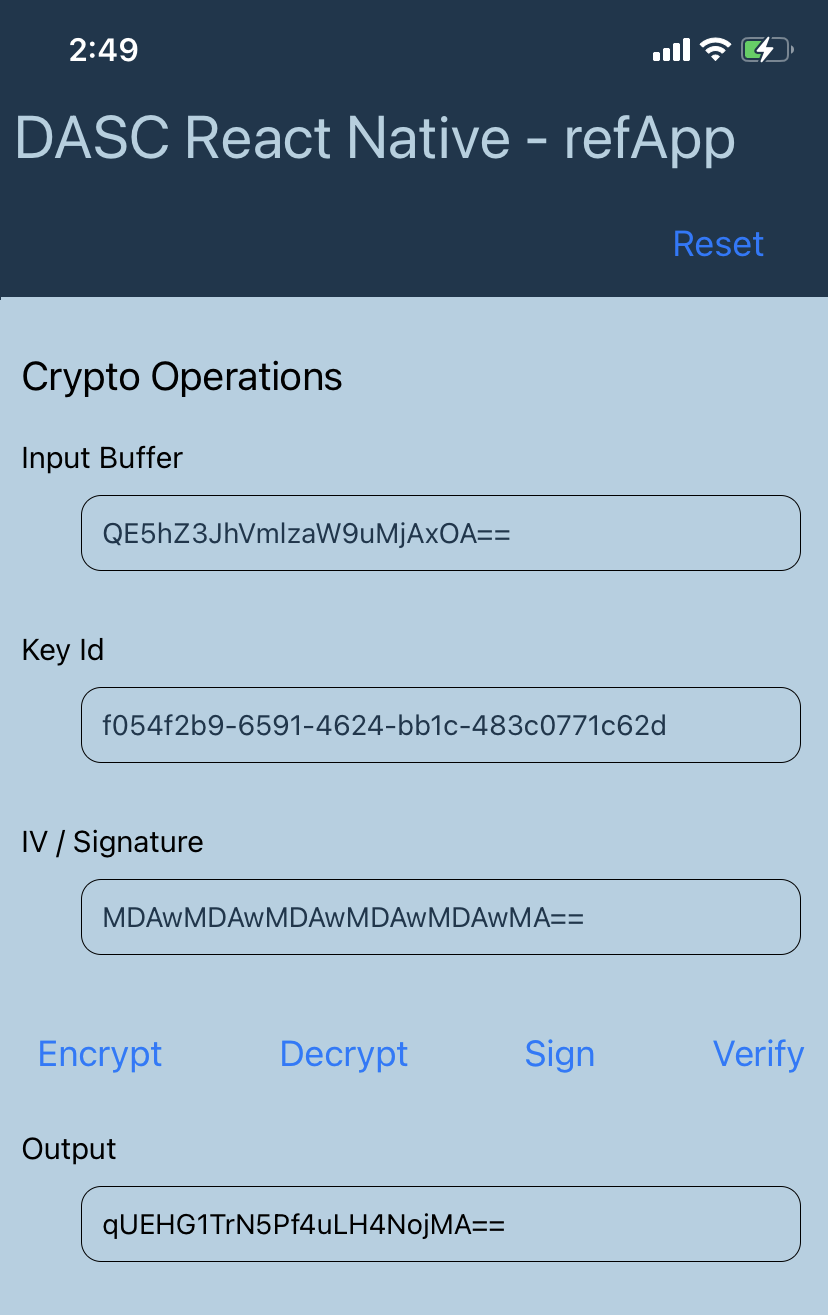
Signature data is displayed in the Output text field.
To verify and ensure that signature is correct, click Verify.