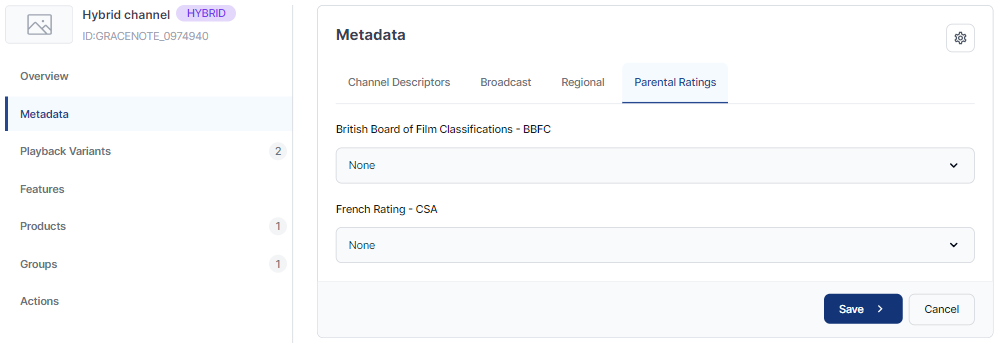
To view metadata details for a channel:
-
Open the Channel Management app.
-
Select the required channel from the channel list.
-
Click Metadata in the sidebar.
The channel metadata is displayed in the following tabs:
-
Channel Descriptors
-
Broadcast
-
Regional
-
Parental Ratings
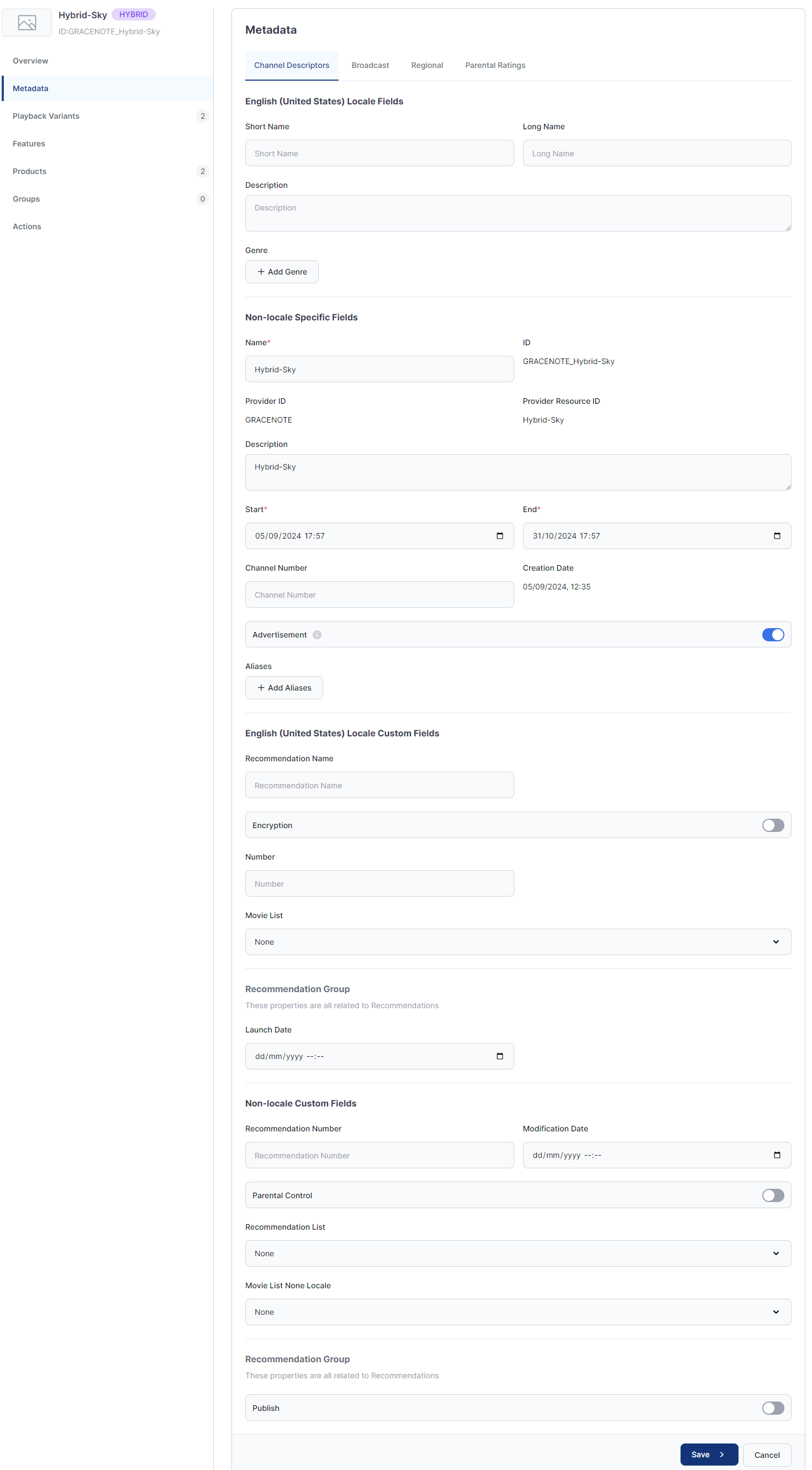
Channel Descriptors
The Channel Descriptors tab shows the basic channel information. From here, you can add, edit, or delete channel metadata.
Channel aliases
OpenTV supports the use of channel aliases to enable channel search by alias. This feature is particularly useful for channel selection by voice.
You can add, edit, or delete aliases under Non-locale Specific Fields on the Channel Descriptors tab.
Edit channel descriptors
To add, edit, or delete channel descriptors:
-
Click Edit Basic Information.
-
Make the required changes.
-
Click Save.
Broadcast
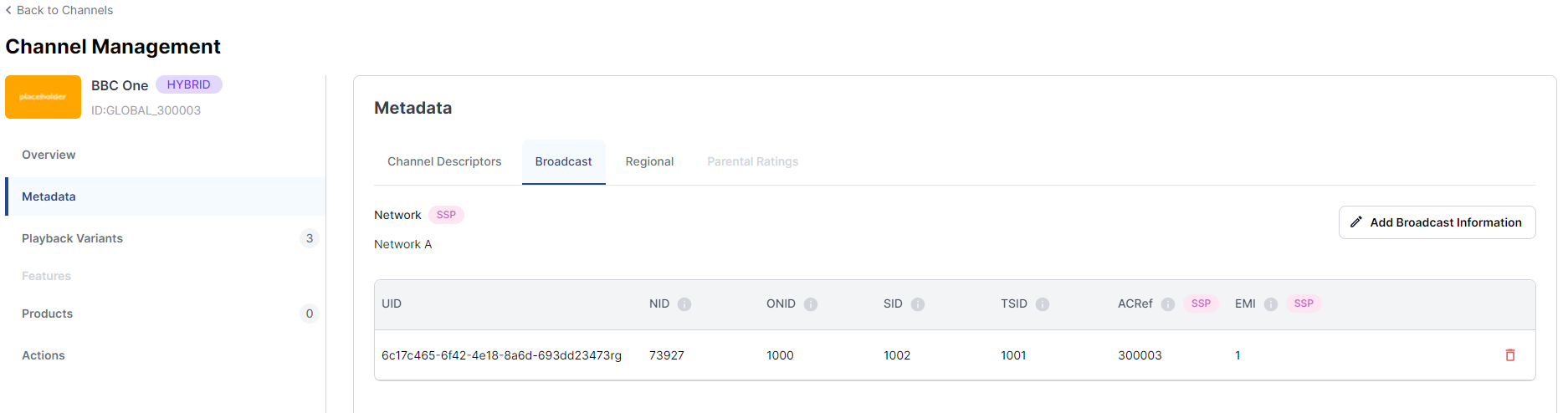
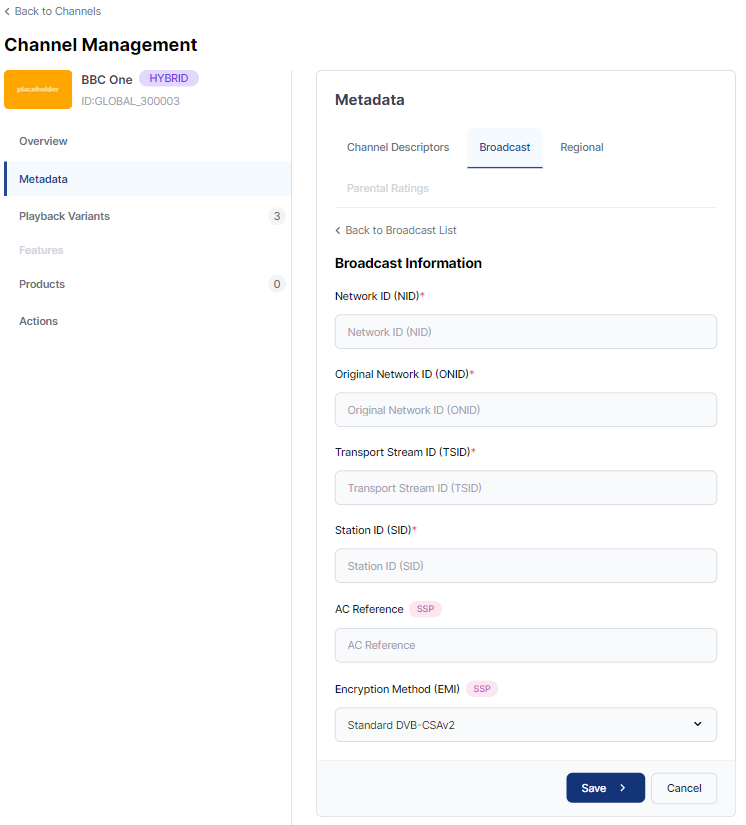
The Broadcast tab shows a list of broadcast information for the channel, where applicable.
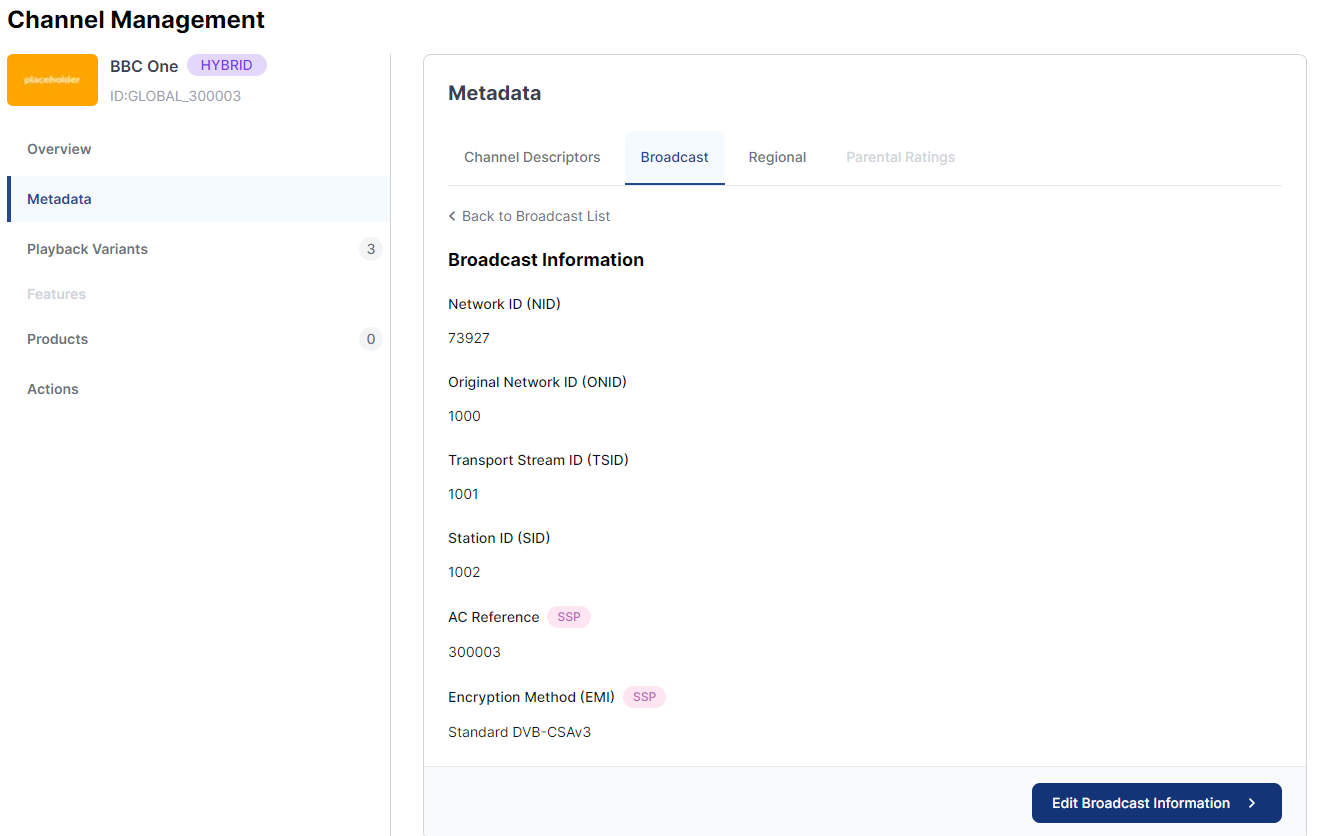
To view detailed broadcast information, click on the relevant row.
To add a new row, click the Add Broadcast Information, enter the details, and click Save.
See Create a new channel for detailed guidance.
Edit broadcast information
To edit broadcast information:
-
Click Edit Broadcast Information.
-
Make the required changes.
-
Click Save.
See Create a new channel for detailed guidance.
Regional
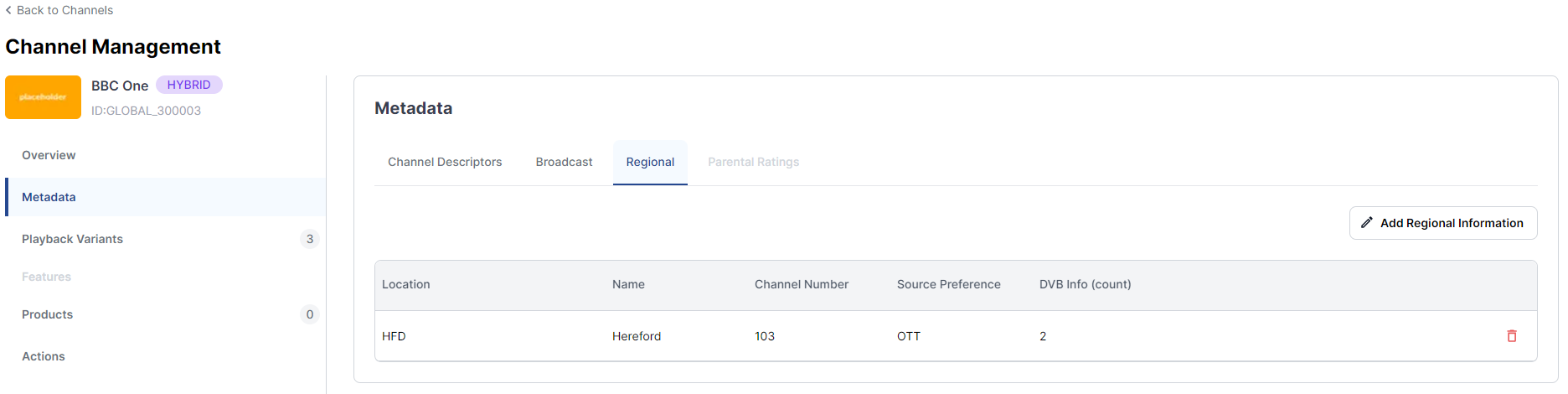
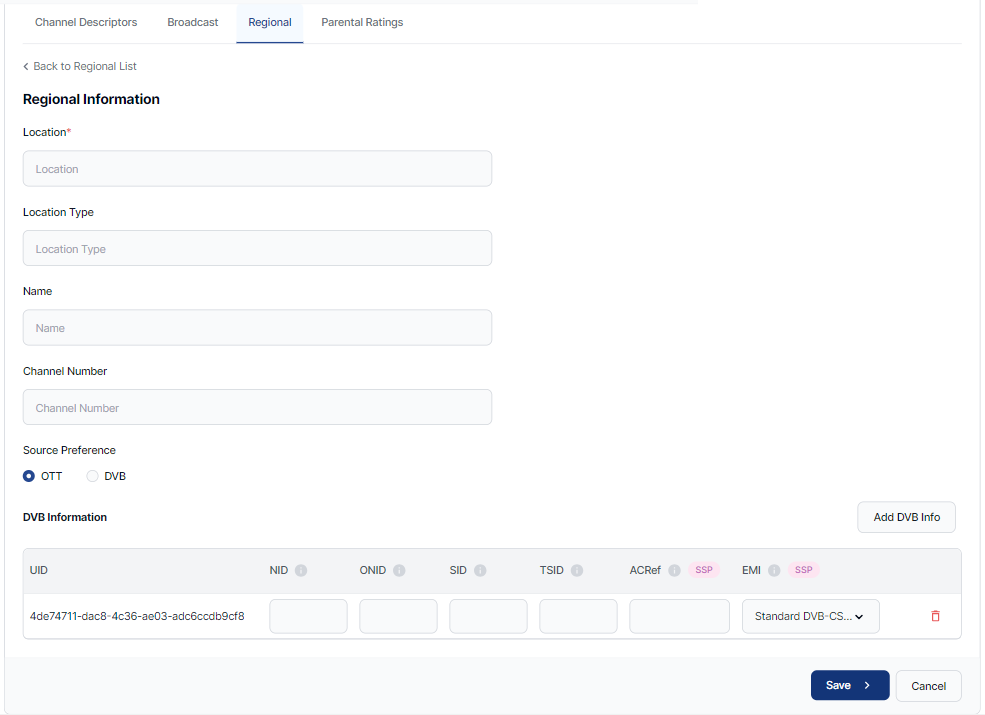
The Regional tab shows a list of regional information items for the channel. You can view, add, edit, or delete regional information.
View regional information
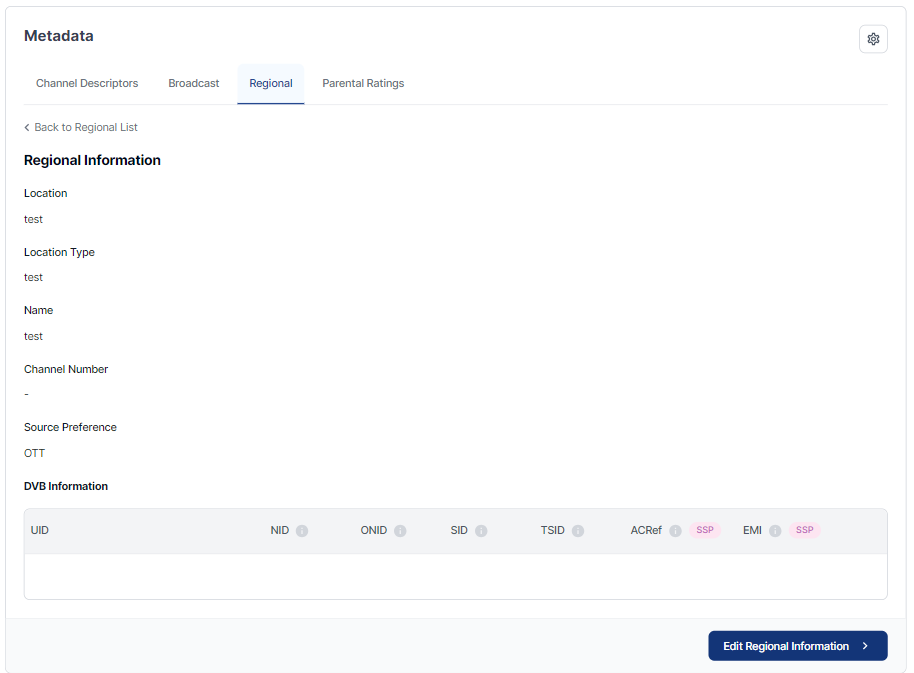
To view detailed regional information, click on the relevant row.
Add regional information
To add regional information to a channel:
-
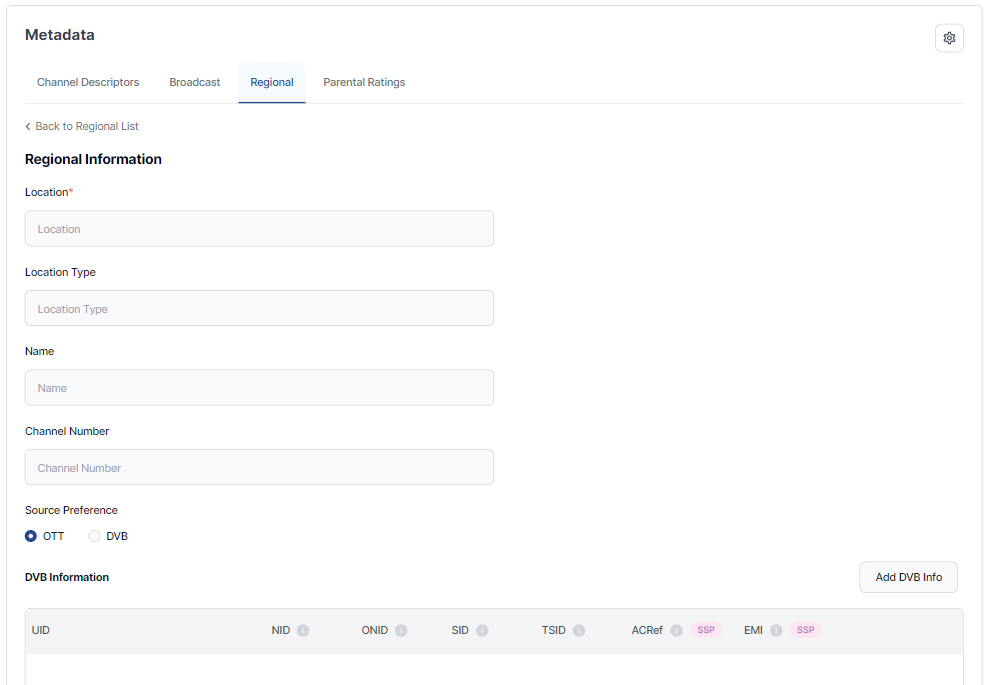
To add a new regional information item, click the Add Regional Information button. You can use the information in the table below to help you complete the fields.
-
To add additional regional variants, repeat this process.
|
Field |
Definition |
Info |
|---|---|---|
|
Location |
Region, for example Cardiff. |
|
|
Location Type |
|
|
|
Name |
Channel name as displayed to the end user, for example BBC1 Wales. |
|
|
Channel Number |
|
|
|
Source Preference |
Defines the intended way that the channel will be distributed to end users. The options are: |
|
|
|
OTT
|
OTT may be preferred for a variety of reasons, including higher quality. |
|
|
DVB
|
DVB may be preferred where there are bandwidth constraints or a need to limit the amount of traffic in that region. |
Edit Regional information
To edit regional information:
-
Click Edit Regional Information.
-
Make the required changes.
-
Click Save.
See Create a new channel for detailed guidance.
Add DVB information to an existing channel
To add DVB information:
-
Click Add DVB Info.
-
Make the required changes.
-
Click Save.
See Manage DVB information for more detailed guidance.
Parental Ratings
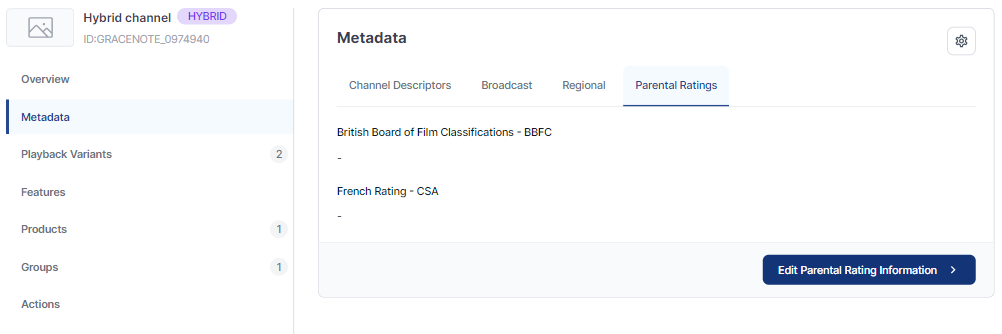
The Parental Ratings tab shows the relevant classification/rating for the channel.
Edit parental ratings
To edit the parental ratings for the channel:
-
Click Edit Parental Rating Information.
-
Select the required options from the dropdown lists.
-
Click Save.