
Assign a user to a role
User permissions are managed by assigning users to roles. To assign a user to a role:
-
Open the Permissions Management app.
-
Select the Roles tab.
-
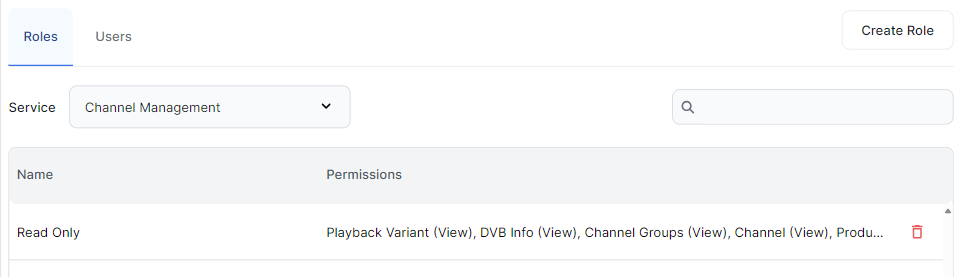
Select the relevant service from the Service dropdown list to display a list of roles relating to the service.
-
Click on the role to which you want to assign a user.
-
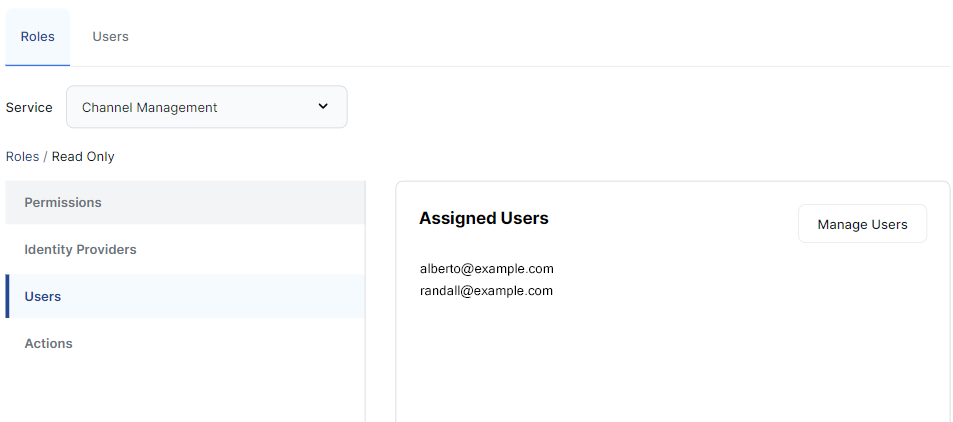
Select the Users option in the sidebar menu. A list of assigned users is displayed.
-
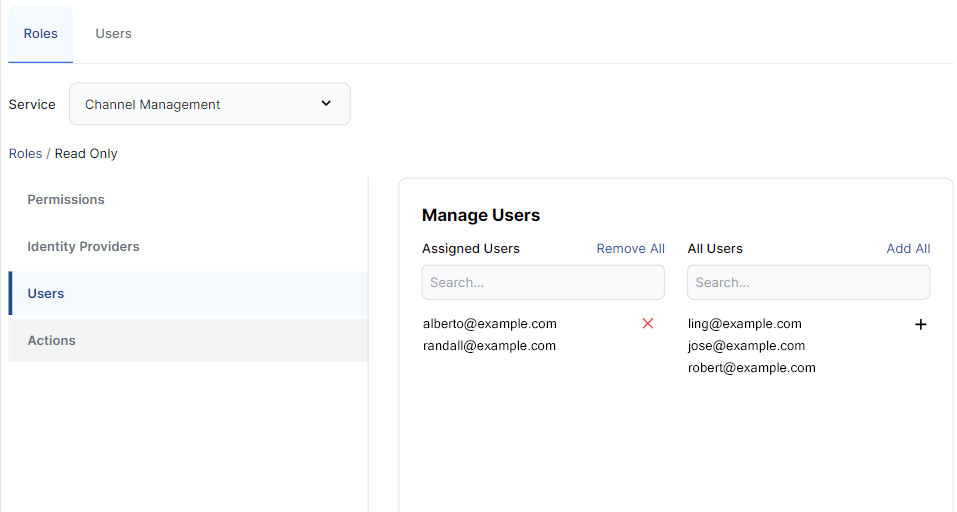
Click Manage Users to view the Manage Users page. Users already assigned to this role are listed on the left. All other users are listed on the right.
-
To assign a user to the role, find the user in the All Users list and click the plus icon + next to their username. The user will appear in the Assigned Users list.
-
Click Review to view your changes.
-
To confirm the changes, click Save.
Remove a user from a role
To remove an assigned user from a role:
-
Follow steps 1-6 above to open the Manage Users page for the selected service.
-
Find the user in the Assigned Users list and click the red x icon next to their username. The user will be removed from the Assigned Users list and returned to the All Users list.
-
Click Review to view your changes.
-
To confirm the changes, click Save.