
Preview mode enables you to visualise how layouts will look in the app, based on their active and scheduled dates/times.
To open the preview mode, click the Preview button at the top right of the layout screen.
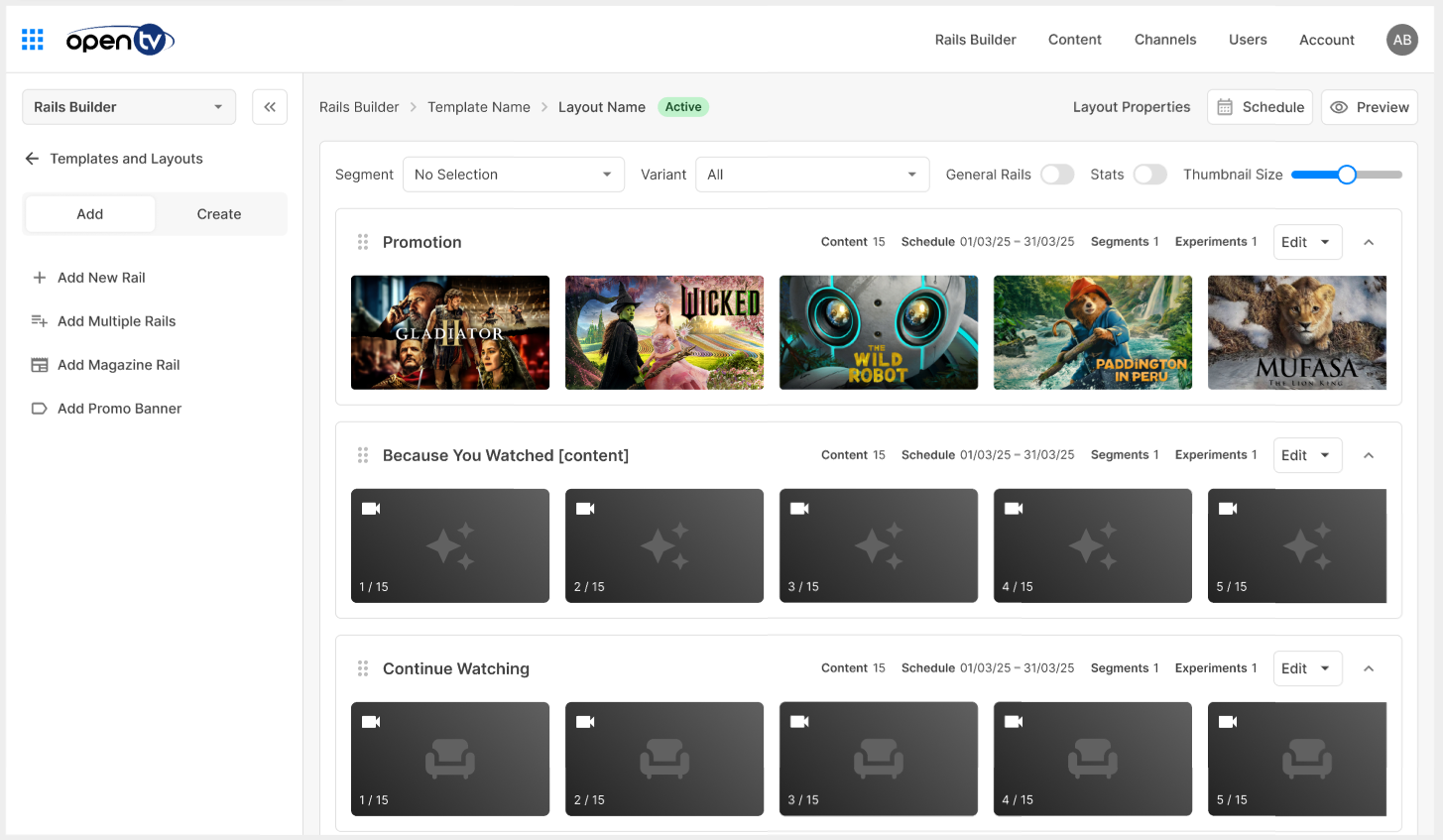
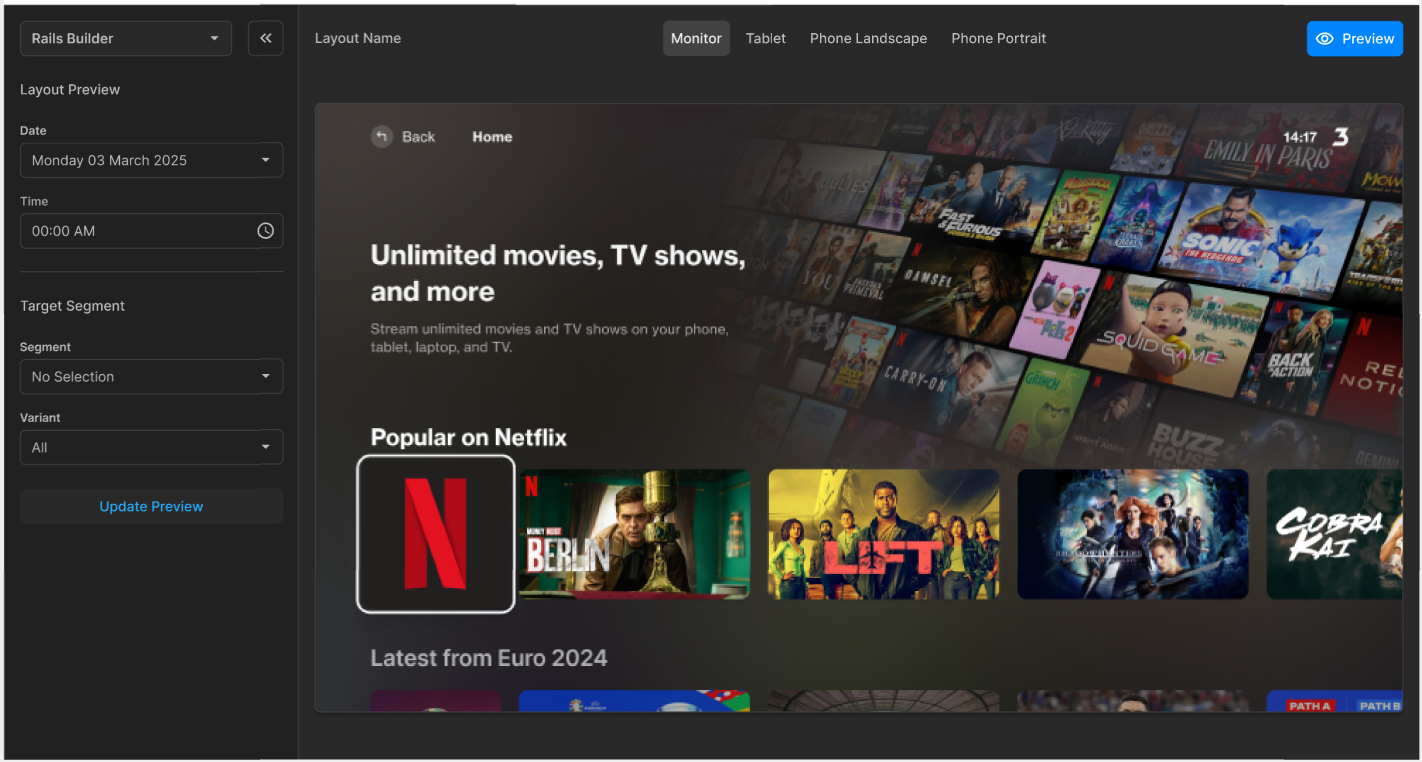
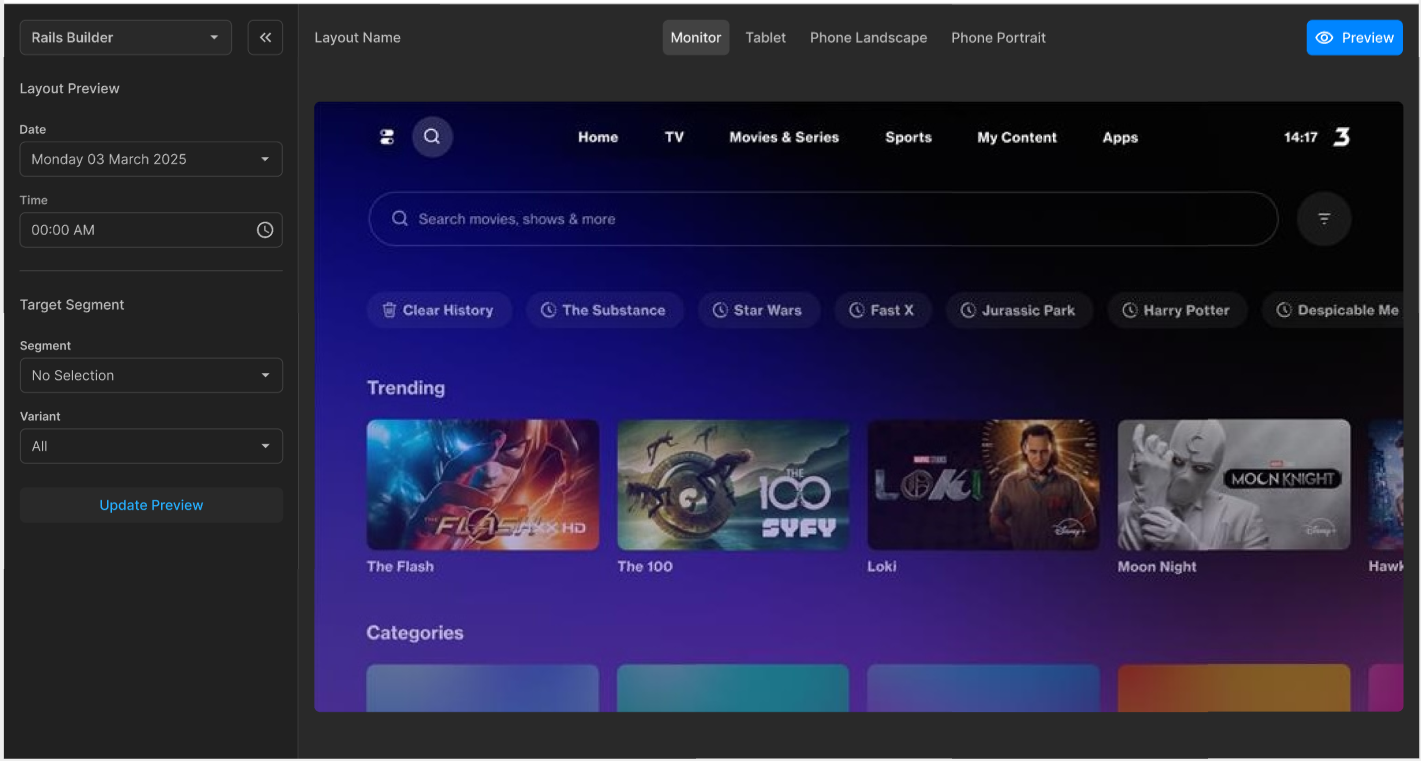
Note that the preview starts on the TV app landing page, so you may need to navigate to the required rails using the TV app navigation.
You can select options in the sidebar to:
-
Preview how a layout will look on any future date and time
-
Preview how a layout will look to different target segments and variants that are part of a segment targeting experiment
When you have made your selections, click Update Preview.
Device formats
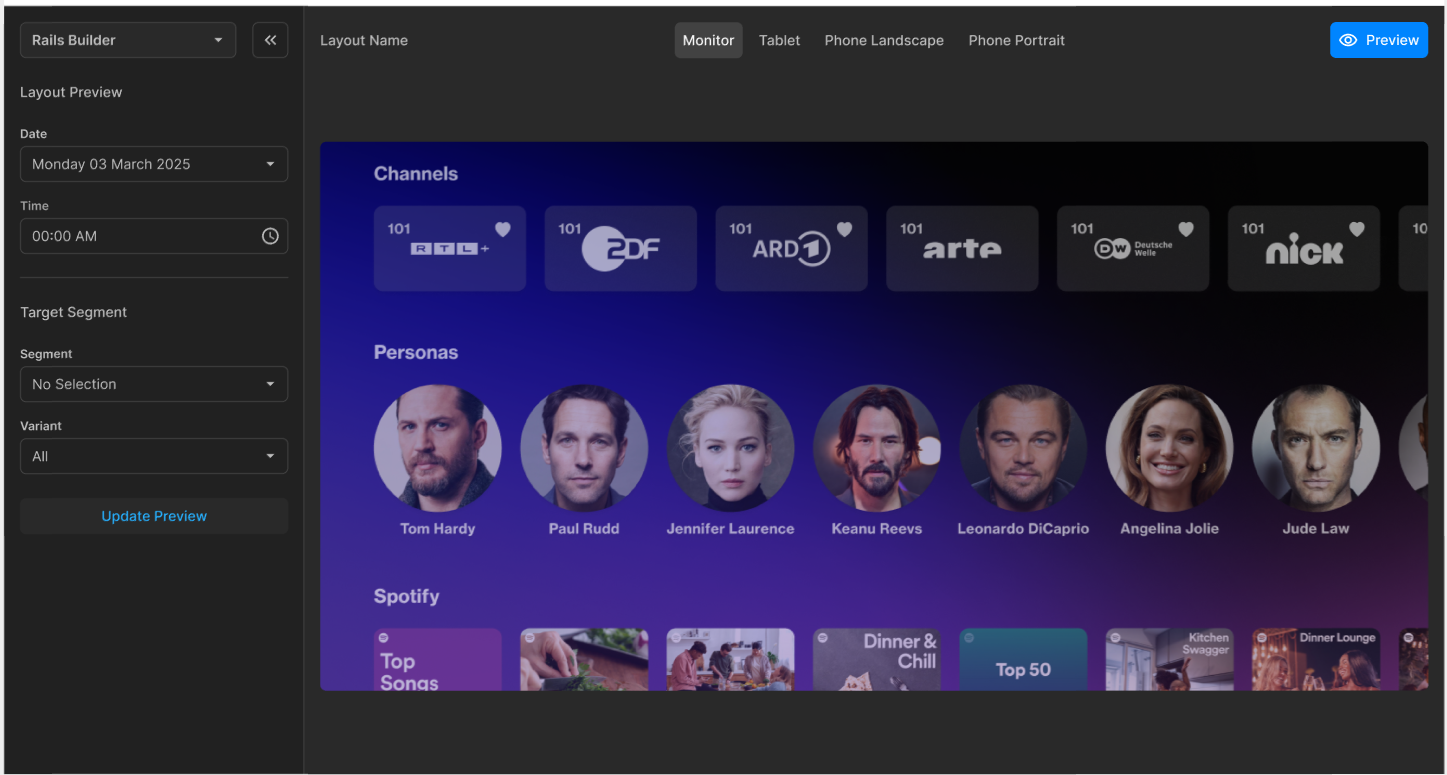
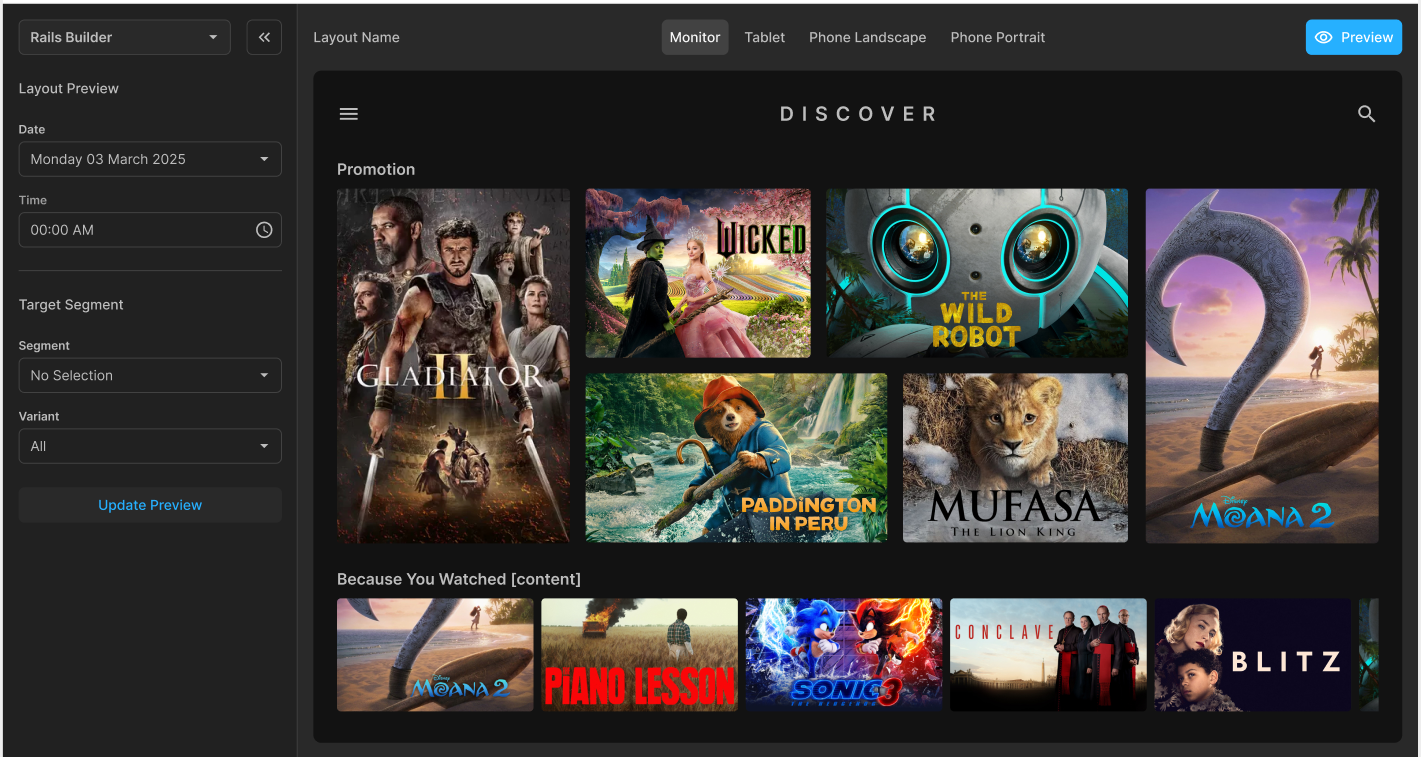
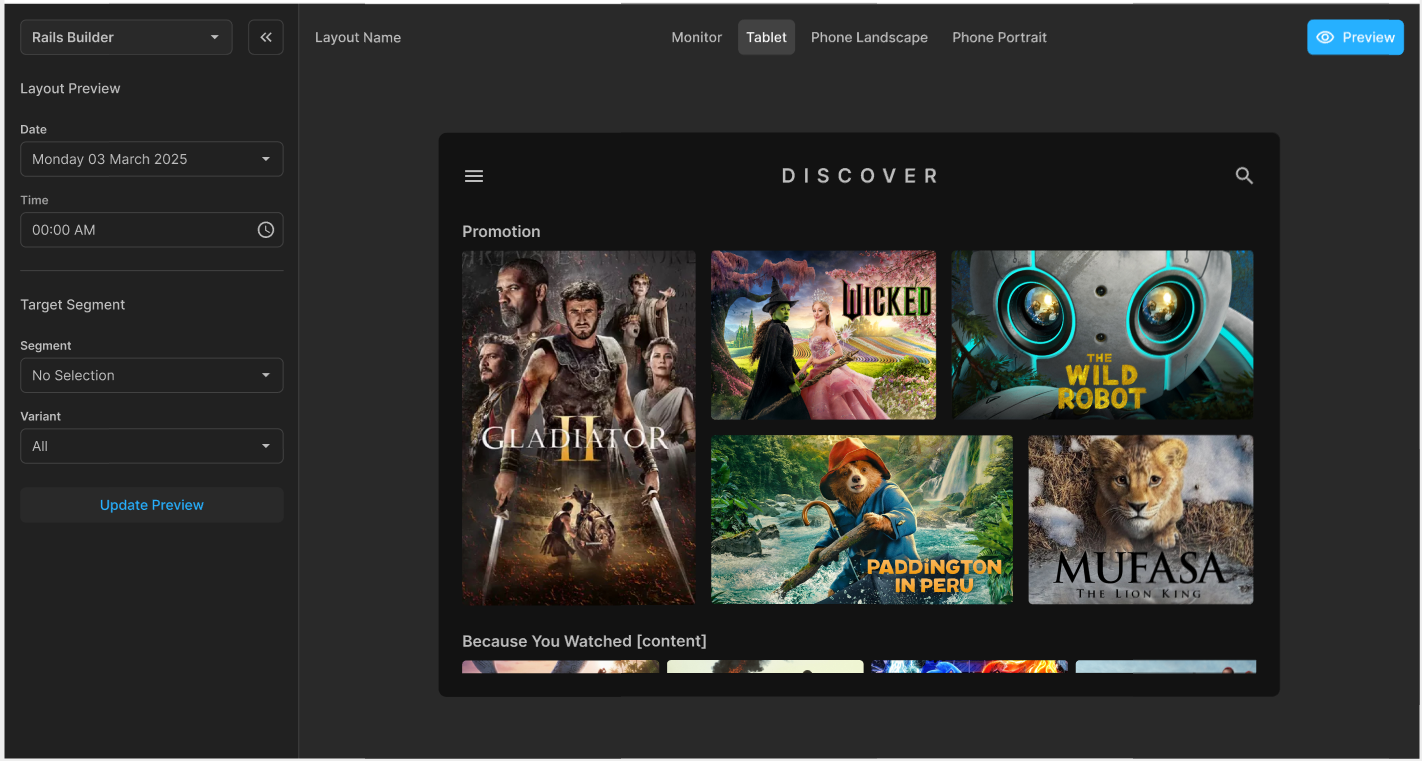
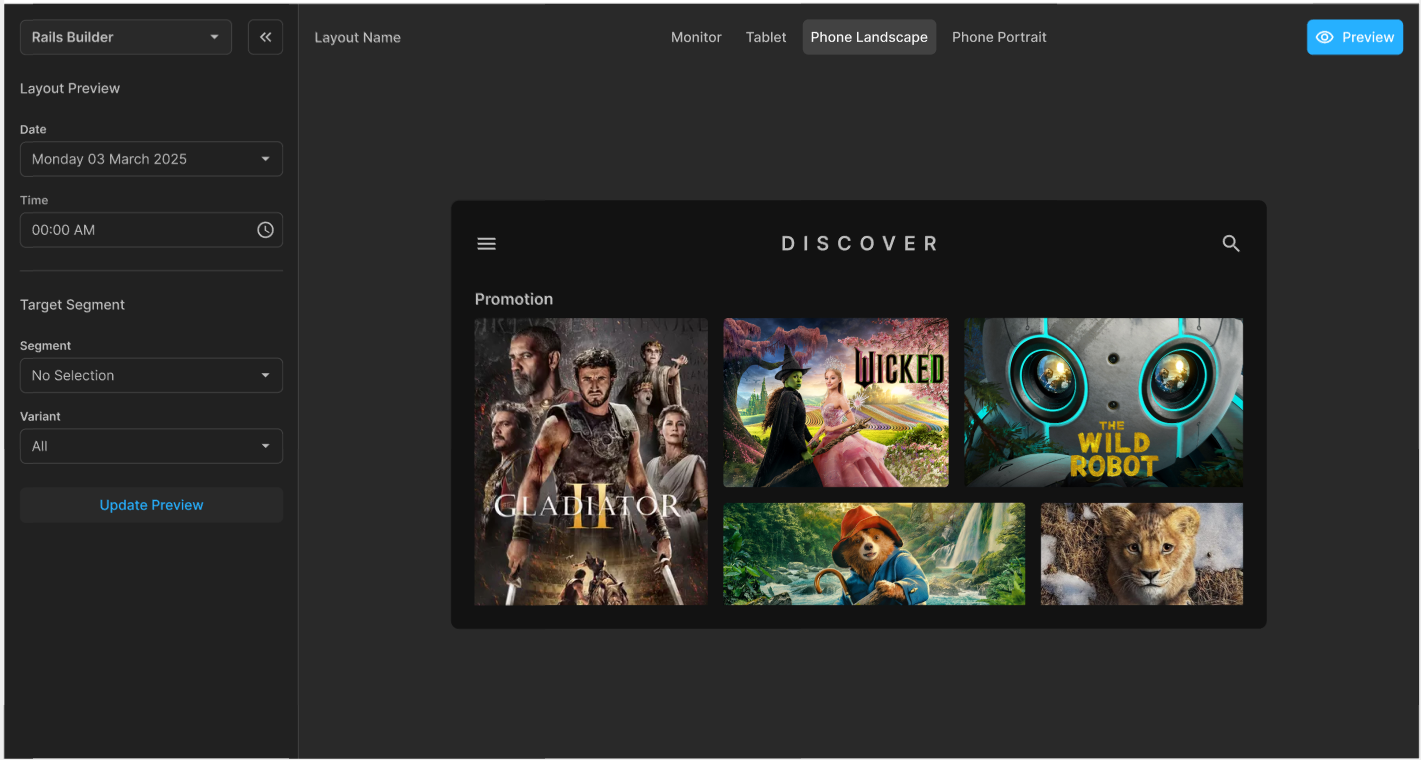
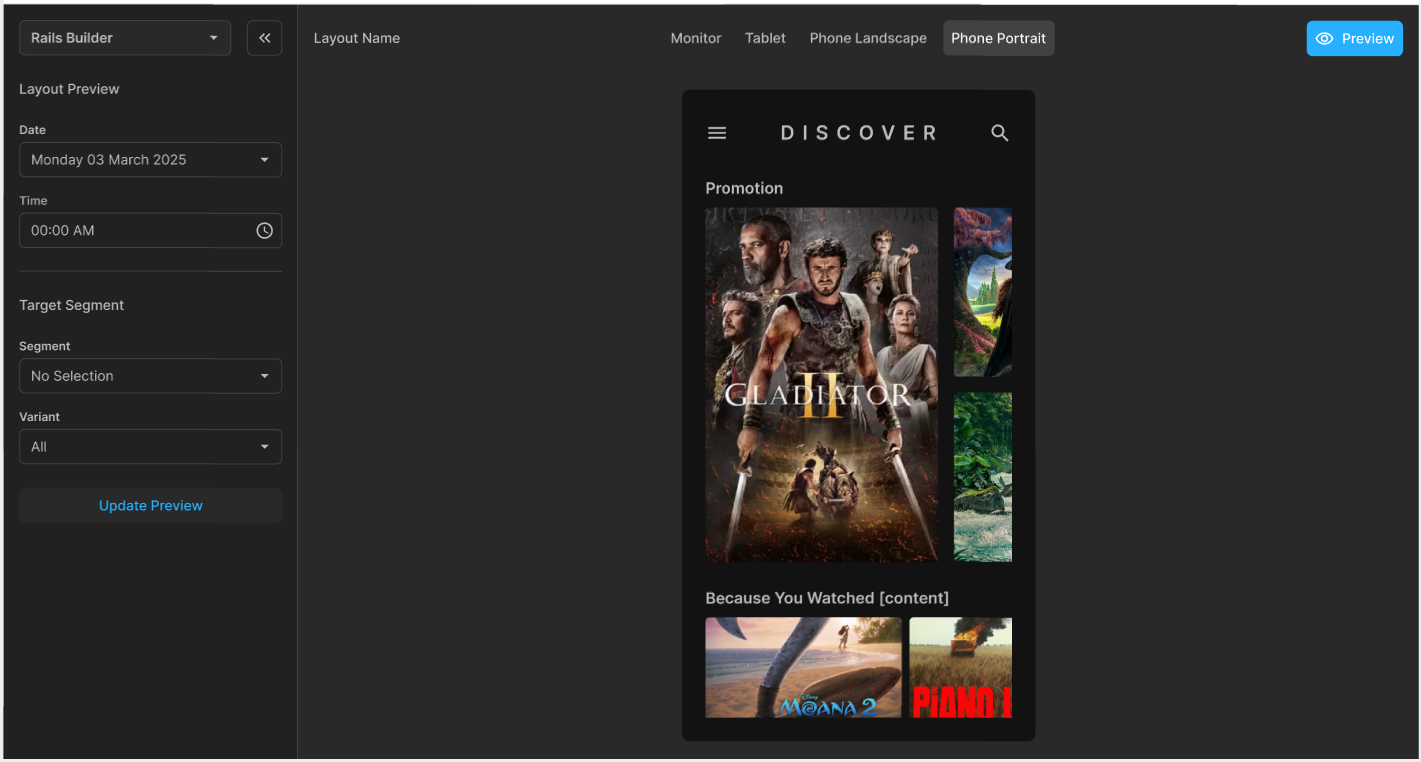
Preview mode also enables you to see how the layout will appear in different device formats.
You can select a device format using the tabs at the top of the screen:
-
Monitor
-
Tablet
-
Phone Landscape
-
Phone Portrait
To close the preview and return to the Rails Builder layout screen, click the blue Layout button at the top right of the screen.