Delete a product
There are different ways to delete a product, depending on which page you are on within the Product Management app.
Delete a product via list view
To delete a product via the product list view:
-
Open the Product Management app to view the product list.
-
Select the Trashcan

-
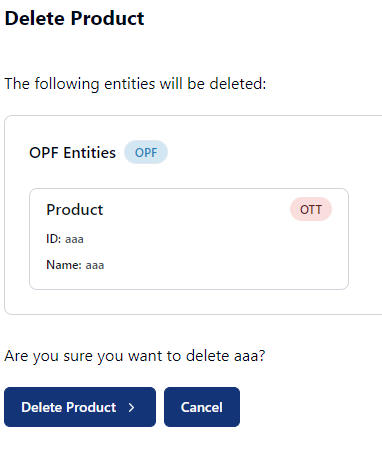
Click the Delete Product button on the confirmation popup.
Delete a product via details view
To delete a product via the product details pages:
-
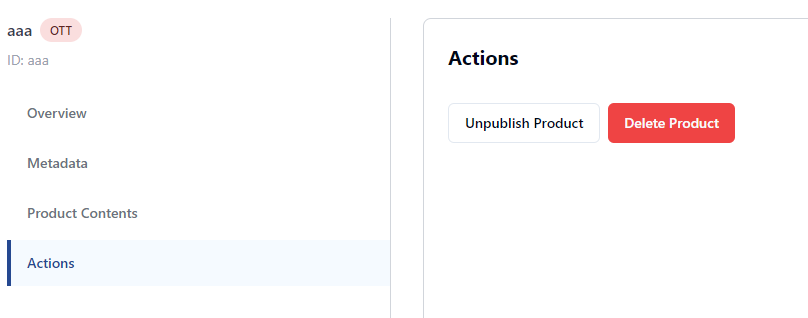
Select Actions from the sidebar menu.
-
Click the Delete Product button.
-
Click the Delete Product button on the confirmation popup.
Unpublish a product
To unpublish a product via the product details pages:
-
Open the Product Management app to view the product list.
-
Select the relevant product to view its details.
-
Select Actions from the sidebar menu.
-
Click the Unpublish Product button.
-
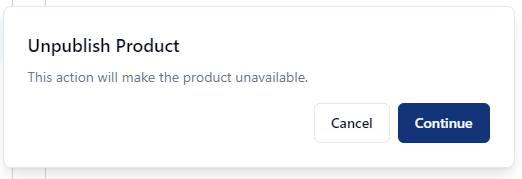
Click the Unpublish Product button on the confirmation popup.