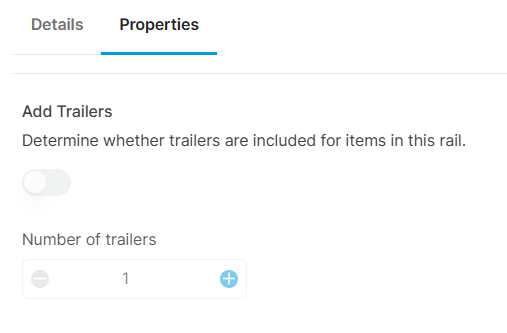
Rails Builder allows you to manage trailer settings at two levels:
-
Rail
-
Rail item (for example, movie, series or season)
Trailer settings at rail level can be used to override trailer settings at rail item level.
Managing trailer settings at rail level
To manage trailer settings at rail level for an existing rail:
-
Select the required layout to view the rail.
-
Select Rail Properties from the 3-dot menu on the rail.
-
Click Edit.
-
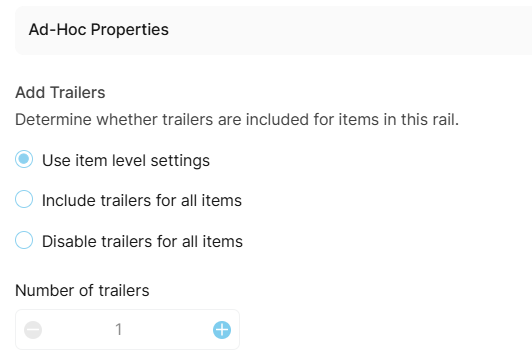
Scroll down to the Add Trailers section and choose the required setting:
-
Use item level settings - allows trailer settings to be managed separately at item level in this rail.
-
Include trailers for all items - includes trailers for all items in the rail, overriding any settings at rail item level.
-
Disable trailers for all items - disables trailers for all items in the rail, overriding any settings at rail item level.
-
-
Where trailers are included, set the number of trailers to add.
-
Click Save.
Managing trailer settings at rail item level
To manage trailer settings at rail item level:
-
Select the required layout to view the rails.
-
Click on an item in the rail.
-
In the Rail Item window, click the Properties tab.
-
Click the Edit button.
-
Use the toggle switch to include (or disable) trailers for this rail item.
-
Set the number of trailers.
-
Click Save.