
Account Dashboard | Overview
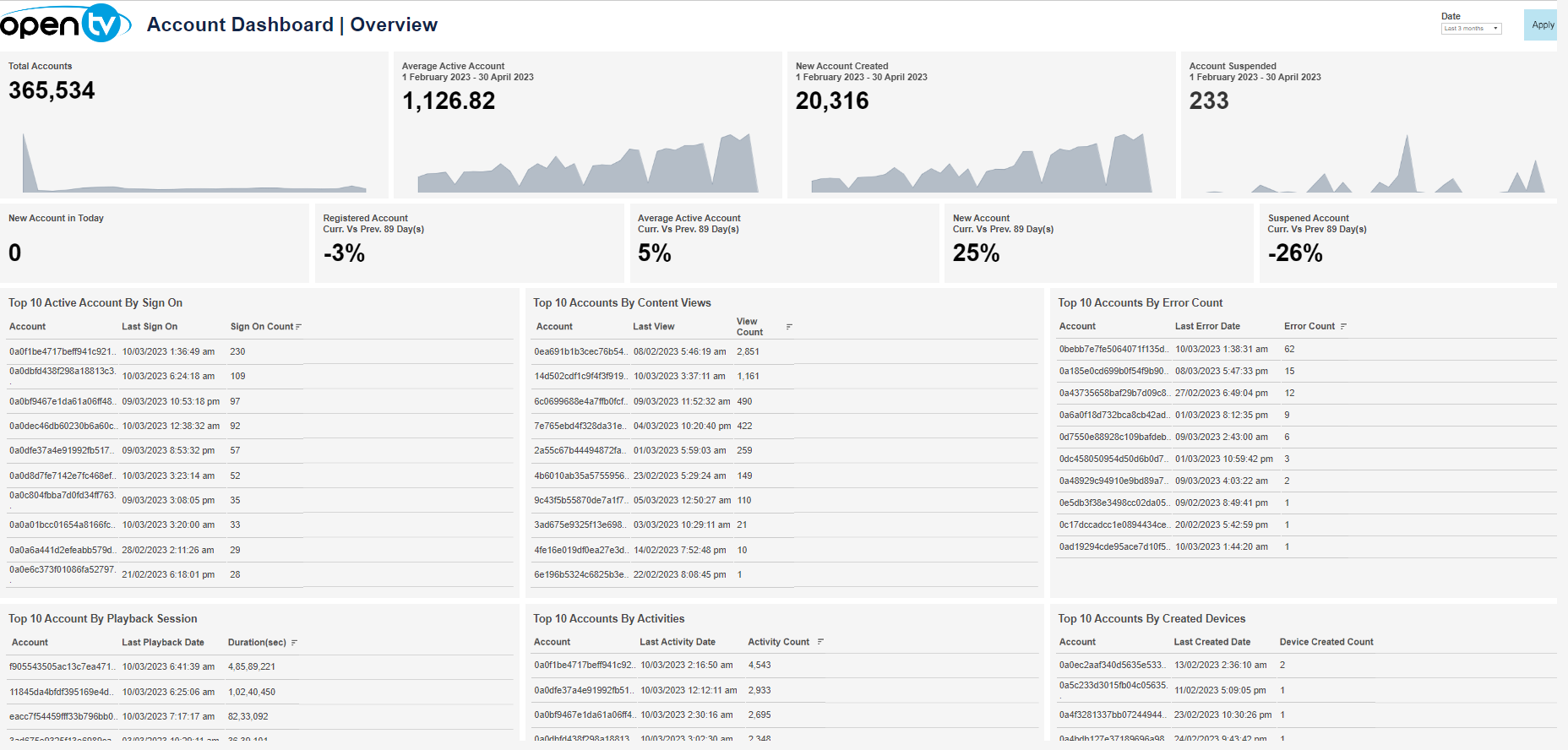
The Overview tab lets you see a variety of account-related data for the selected time period, including:
-
Total number of accounts
-
Average number of active accounts per day
-
Number of new accounts (for the last last 24 hours and for the selected time period)
-
Number of account suspensions in the selected time period
-
Number of new accounts today
-
Comparisons of the following between the current 24-hour-period and the previous 24-hour period:Total registered accountsActive accountsNew accountsSuspended accounts
-
Top accounts by:
Number of sign-onNumber of unique content viewsNumber of errorsPlayback durationNumber of activitiesNumber of created devices
At the top of the page, you can:
-
Change the date range
In the overview section, for each tile, you can:
-
Hover over or click the data or chart to see exact numbers.
-
Click the data or chart and then click

In this window, you can:See more detailed data, including (for some categories) a list of the accounts that comprise the total shown in the tile.Change the sort order.Show and hide fields.Change the number of rows displayed.Download the data.
In the top accounts sections, you can click on a row to open the Account Details tab for the selected account.
Account Dashboard | Details
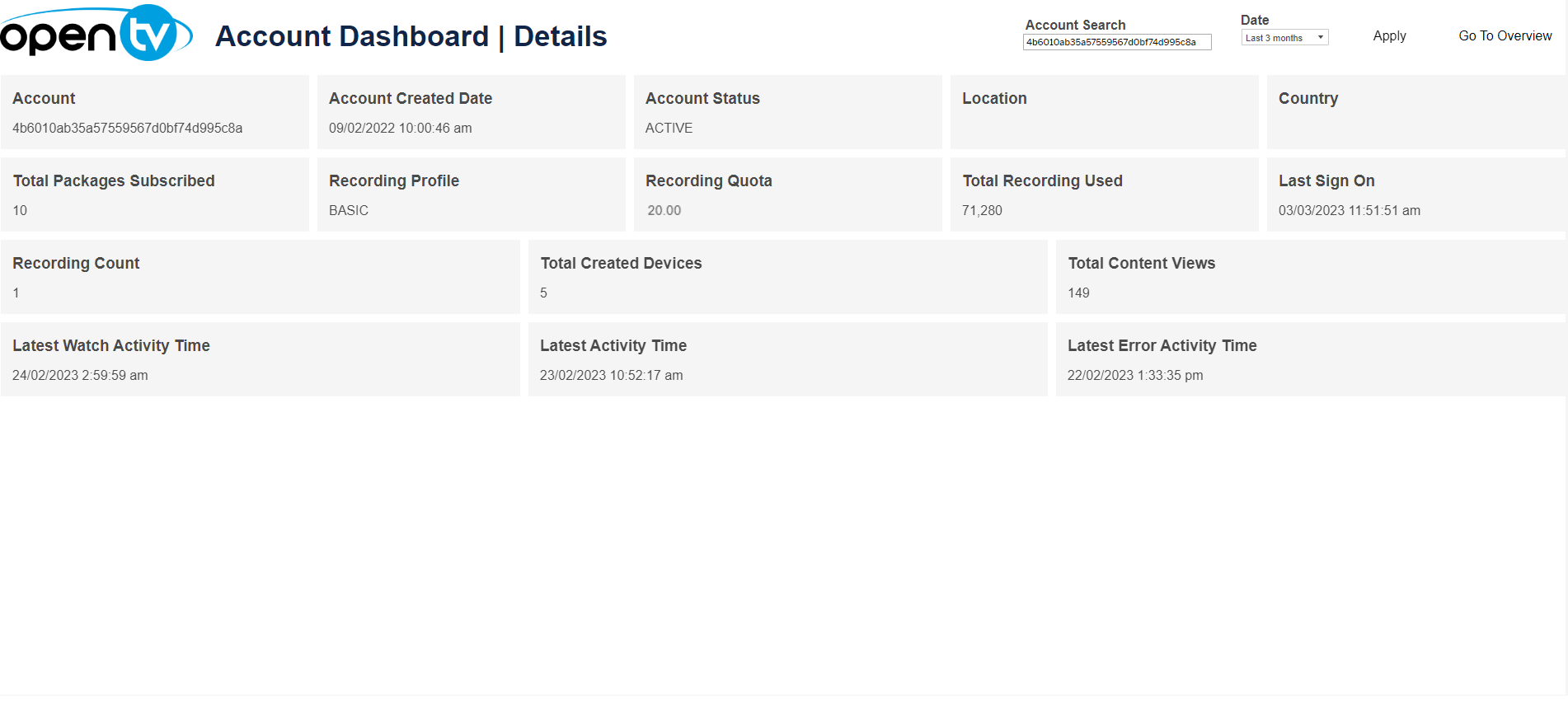
The Details tab shows detailed data for the selected account, including:
-
Account signon ID
-
Account creation date
-
Account status
-
Location
-
Country
-
Packages subscribed (Clicking on the data takes you to the Account Dashboard | Packages Subscribed for the account.)
-
Recording profile
-
Recording quota size and usage
-
Last sign-on time
-
Recording count
-
Total number of created devices
-
Content views
-
Latest watch activity time
-
Latest activity time
-
Latest error activity time
As in the Account Dashboard | Overview tab, you can click on any of these to open the View Data window, which shows more detailed data (see above).
At the top of the page, you can:
-
Change the date range
Account Dashboard | Packages Subscribed
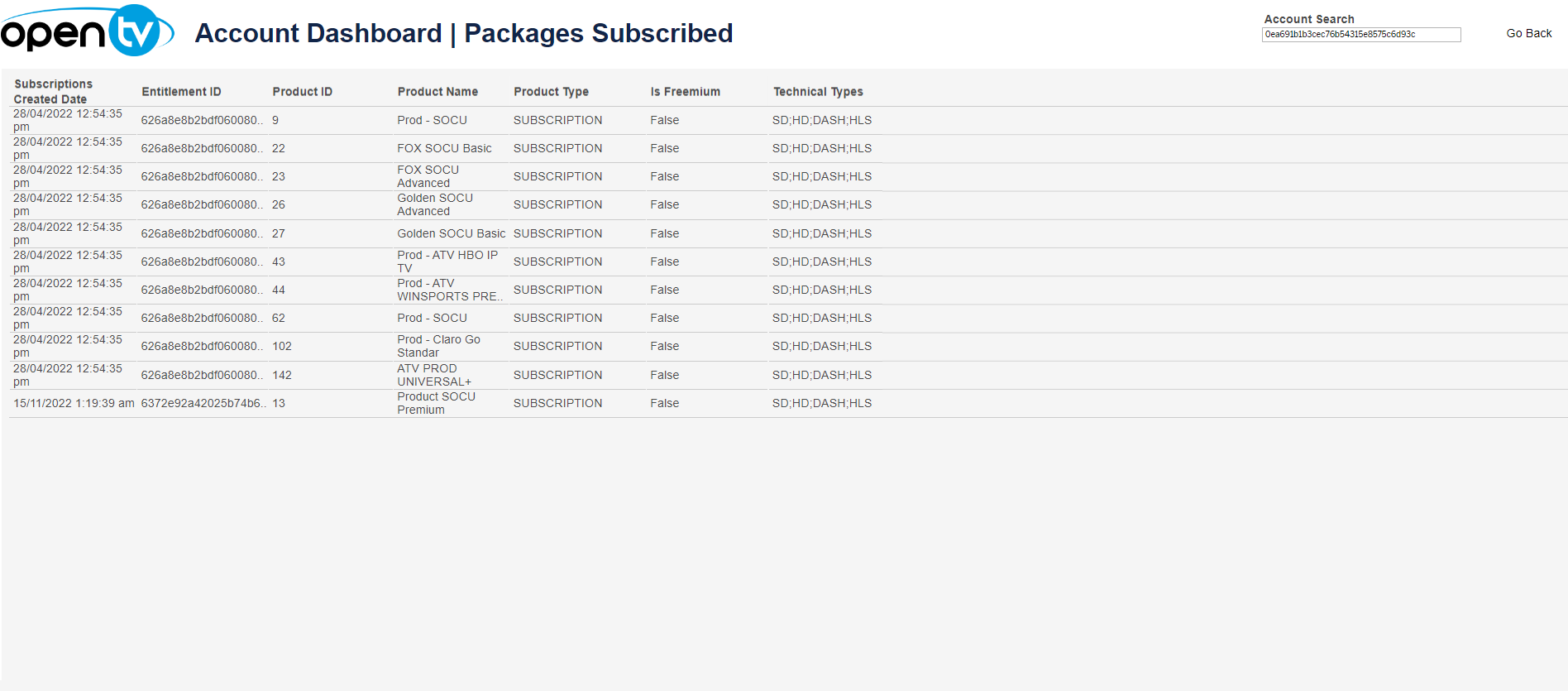
The Packages Subscribed tab shows details of the packages that the selected account is subscribed to, including:
-
Subscription creation date
-
Entitlement ID
-
Product ID
-
Product name
-
Product type
-
Whether the product is a freemium product
-
Technical types
Account Dashboard | Recordings
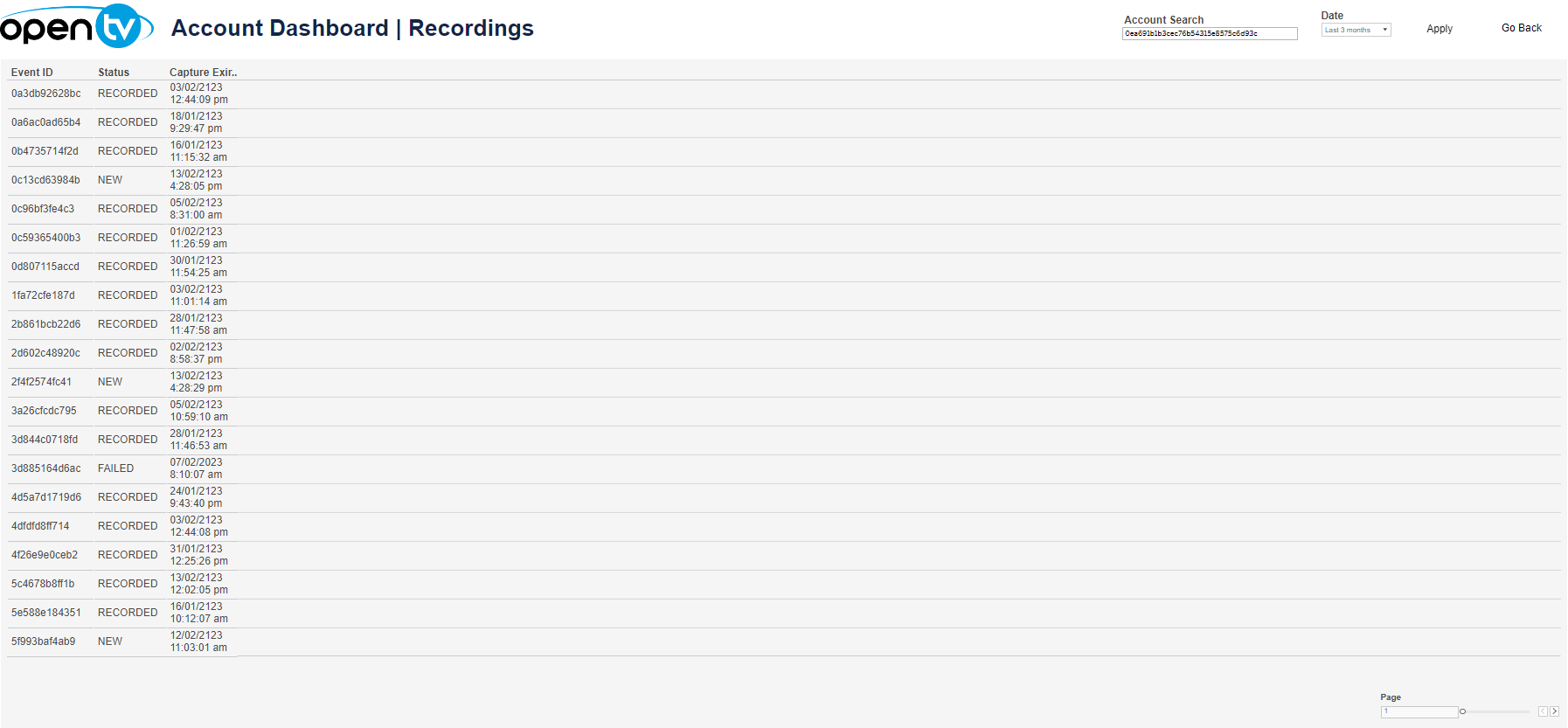
The Recordings tab shows details of recordings for the selected account, including:
-
The event ID
-
The recording status
-
The capture expiration date
At the top of the page, you can:
-
Change the date range
Account Dashboard | Content Views
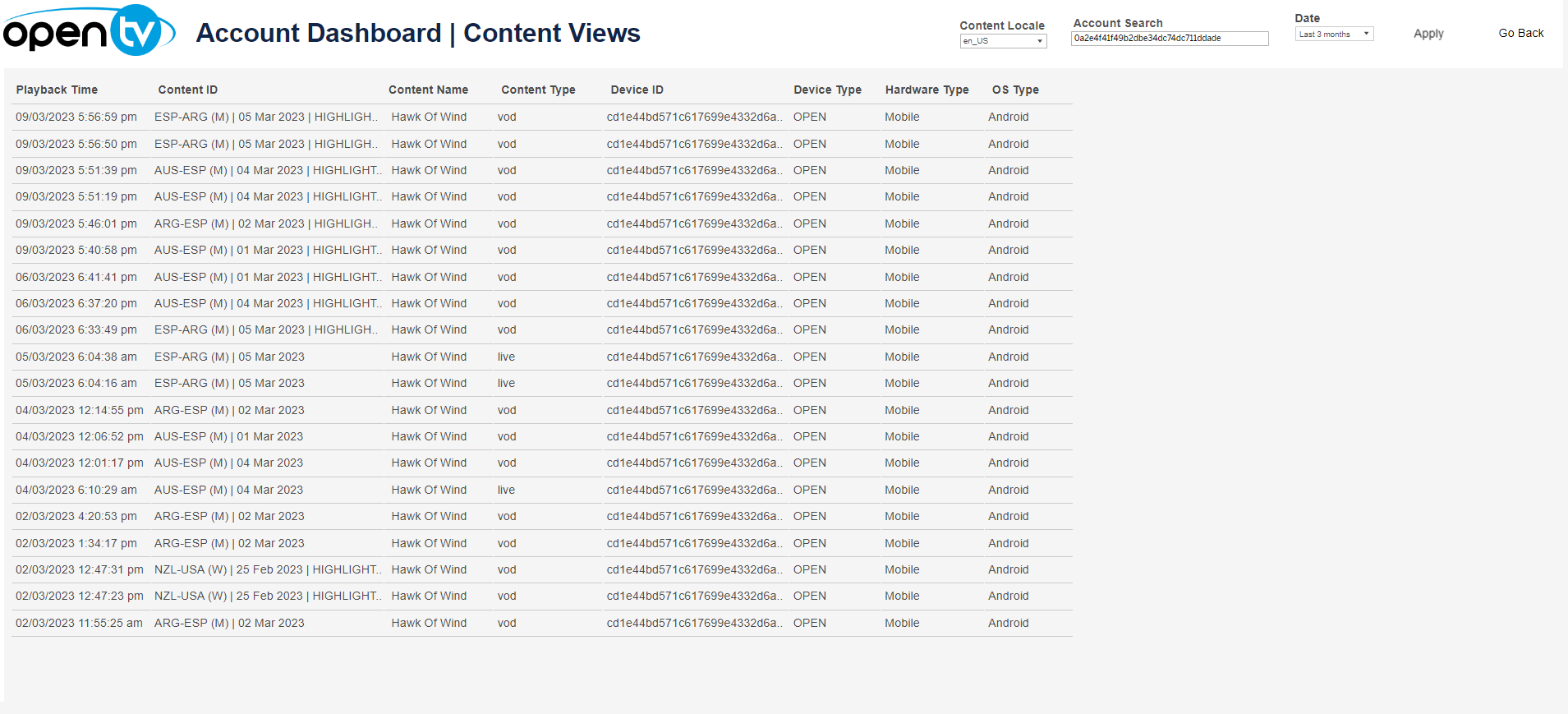
The Content Views tab shows detail about the content viewed by the selected account, including:
-
The time playback started
-
The ID of the content
-
The name of the content
-
The content type
-
The ID of the device used
-
The device type
-
The hardware type
-
The OS type
At the top of the page, you can:
-
Change the date range
-
Filter by content locale
Account Dashboard | Devices
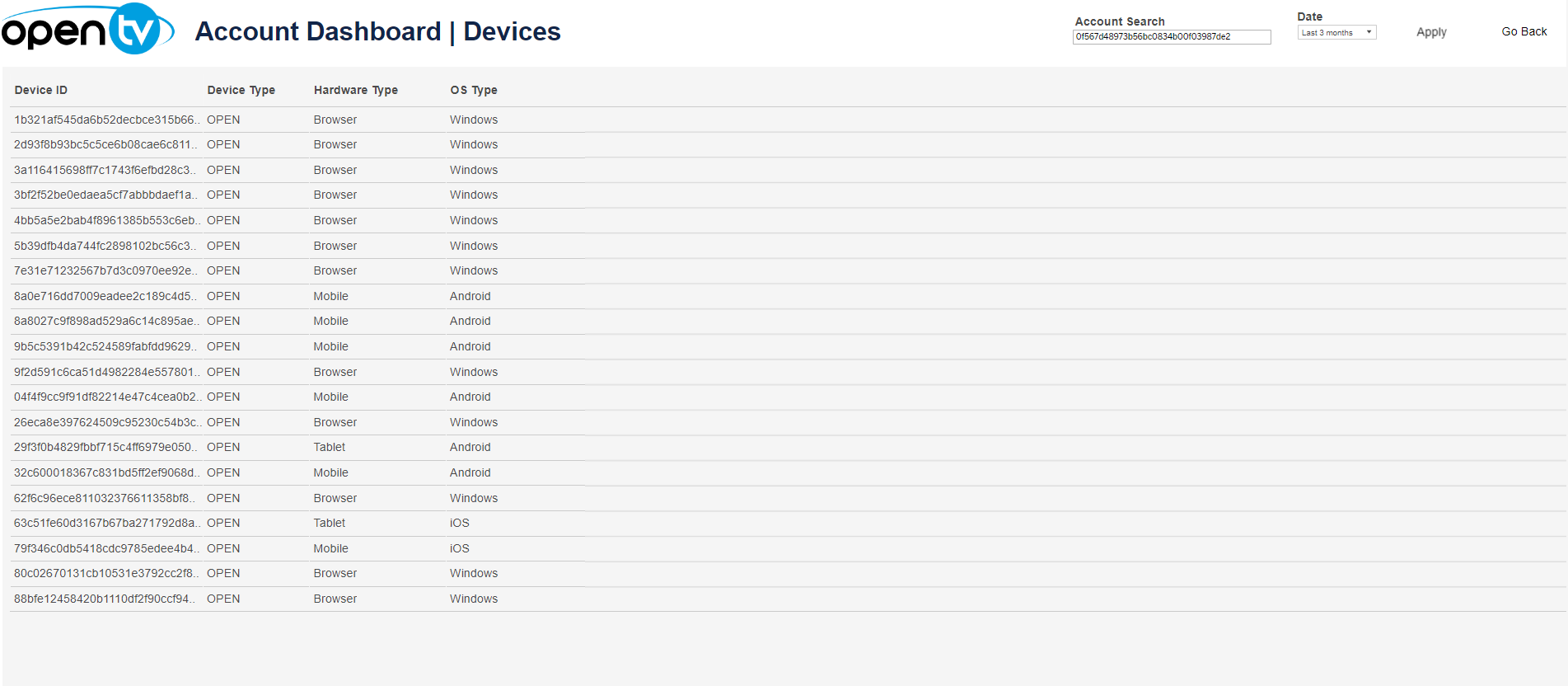
The Devices tab shows details of the devices that are registered to the selected account, including:
-
The device ID
-
The device type (open or managed)
-
The device's hardware type
-
The device's OS type
At the top of the page, you can:
-
Change the date range
Account Dashboard | Recent Activities
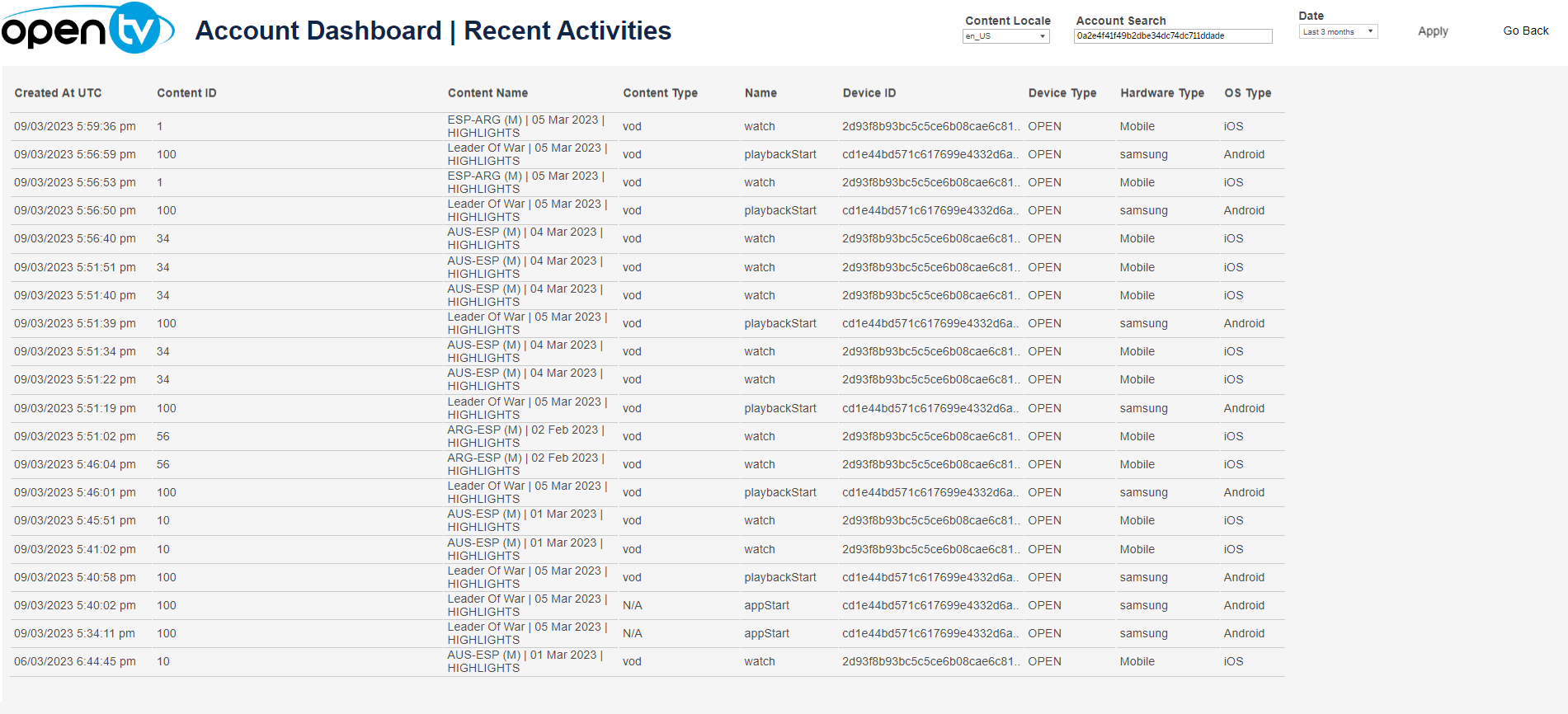
The Recent Activities tab lists recent events for the account, including:
-
The time and date the event was created
-
The ID of the content that the event relates to (if any)
-
The name of the content that the event relates to (if any)
-
The type of the content that the event relates to (if any)
-
The event name
-
The device ID
-
The device type (open or managed)
-
The device's hardware type
-
The device's OS type
At the top of the page, you can:
-
Change the date range
-
Filter by content locale
Account Dashboard | Player Errors
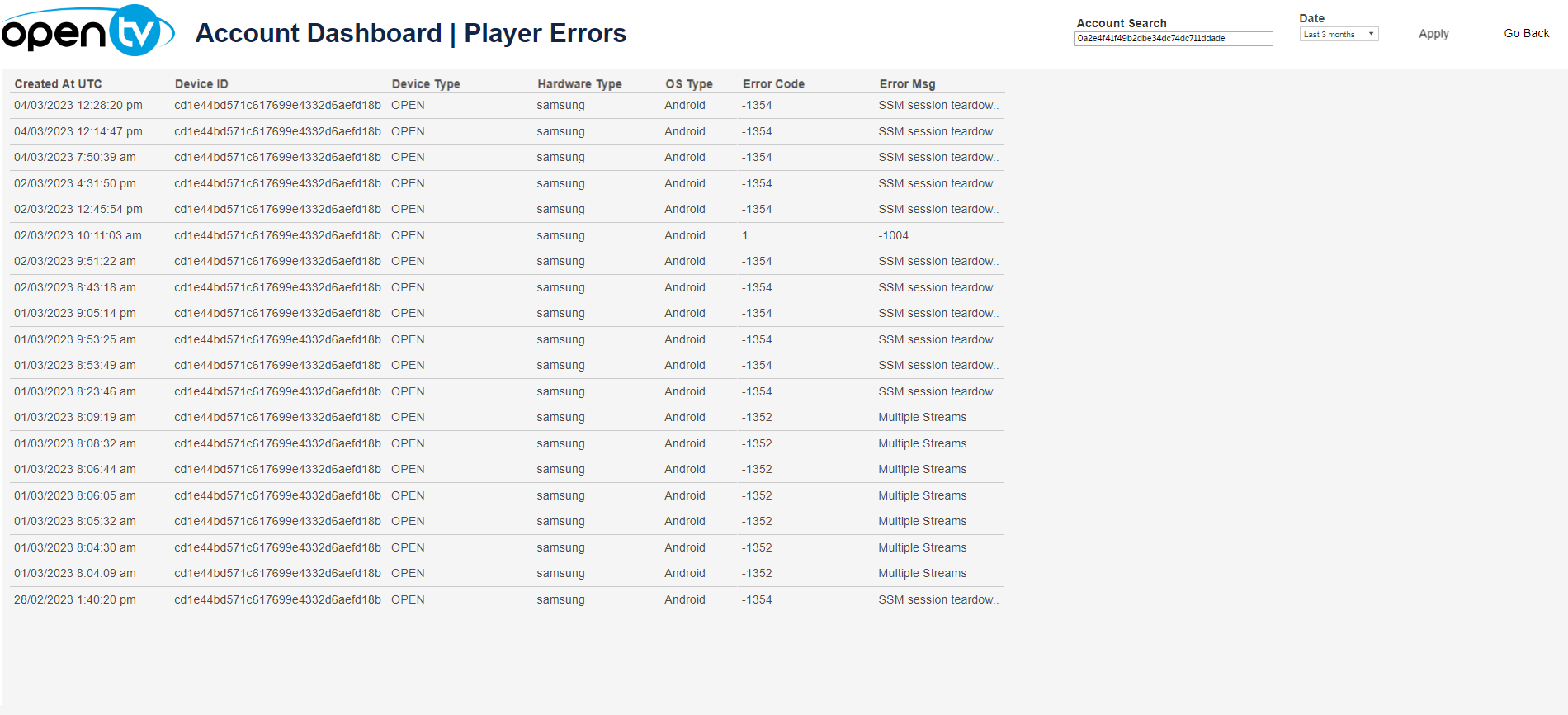
The Player Errors tab lists any player errors that were encountered by the selected account, including:
-
The date and time that the error occurred
-
The ID of the device on which the error occurred
-
The hardware type of the device on which the error occurred
-
The OS type of the device on which the error occurred
-
The error code
-
The error message
At the top of the page, you can:
-
Change the date range