
You can use preview mode to help you to visualise how layouts will look in the TV app, based on their active and scheduled dates/times. This is particularly useful when you’ve created a new template, made changes to an existing one, or if any layouts are part of an experiment.
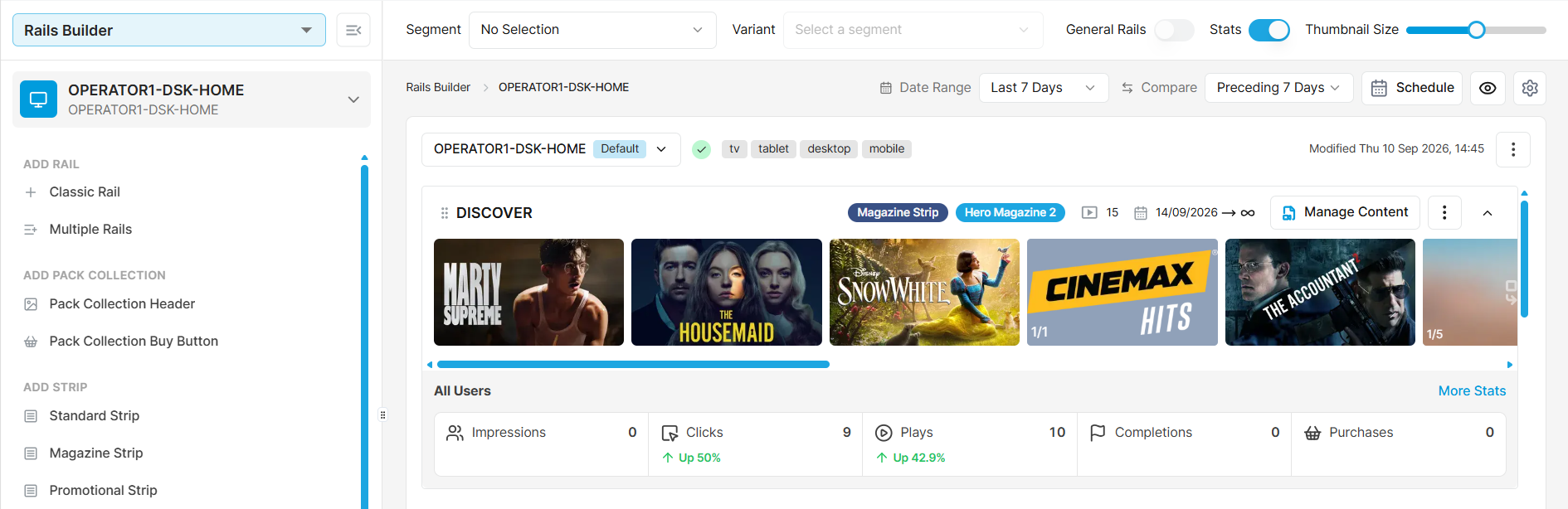
To preview a layout, click the Preview button (eye icon) at the top right of the Templates screen.
Note that the preview starts on the TV app landing page, so you may need to navigate to the required rails using the TV app navigation.
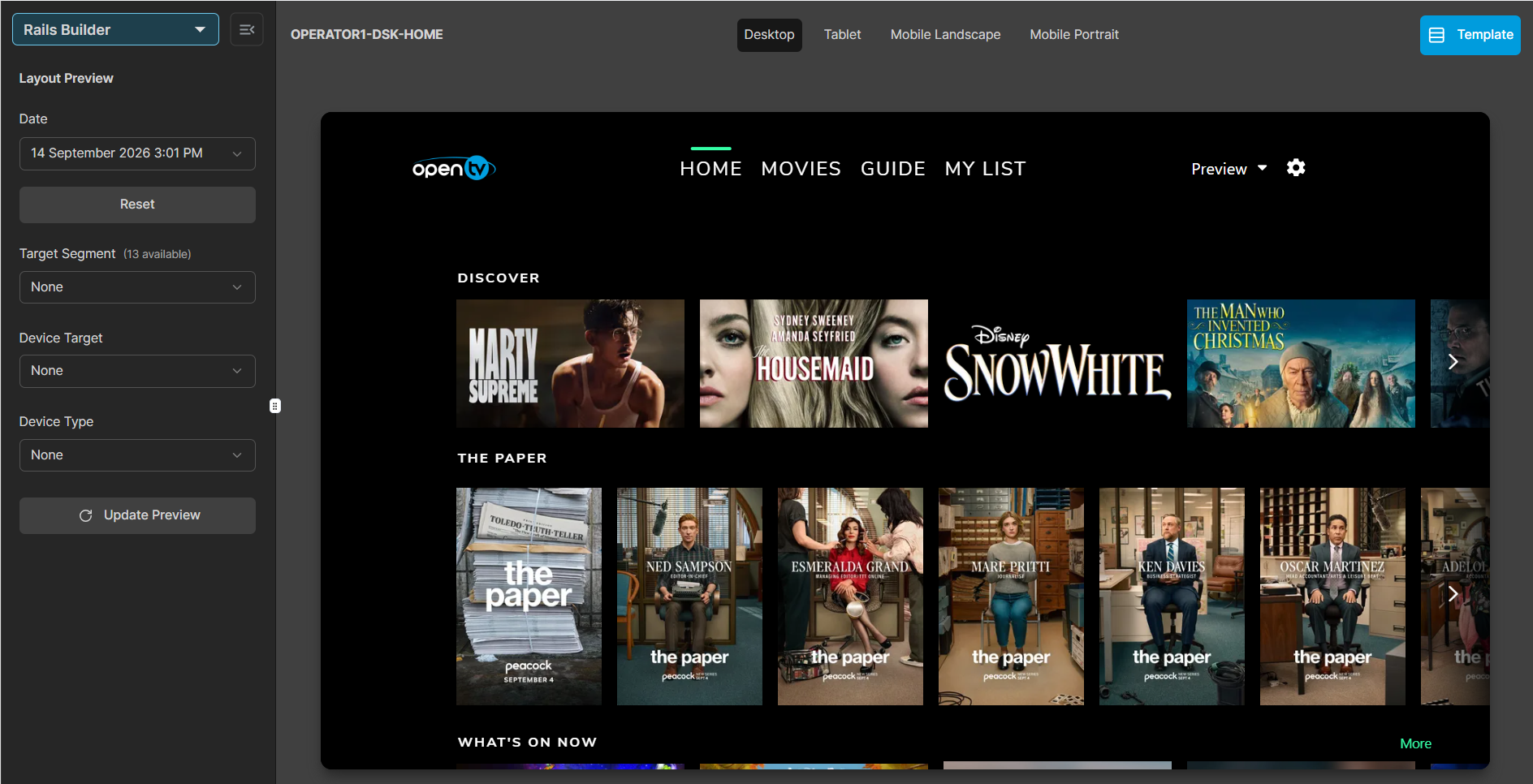
You can select various criteria in the sidebar:
To preview how the layout will look on a particular date/time, use the date picker.
If the layout is part of an experiment, you can use these additional settings:
-
Target Segment
-
Device Target
-
Device Type
When you have made your selections, click Update Preview.
Device formats
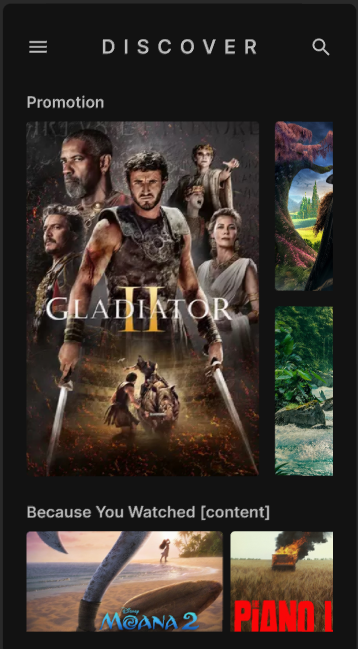
Preview mode also enables you to see how a layout will appear in different device formats.
You can select a device format using the tabs at the top of the screen.
Monitor
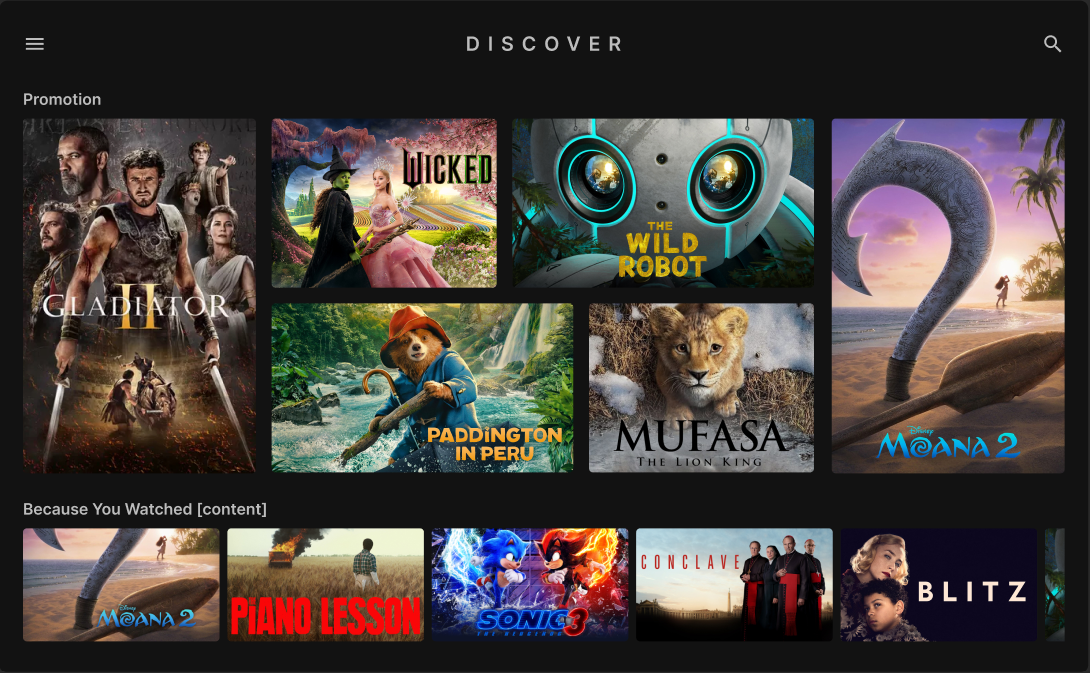
Tablet
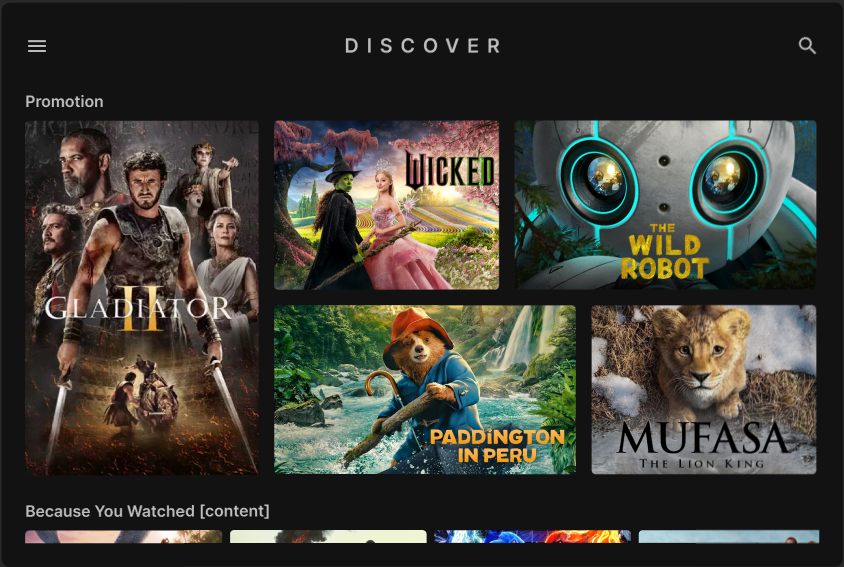
Mobile Landscape
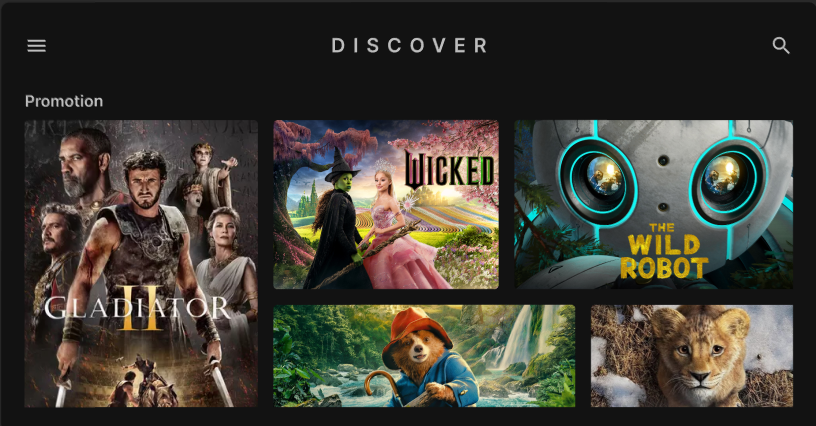
Mobile Portrait
To close the preview, click the blue Template button at the top right of the screen.