
Use the following procedure to create a new Apple iOS or tvOS project to build the basic player for app development using Swift.
Alternative example code is provided for Objective-C development (not described here).
-
Unzip the required integration file and copy the framework file to an appropriate location (for example, the project root).
-
opy-sdk-ios-fps-5.10.x-integration.zip / OPYSDKFPS.framework
-
opy-sdk-tvos-fps-5.10.x-integration.zip / OPYSDKFPSTv.framework
-
opy-sdk-ios-fps-5.10.x-xcframework-integration.zip / OPYSDKFPS.xcframework
-
-
In Xcode, create a new Single View project for your iOS/tvOS platform.
-
In project options, select Swift as the language.
-
On the General tab, add the framework to Frameworks, Libraries, and Embedded Content, ensuring Embed & Sign is selected.
If you are using Xcode 12.3, a Build Settings error requires the re-addition of VALIDATE_WORKSPACE to the Build Options section under Build Settings. This must be added for both Debug and Release (set to YES for Release and NO for Debug).
Also, if your project already has the VALIDATE_WORKSPACE setting, it may need to be changed, the target rebuilt, then changed back for the setting to be recognised properly.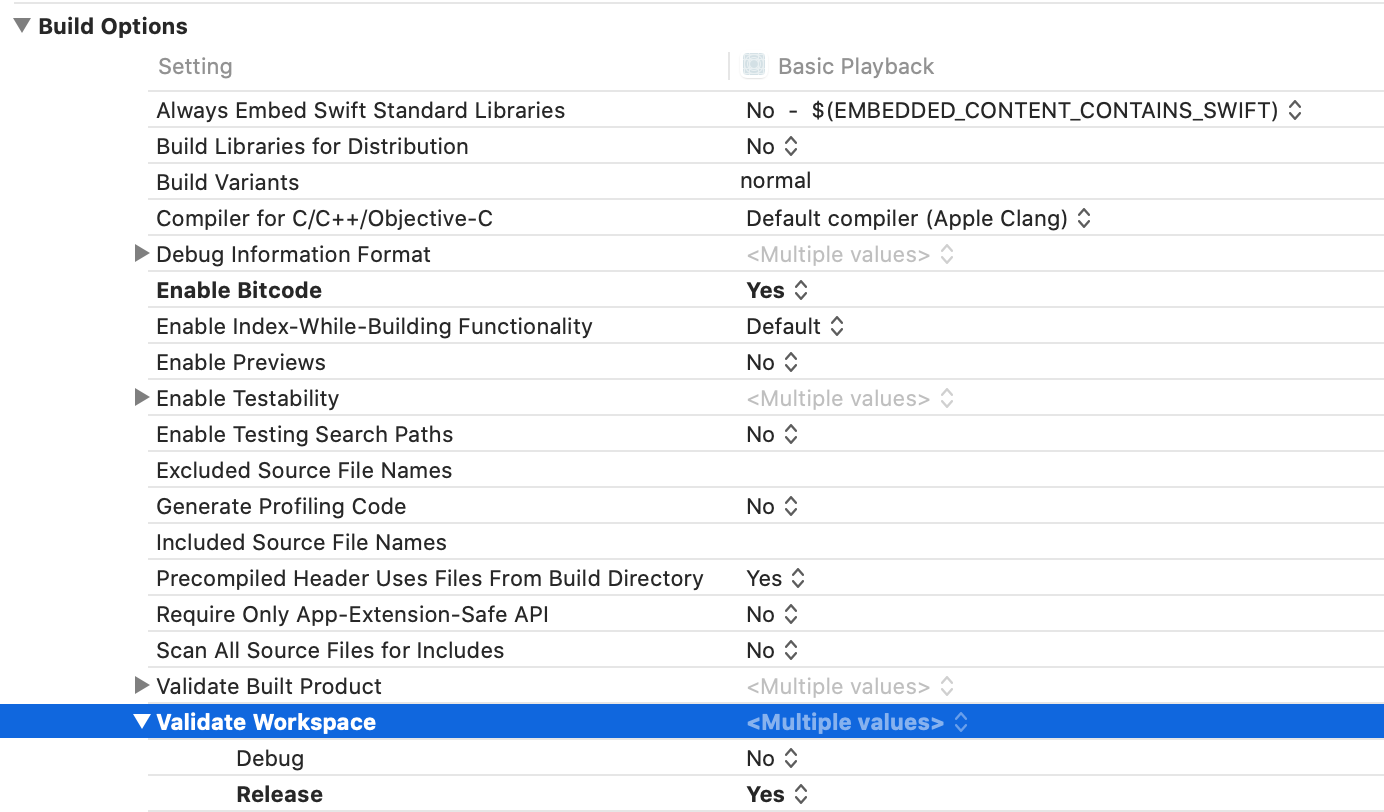
This must be done for both Debug and Release.
-
-
To connect to non-HTTPS URLs, add Application Transport Security (ATS) settings to info.plist. Open the info.plist file and add an App Transport Security entry for your content (replacing www.example.com with the actual URL):
XML<key>NSAppTransportSecurity</key> <dict> <key>NSExceptionDomains</key> <dict> <key>www.example.com</key> <dict> <key>NSIncludesSubdomains</key> <true/> <key>NSExceptionAllowsInsecureHTTPLoads</key> <true/> </dict> </dict> </dict> -
Add the following import in
ViewController.swift.import OPYSDKFPS // or OPYSDKFPSTv for tvOSBelow the imports, add the code for the
PlayerViewclass:class PlayerView: UIView { var player: AVPlayer? { get { return playerLayer.player } set { playerLayer.player = newValue } } var playerLayer: AVPlayerLayer { return layer as! AVPlayerLayer } override class var layerClass: AnyClass { return AVPlayerLayer.self } } -
Add members for the player and player view below the
ViewControllerclass definition.let otvPlayer: OTVAVPlayer @IBOutlet weak var playerView: PlayerView!Add the content URL:
let assetURL = URL(string: "https://d3bqrzf9w11pn3.cloudfront.net/basic_hls_bbb_clear/index.m3u8")! -
Instantiate an
OTVAVPlayerEnsure SDK has been loaded before constructing the player.
Initialise the player in the
initmethod by passing in the asset url:required init?(coder aDecoder: NSCoder) { OTVSDK.load() otvPlayer = OTVAVPlayer(url: assetURL) super.init(coder: aDecoder) }The
OTVAVPlayer takes either anOTVAVPlayerItemobject or the URL of a content stream. -
Inside the
viewDidAppearmethod, assign our player to theplayerViewand start playback:override func viewDidAppear(_ animated: Bool) { super.viewDidAppear(animated) playerView.player = otvPlayer otvPlayer.play() }Your
ViewControllerclass should look like the following:class ViewController: UIViewController { let otvPlayer: OTVAVPlayer @IBOutlet weak var playerView: PlayerView! let assetURL = URL(string: "https://d3bqrzf9w11pn3.cloudfront.net/basic_hls_bbb_clear/index.m3u8")! required init?(coder aDecoder: NSCoder) { OTVSDK.load() otvPlayer = OTVAVPlayer(url: assetURL) super.init(coder: aDecoder) } override func viewDidAppear(_ animated: Bool) { super.viewDidAppear(animated) playerView.player = otvPlayer otvPlayer.play() } } -
Link the view to the player:
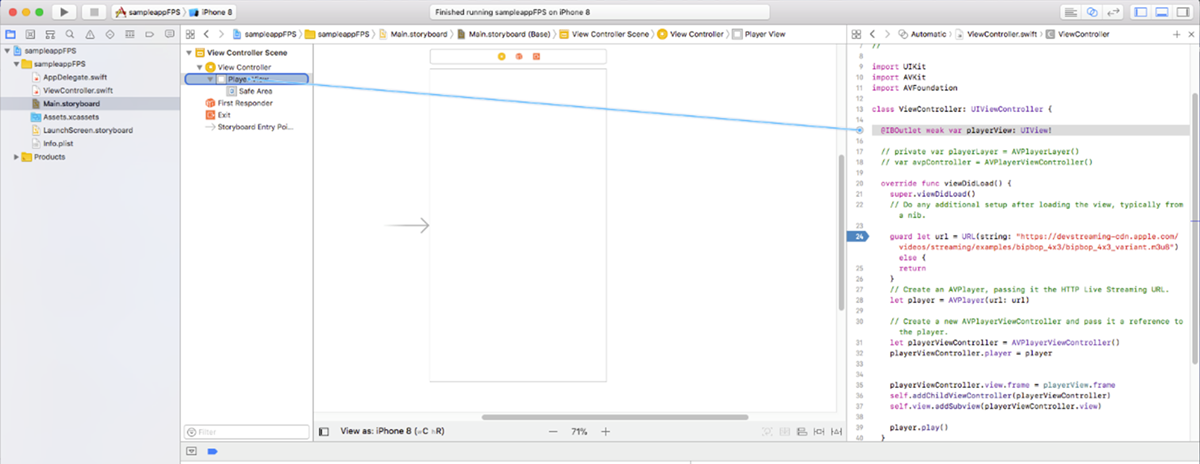
Open Main.storyboard and open the assistant editor. Drag from the small blue circle next to the
IBOutletthat you added inViewController.swiftto theViewControllerview:
Next step: Run the app in clear playback mode.