
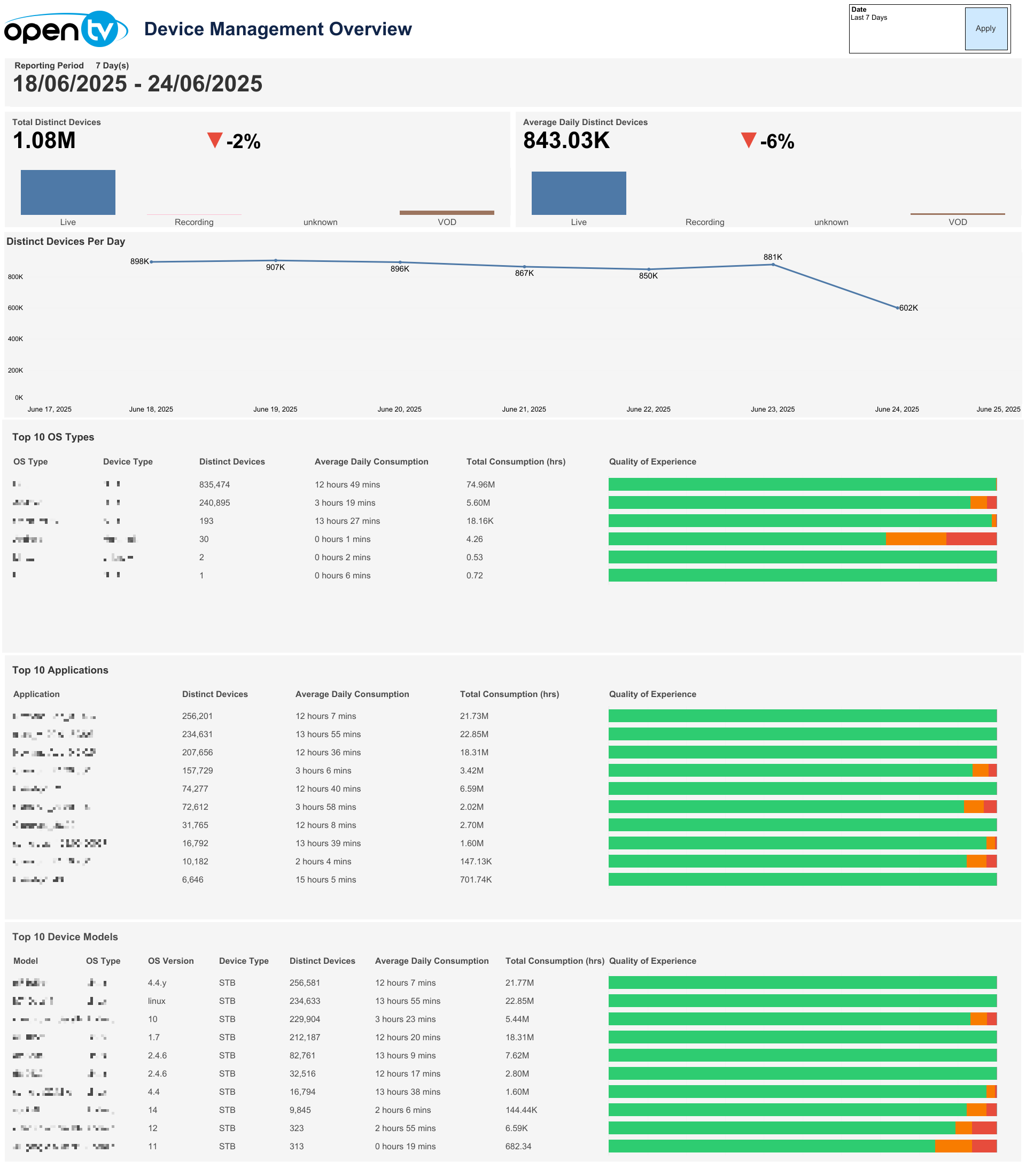
The first page provides an overview of the Device Management for various TV metrics and analytics.
Date selection
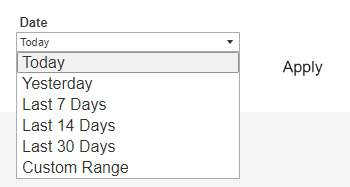
The top-right of the page shows a Date drop-down menu, with preset time intervals for Today, Yesterday, Last 7 days, Last 14 days, and Last 30 days. Selecting one of these options then clicking Apply loads the data.
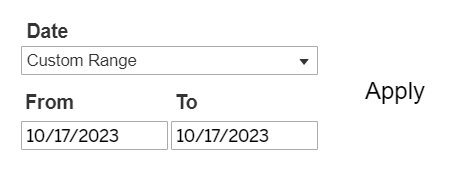
Users can also select Custom Range, which causes the From and To date fields to appear below, and allows users to specify any time interval (provided dates are not in the future). Users must then click Apply button to load the data.
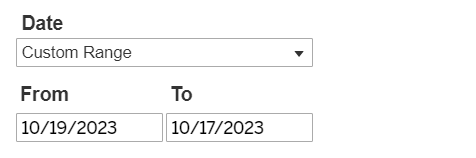
Selecting a From date that lies in the future causes the Apply button to disappear:
Below the top-left report title, the report shows the selected Reporting Period day count and specific dates chosen.

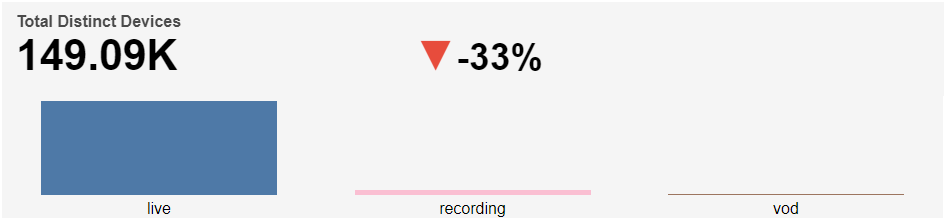
Total Distinct Devices
Below the top-left Reporting Period, the report shows a bar chart for Total Distinct Devices, split into three watch categories: live, recording, and VOD, based on the selected time interval.
The Total Distinct Device count based on the selected time interval is shown at the top left and the percentage change in Total Distinct Device count compared to the directly preceding time interval is shown with an up/down/neutral indicator arrow at the top right.
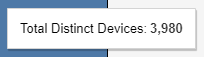
Individual regions can be highlighted by single-clicking. A mouseover tooltip for each measure gives further information and definitions.
Average Daily Distinct Devices
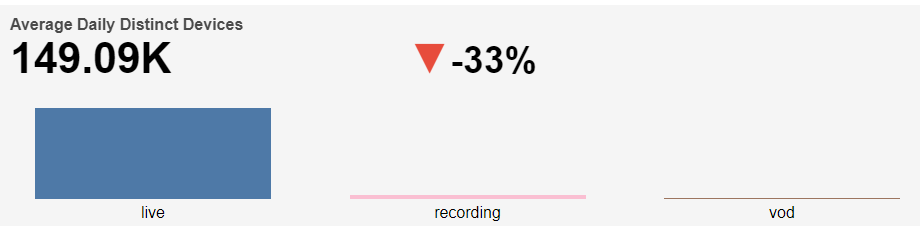
Next, the report shows a bar chart for Average Daily Distinct Devices, split into three watch categories: live, recording, and VOD, based on the selected time interval.
The Average Daily Distinct Device count based on the selected time interval is shown at the top left and the percentage change in Average Daily Distinct Device count compared to the directly preceding time interval is shown with an up/down/neutral indicator arrow at the top right.
Individual regions can be highlighted by single-clicking. A mouseover tooltip for each measure gives further information and definitions.

Distinct Devices Per Day
Next, the report shows a time-series graph (line chart) with number of distinct devices per day in the selected time interval.
The mouseover tooltip provides additional information and definitions when hovering over each point on the line chart.


Top 10 OS Types
This table ranks the Top 10 OS Types by Distinct Device Count within the selected time interval. A QoE bar is shown, based on the count of sessions classed as Good, Moderate, Bad, or Unknown.

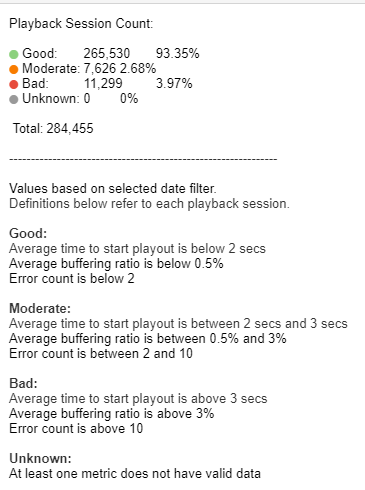
The mouseover tooltip gives further information and definitions when hovering over the QoE column.
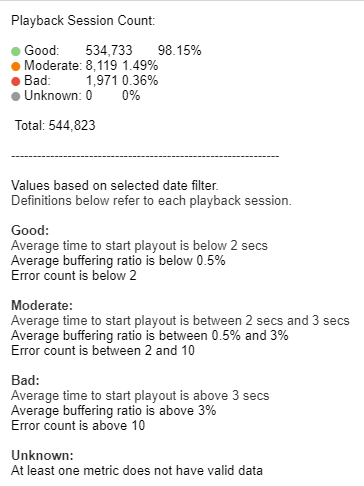
Individual rows can be highlighted by single-clicking. The links at the bottom of the tooltip allow users to click to drill down to either the OS Details or Platform Detail pages.
Top 10 Applications
This table ranks the Top 10 Applications by Distinct Device Count within the selected time interval. A QoE bar is shown, based on the count of sessions classed as Good, Moderate, Bad or Unknown.
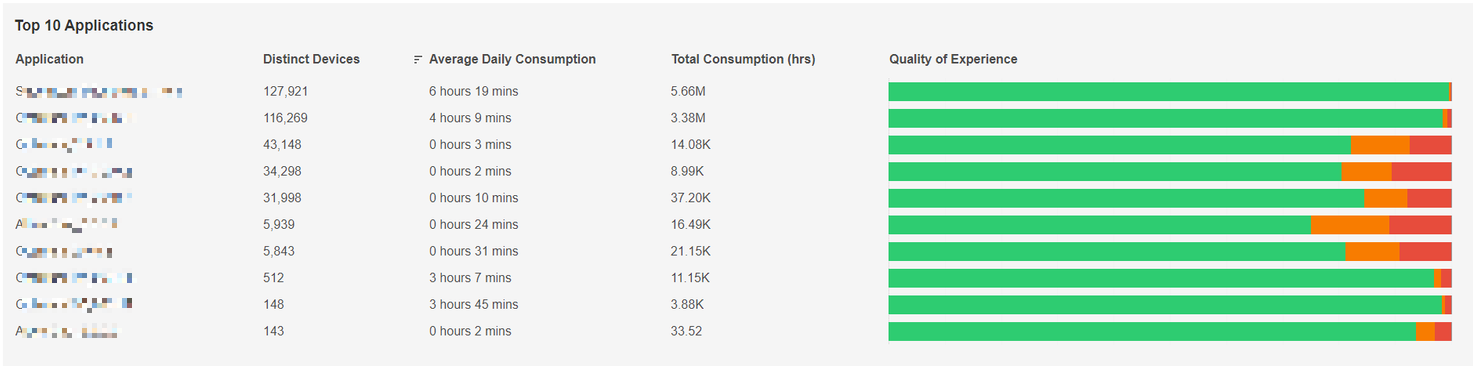
The mouseover tooltip gives further information and definitions when hovering over the QoE column.
Individual rows can be highlighted by single-clicking. The link at the bottom of the tooltip allows users to click to drill down to the Application Details page.

Top 10 Device Models
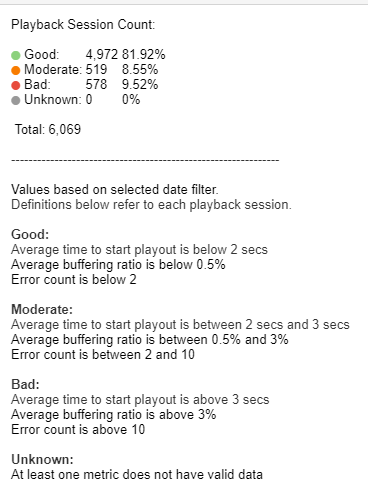
This table ranks the Top 10 Device Models by Distinct Device Count within the selected time interval. A QoE bar is shown, based on the count of sessions classed as Good, Moderate, Bad, or Unknown.
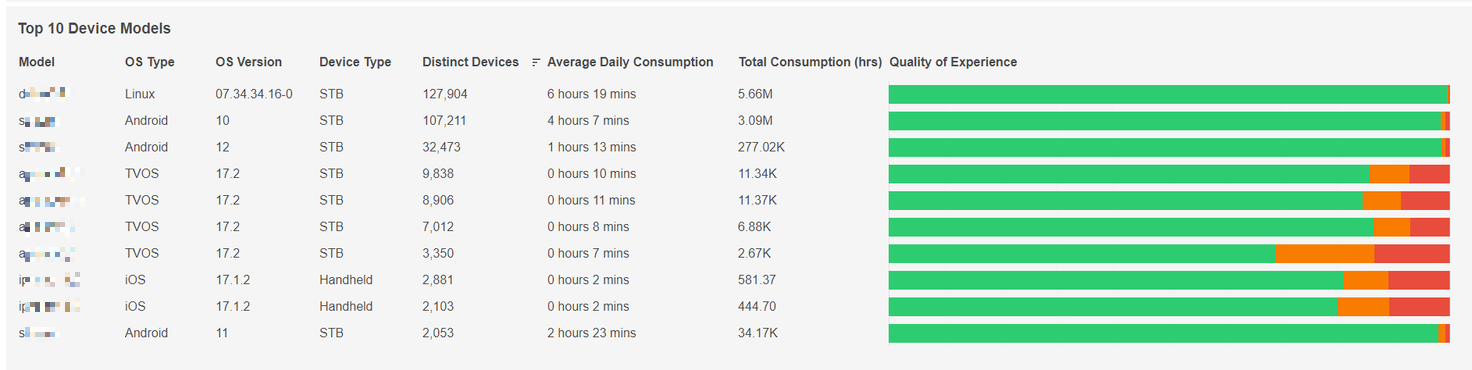
The mouseover tooltip gives further information and definitions when hovering over the QoE column.
Individual rows can be highlighted by single-clicking. The link at the bottom of the tooltip allows users to click to drill down to the Model Details page.
