
Discovery and purchase of products
Discovery and purchase following types of following product type are supported. A unified purchase flow enables user to discover, purchase and enable entitlements within open TV video platform.
-
SVOD - Subscription
-
TVOD - Transaction
-
Live events/channels - Subscription
Discovery of purchasable content
Unsubscribed contents that belong to one or more purchasable product are discoverable in following screens
Rails supported screen (Example: Discover) - The purchasable contents are badged as shown below
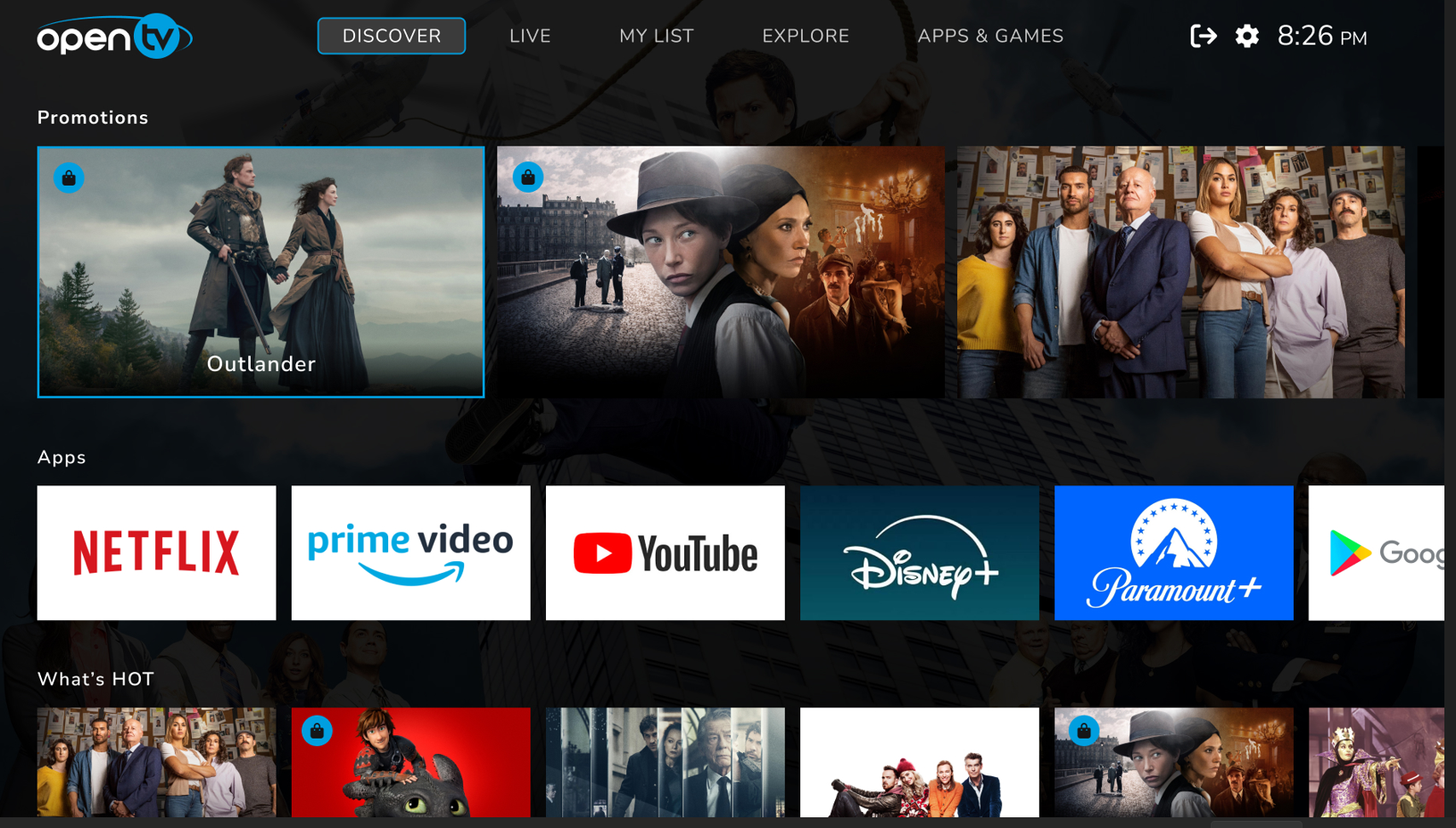
Media card
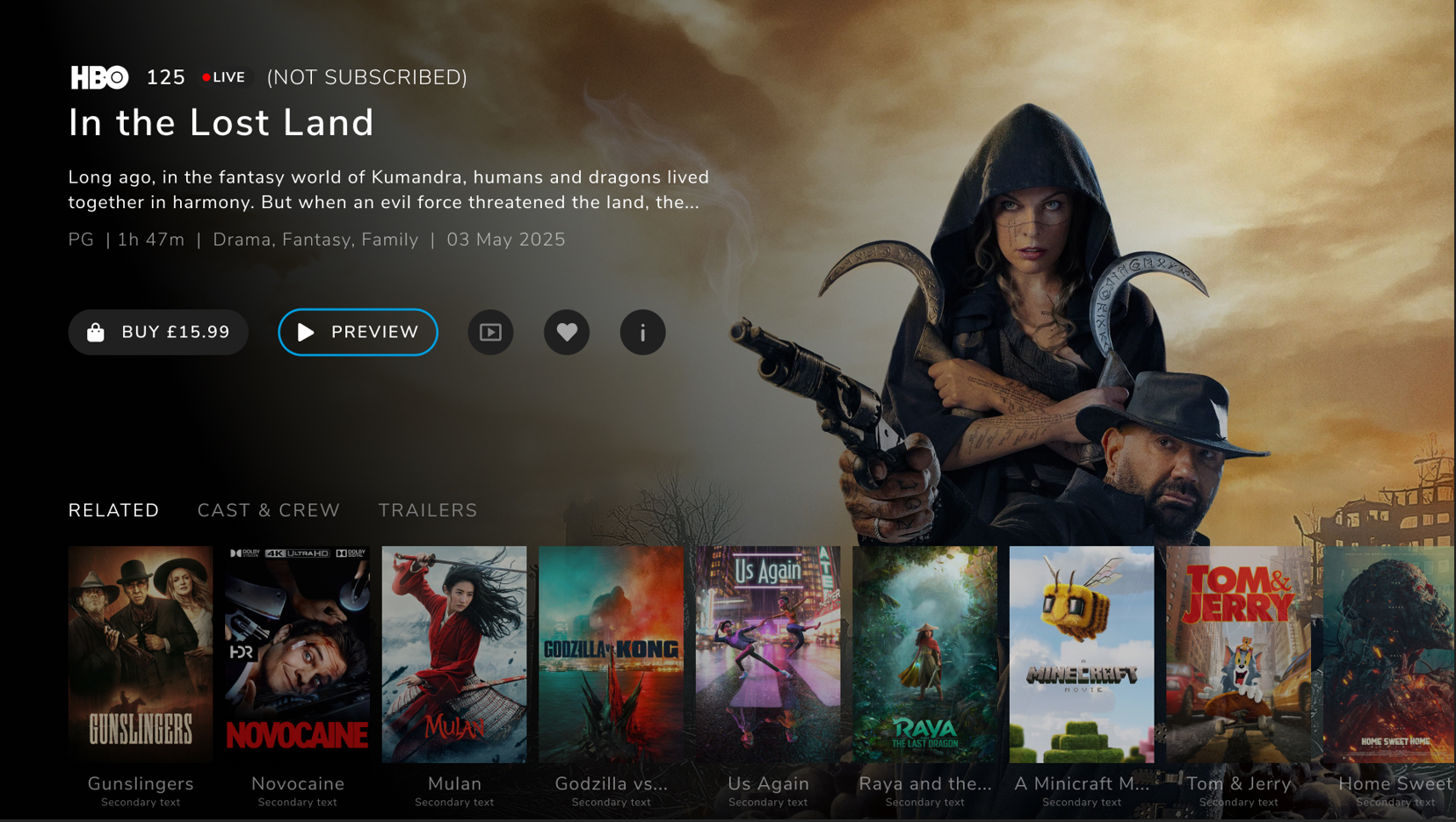
Purchasable contents are also discoverable from Media card of the content. A buy button signals user that the content is purchasable.

Purchase options
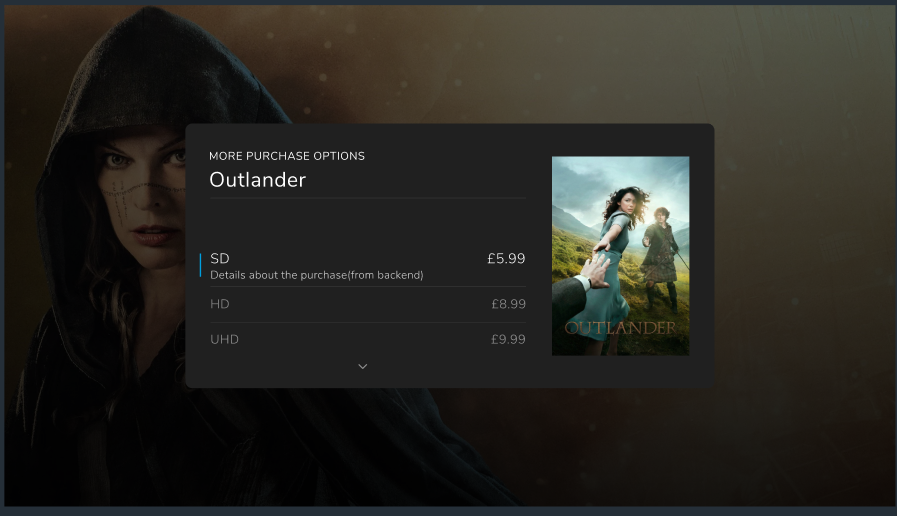
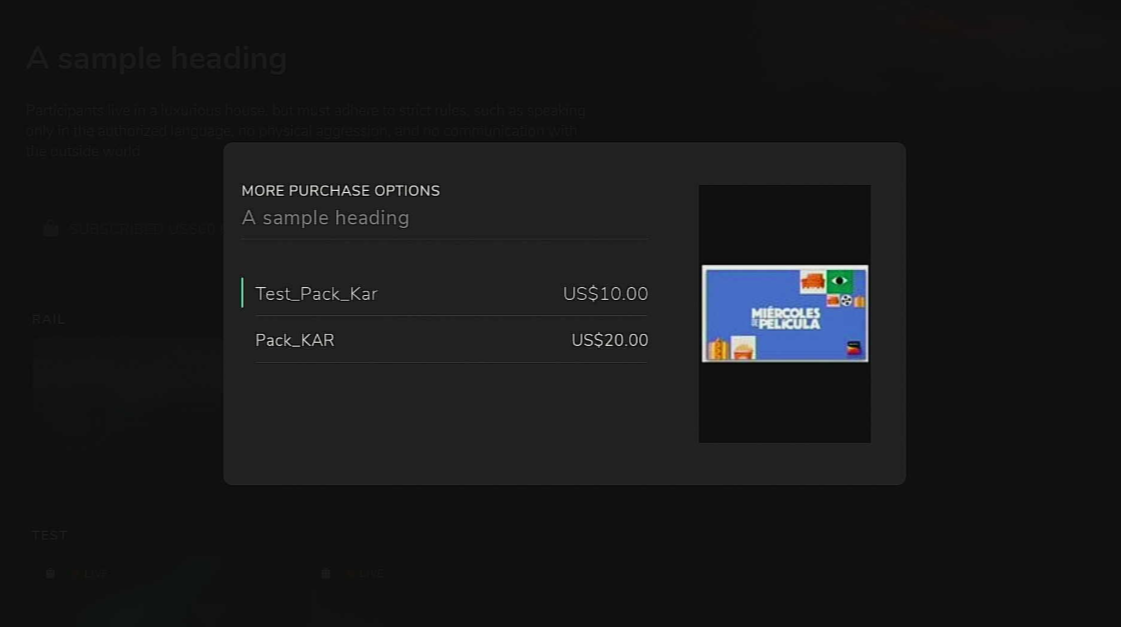
Operator can link multiple products to a content and there by provide flexibility to present multiple price option to the user. User can view multiple price options by clicking on buy button.
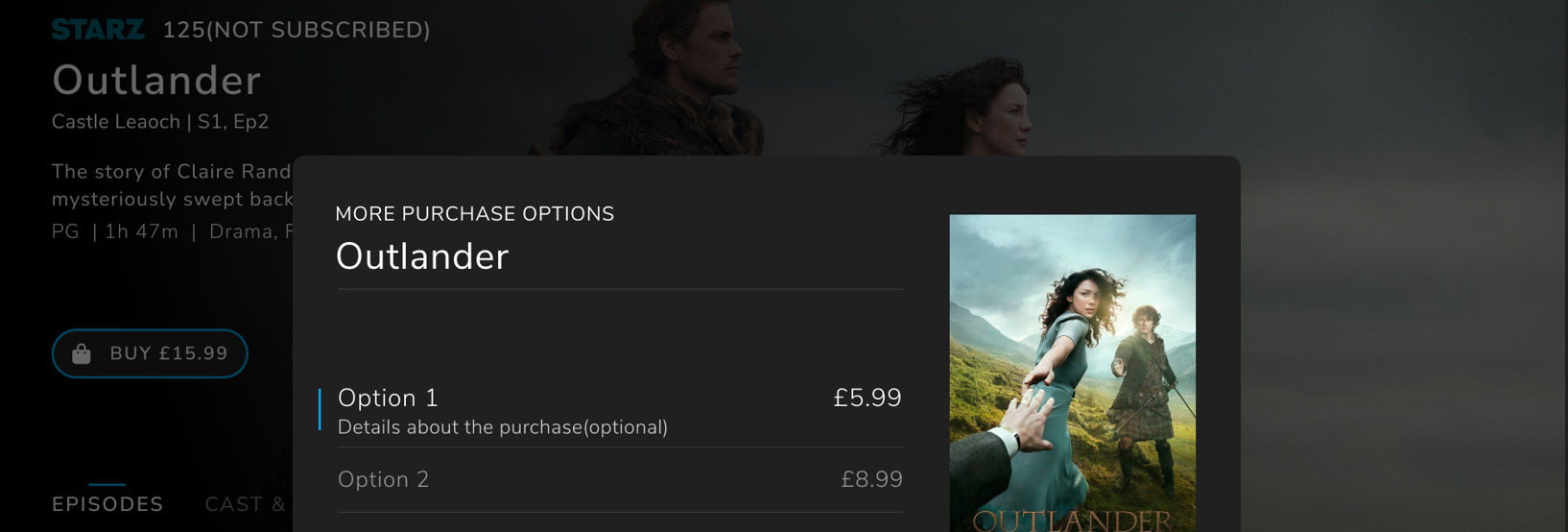
End user is prompted to enter a PIN to confirm the purchase of a specific purchase option. Currently the PIN is same as parental PIN.
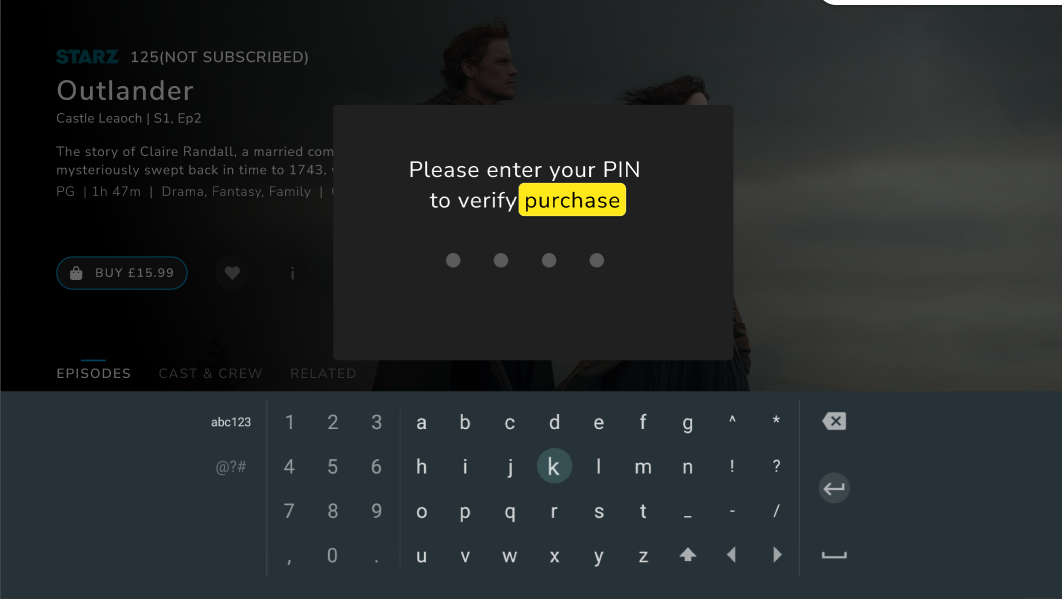
Product entitlement refresh.
The purchase flow is currently integrated with OVP purchase server.
The device that triggered the purchase refreshes the entitlements as soon as purchase API call is successful. User can playback the content(s)linked to product immediately.
-
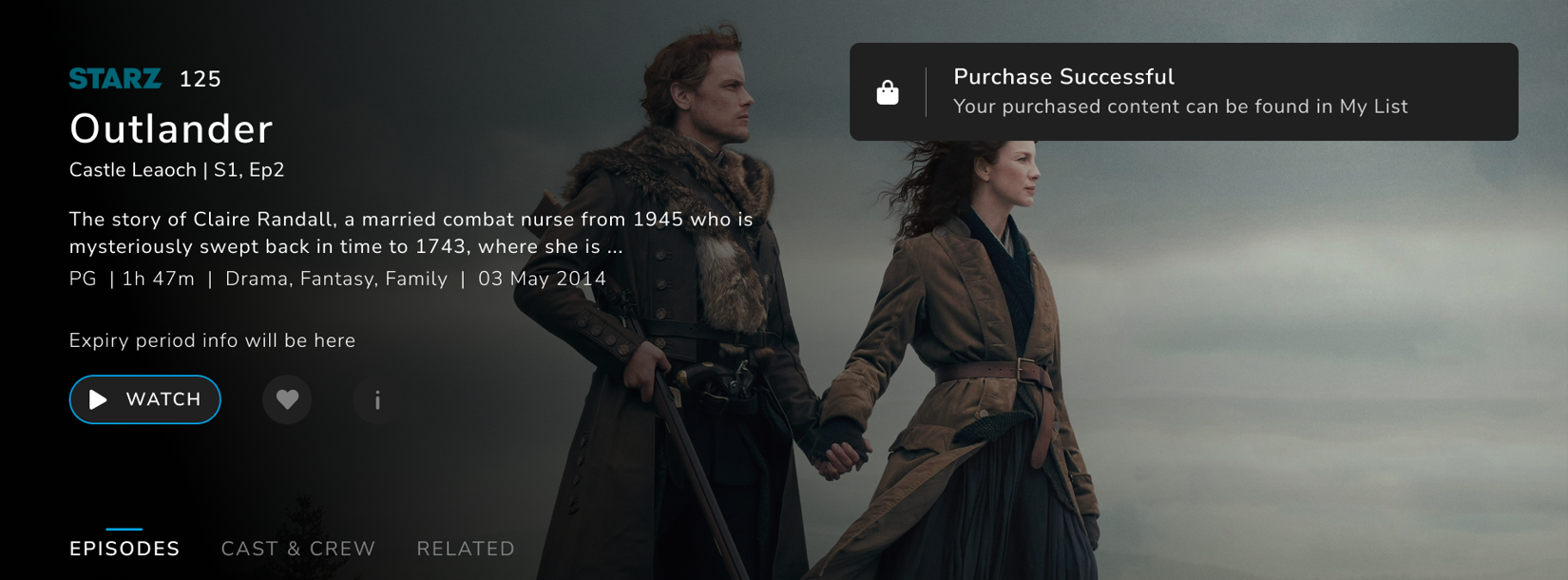
Purchase successful popup a TVOD purchase
Other devices logged in using same account refreshes the entitlements when an entitlement refresh notification is received or on access token expiry.
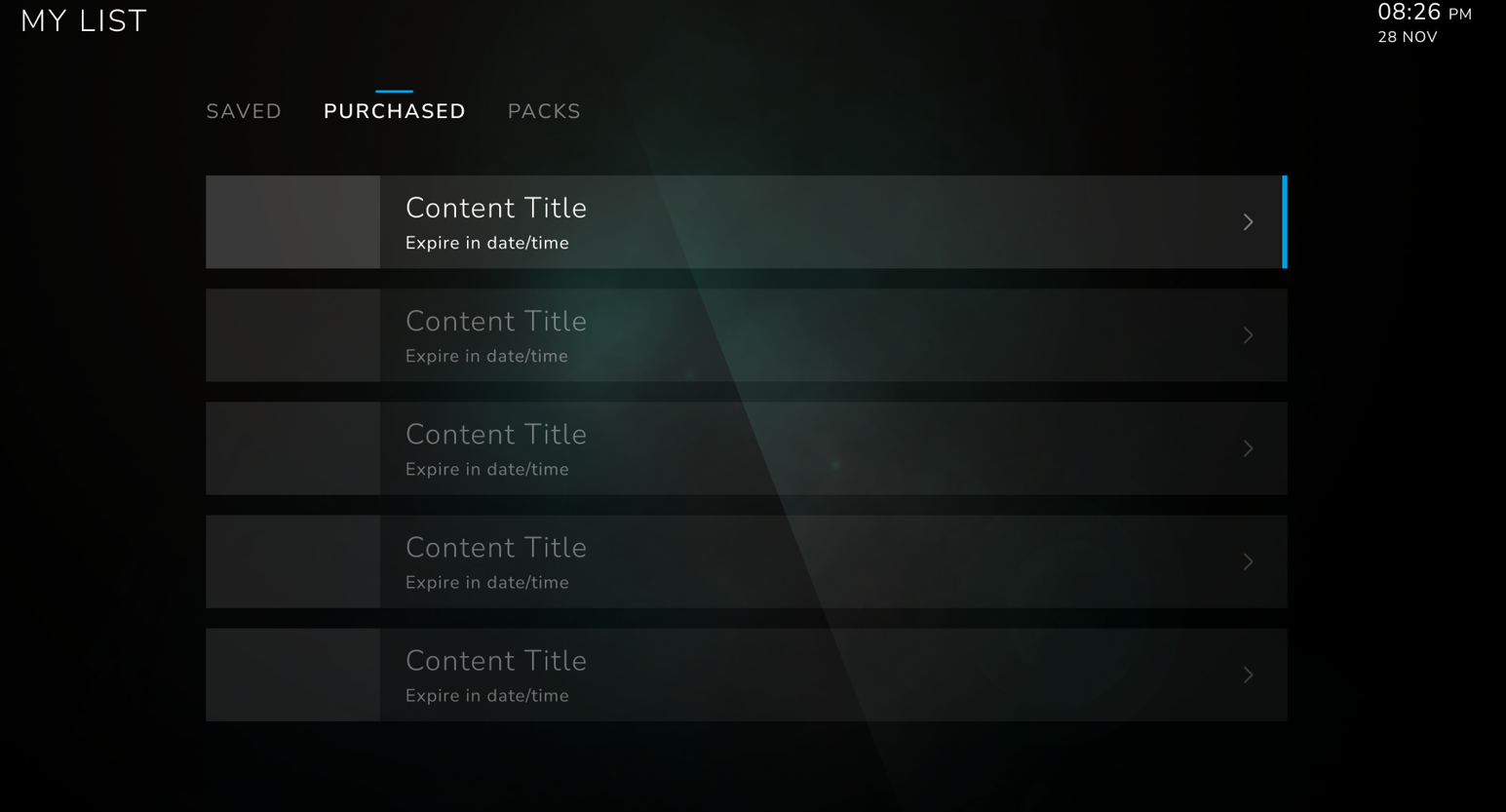
A purchased transactional type products such as TVOD are listed under Mylist->purchased screen along with expiry details.
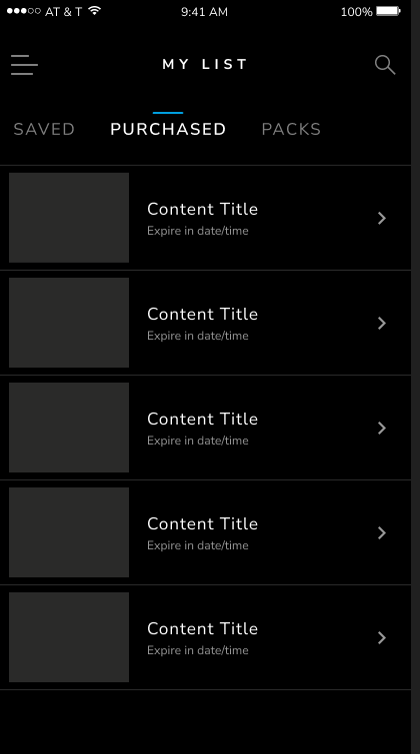
On handheld/Mobile devices user can view and playback purchased contents. purchase flow is not available
A purchased live channel is accessed from all existing screen listing events or channels.
The purchase flow is currently integrated with Nagra purchase server.
Product Preview Support
The core functionality of this feature is to provide users with up to X minutes of daily access to selected premium channels. ION identifies whether preview is enabled for a content. Maximum preview quota for content(s) is configured in product level and all contents associated with that product shares the preview quota. The basic use case is supposing 2 channels linked to a product and preview is enabled. The maximum quota of X minutes set for that product is shared between 2 channels.
ION does not manage the preview time quota calculation. It's managed by SSP, when the preview limit is reached ION receives a playback error and user is notified with appropriate message.
User is shown preview playback option in media card
Preview playback during channel zap Ch+/CH . Shows Full screen preview playback with free preview text. Surfer view and options are fine tuned to support preview playback.
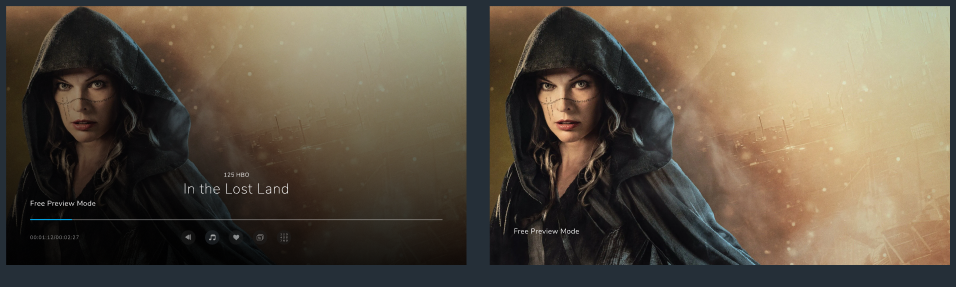
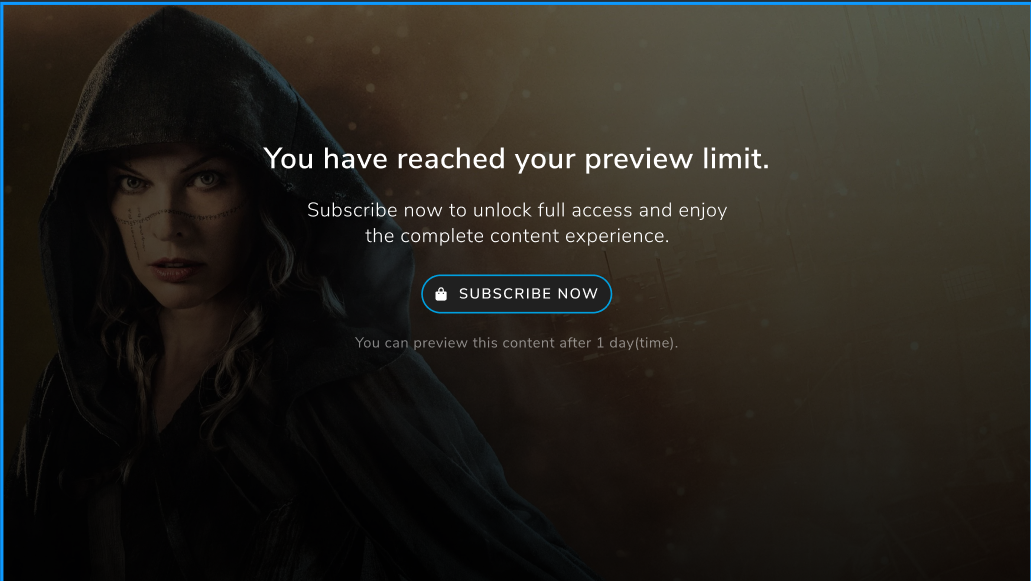
Preview limit end message to user along with subscribe button. Message also provides an indication to user on when the preview quota will be tentatively reset and user can preview again.
Purchase flow from full screen player is enabled. Once purchase is successful, User can playback the actual content.
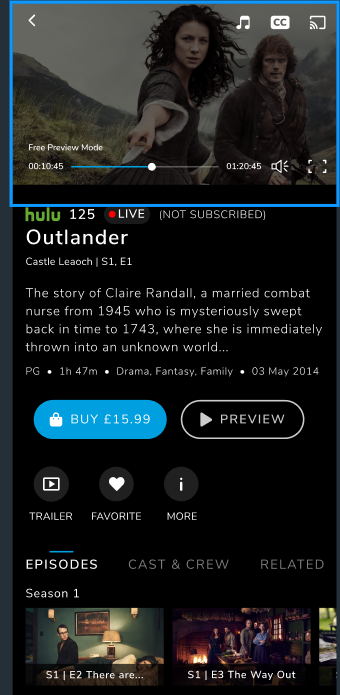
On handheld and website devices preview playback is auto triggered in portrait mode.
Supported devices
The preview feature is available in all devices. Purchases flow is only available on TV devices.
Rails Blueprint adoption
Blueprints are predefined designs and settings that enable you to add rails and components quickly and efficiently. ION has adapted to these blueprint definitions.
QR Code X-Device Sign On Flow
This feature allows users to securely and quickly log into TV devices using three methods: scanning a QR code, entering an alphanumeric code in the ion app or following a direct browser link. Users can authenticate the login session from mobile devices, tablets, or desktop browsers and TV responds to complete login under 5 seconds after successful authentication.
Login and Authentication flow
ION boots up and QR code login screen is displayed to the user on a TV device
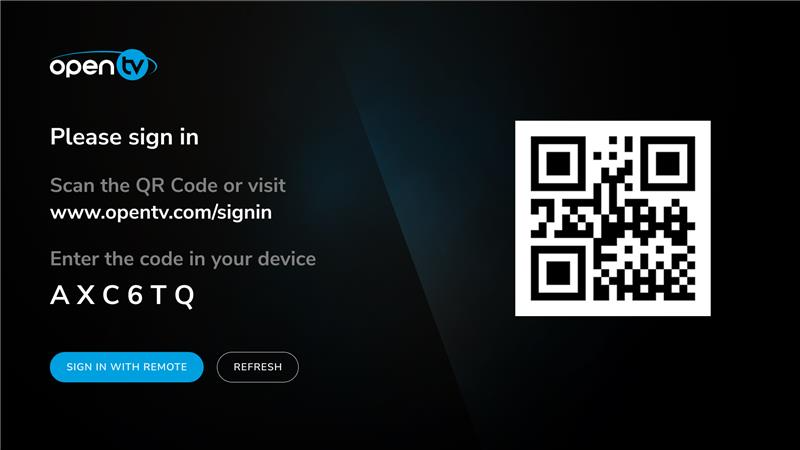
User Scans the QR code and approves from a mobile device
ION is installed on the mobile device then ION application is launched for approval
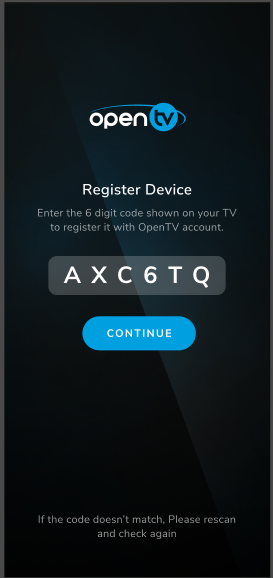
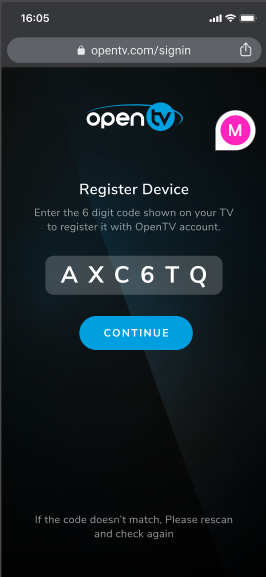
ION is not installed on the mobile device then ION website is launched for approval
User also can manually type in the registration link in a browser from any device and approves.
-
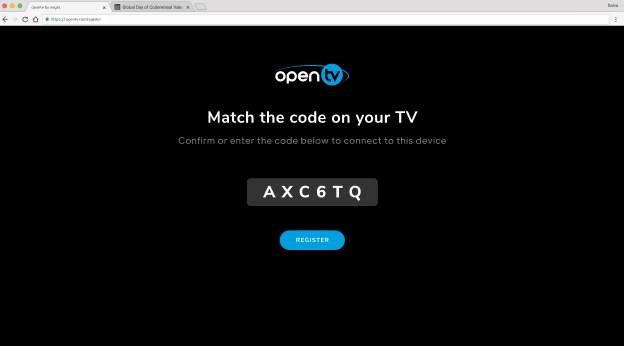
Use the website link in a browser for approval .
The Sign-in process is completed in TV devices with in 5sec of approval from the mobile device.
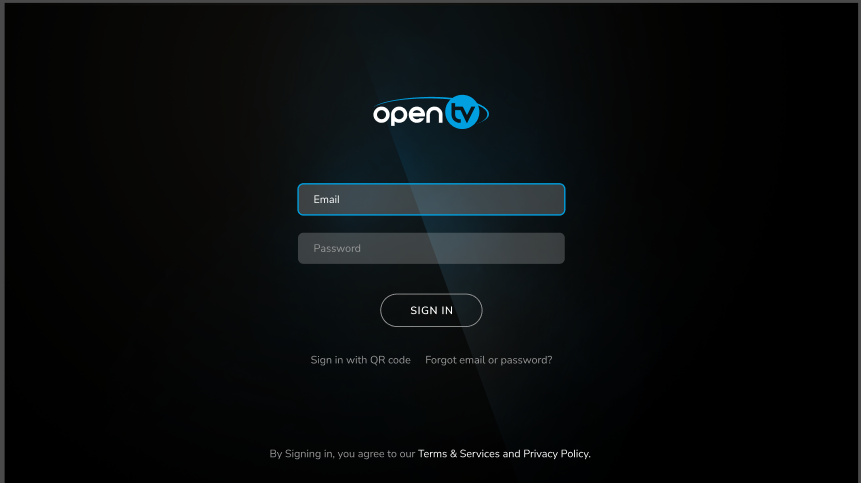
User can still choose sign-in manually in case QR code login fails.
Supported devices
The QR code feature is available for all TV devices but recommended to be enabled for TV devices where auto-login feature is disabled. QR code feature is currently not supported for Umbrella deployment.
Rails supported search results
The enhanced search interface in ION provides users a way to discover content across multiple devices with better clarity and avoids duplicate search results. Search suggestions and search history are supported in this new version.
The search categories displayed to end user are now controlled using rails template. This enables operator to configure preferred rail categories to be displayed to user based on the 3-letter search keyword. A simple use case is first rail category on the search result page can be dynamically configured as “Live”. The “Live” rail then displays only events grouped as live and matching to 3- letter word input from user. <TBD screen shots to be added>
Launching a search screen - Users previous search history is displayed
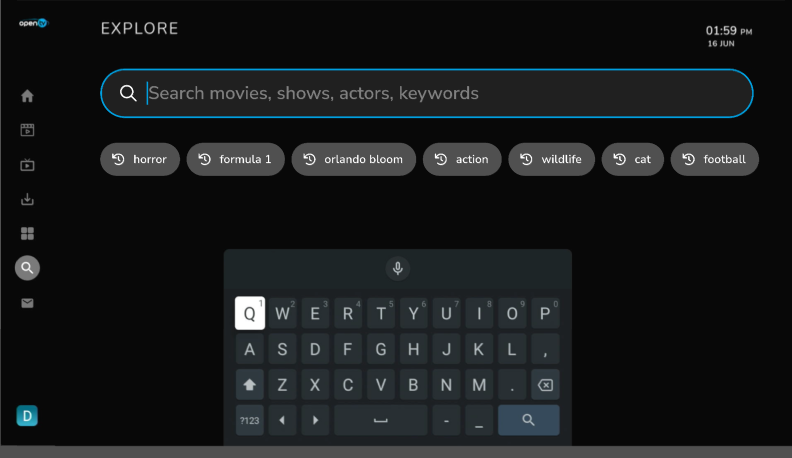
Starting a new search - Search suggestions and results are fetched and displayed as soon as user typed in 3 letters
<TBD Add screen shot>
Display search results - Search results are grouped and displayed as per categories configured by operator in rails builder
<TBD Add screen shot>
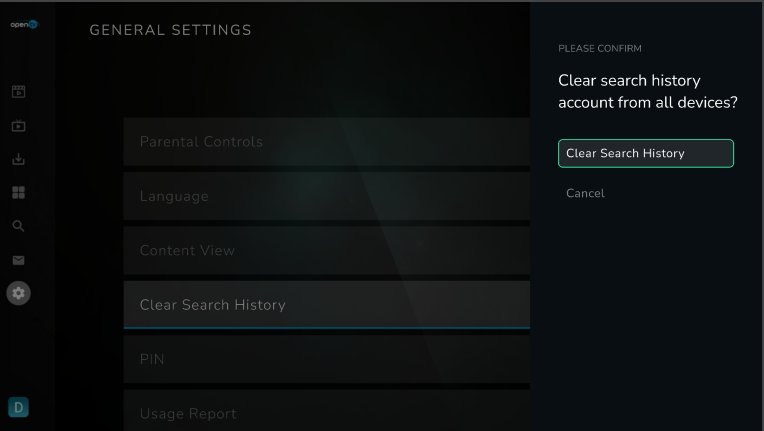
Clear search history - User can clear search history from settings screen
Supported devices
The enhanced search interface is supported in all devices.
Pack product discovery and purchase support
The feature enables end user to discover and purchase a package product promoted by operator on a rail supported screen. Examples of a pack product are “sports pack”, HD channel pack” etc. ION identifies rail item as a pack product and when user opens the pack item user views the details of the pack and purchase of the pack. <TBD screen shots to be added>
Listing of packages in a rail supported screen. Enables upselling of packs in home screen
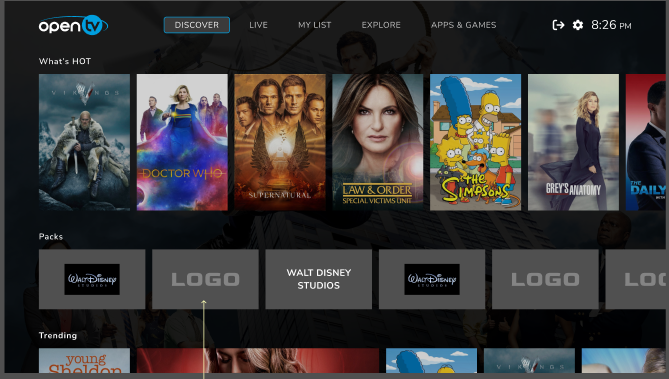
User can view the details of package. Operators choose which pack products and contents to be linked to the package. Title, pack image, description, price and contents are configurable.
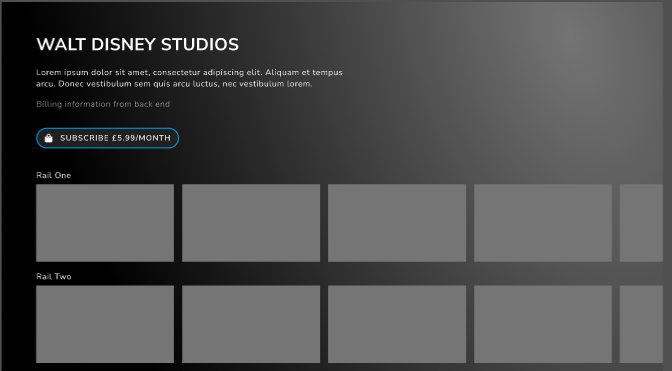
Different price options are available for user to choose. Its configurable
Once purchases is successful user can playback the contents from same device or another device using same user account.
The pack purchase flow is only enabled on TV and Website. But user can playback the purchased contents on handheld devices.
Offline download and playback (Download2Go)
UEX improvements
My List menu
A new menu item “MyList” is added. The My List screen comprises of one or more sub screens and easily navigable. This improvement enables end user to view personalized content information such as recordings, purchases with ease. Following screens are currently part of this screen.
-
Saved - List of recordings and favorites.
-
Purchased - List of purchased TVOD/SVOD content
-
Packs - List of Purchased pack products.