
Cinematic view screen
Cinematic view screen is created using the rails builder template. In this release along with the rows of rails, an option to add a banner at the top section of the screen is provided. It is supported only for TV devices
|
Screen with cinematic view for first rails |
Screen with cinematic view for all rails |
Screen without cinematic view |
|---|---|---|
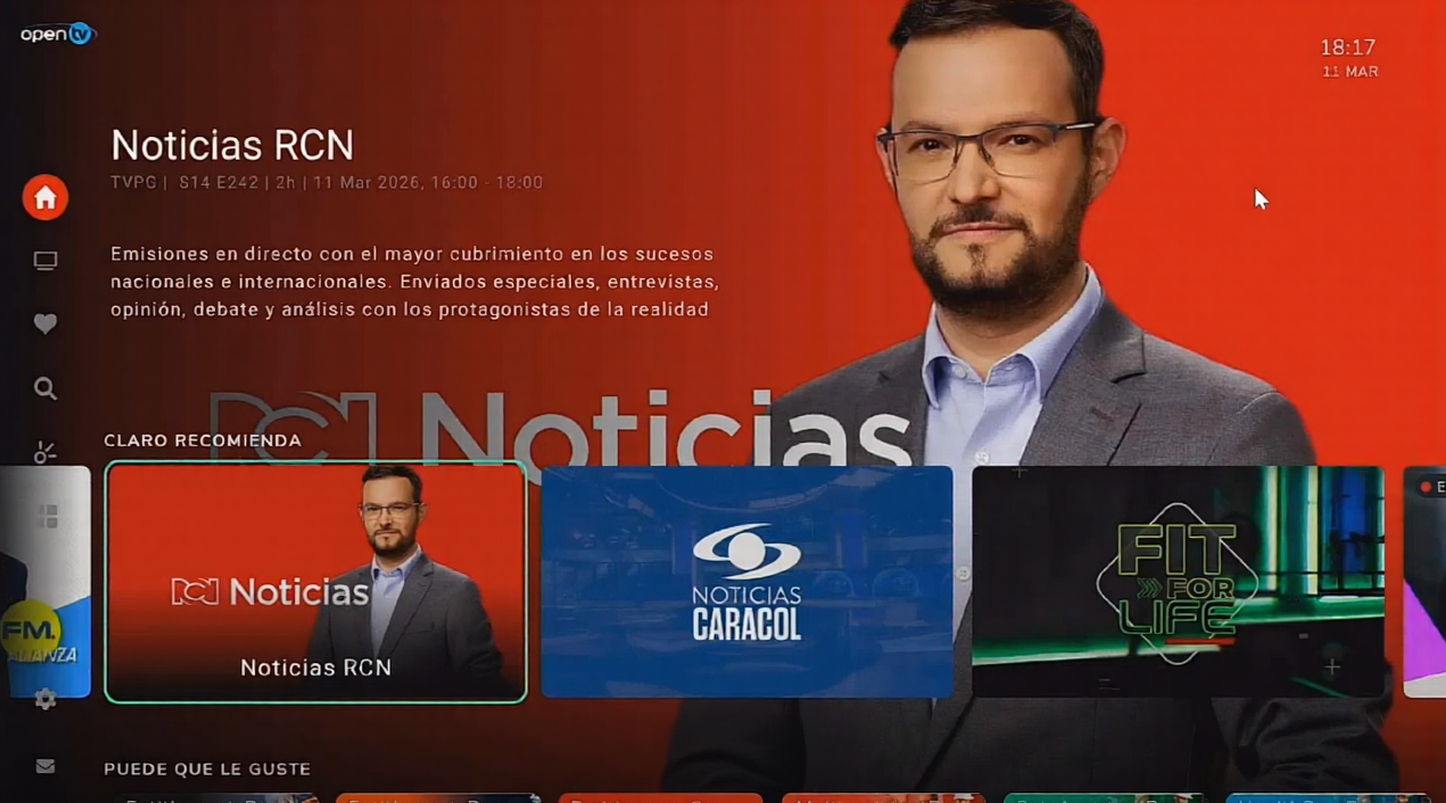
|
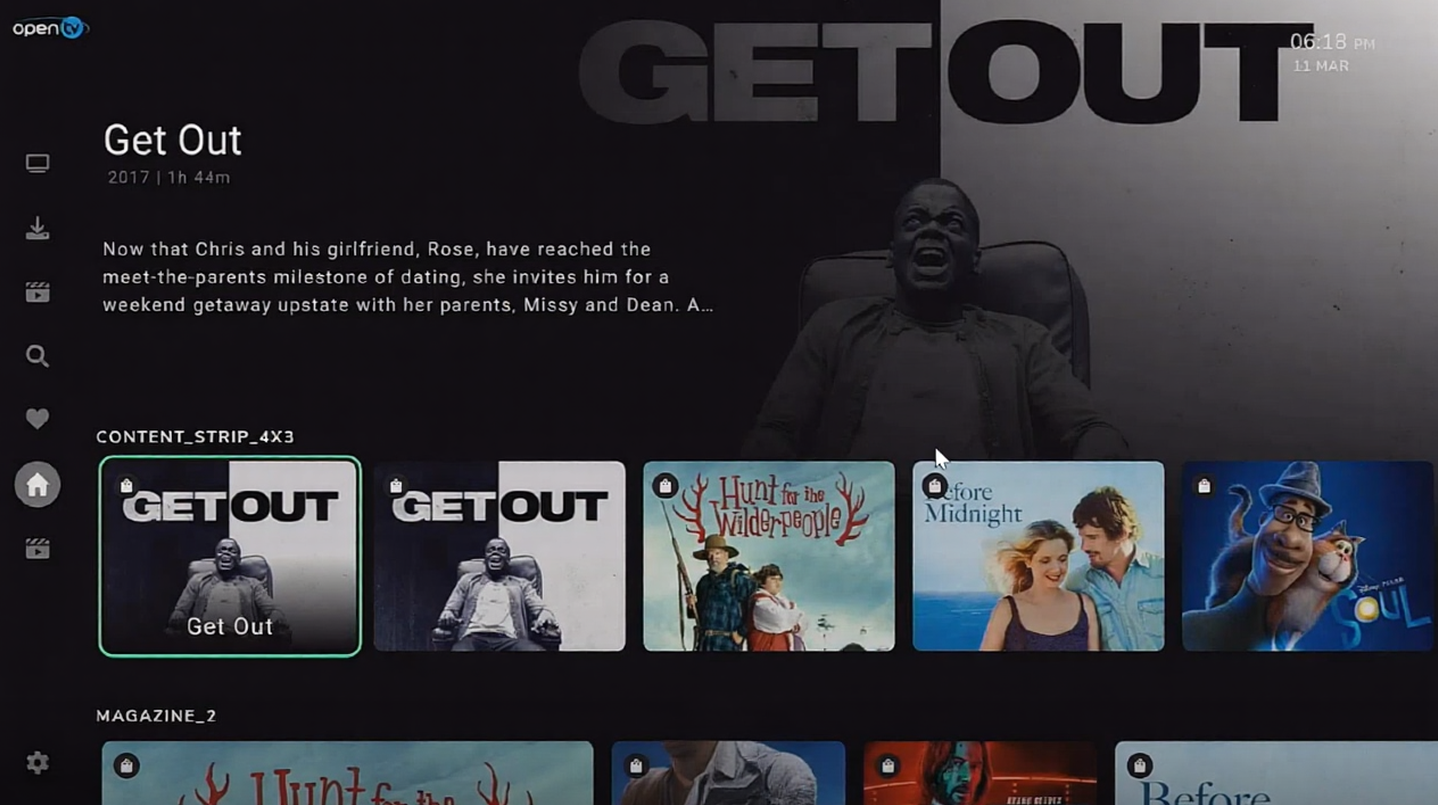
|
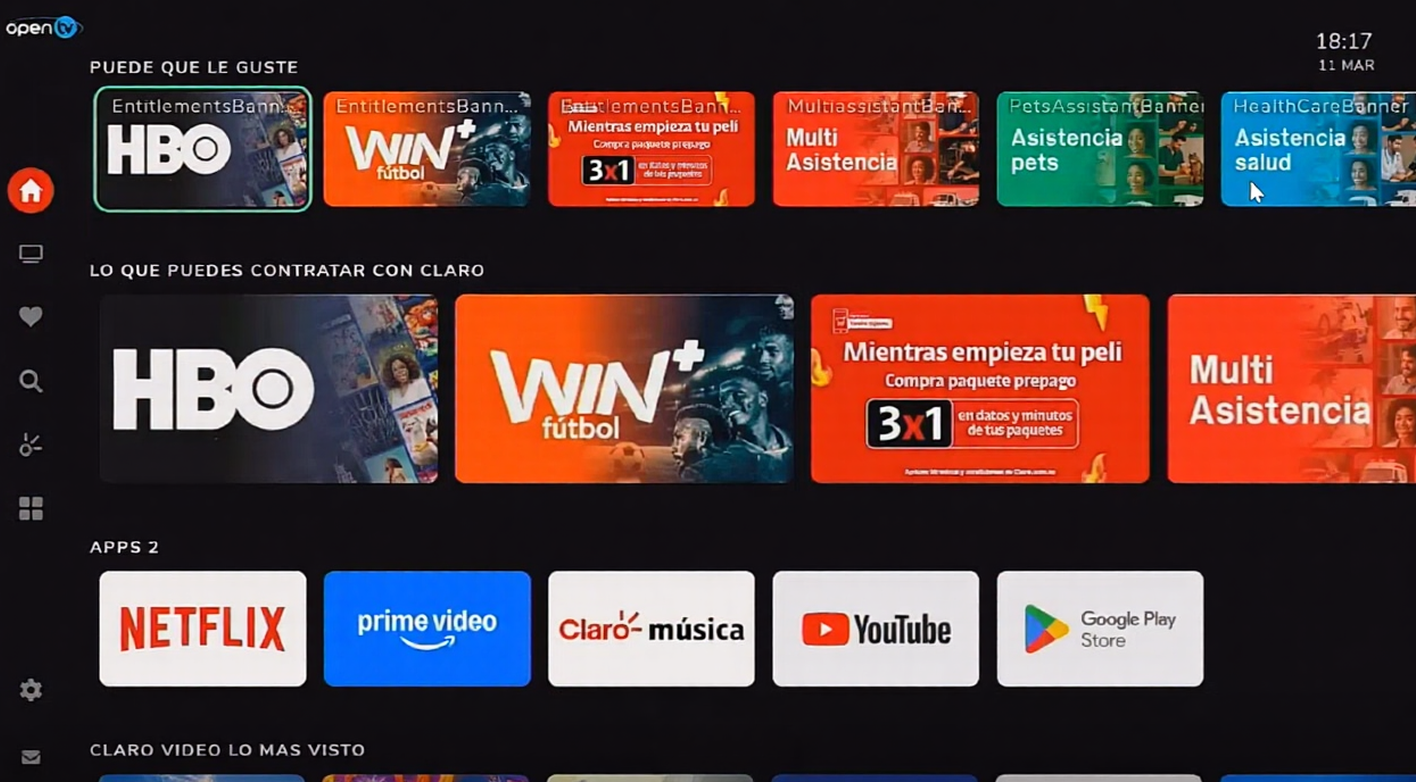
|
|
Layout KVP: enableCinematicForAllItems:true enableCinematicForFirstRow:true |
Layout KVP: enableCinematicForAllItems:true enableCinematicForFirstRow:false |
No kvp required |
|
Navigation: When the user goes to the second rails row, the banner and the first row are hidden and second row moves to the top |
Navigation: When the user goes to the second and subsequent rails, the first rail is hidden and the banner displays the details of the rail item in focus |
grid like navigation |
Rounded Borders
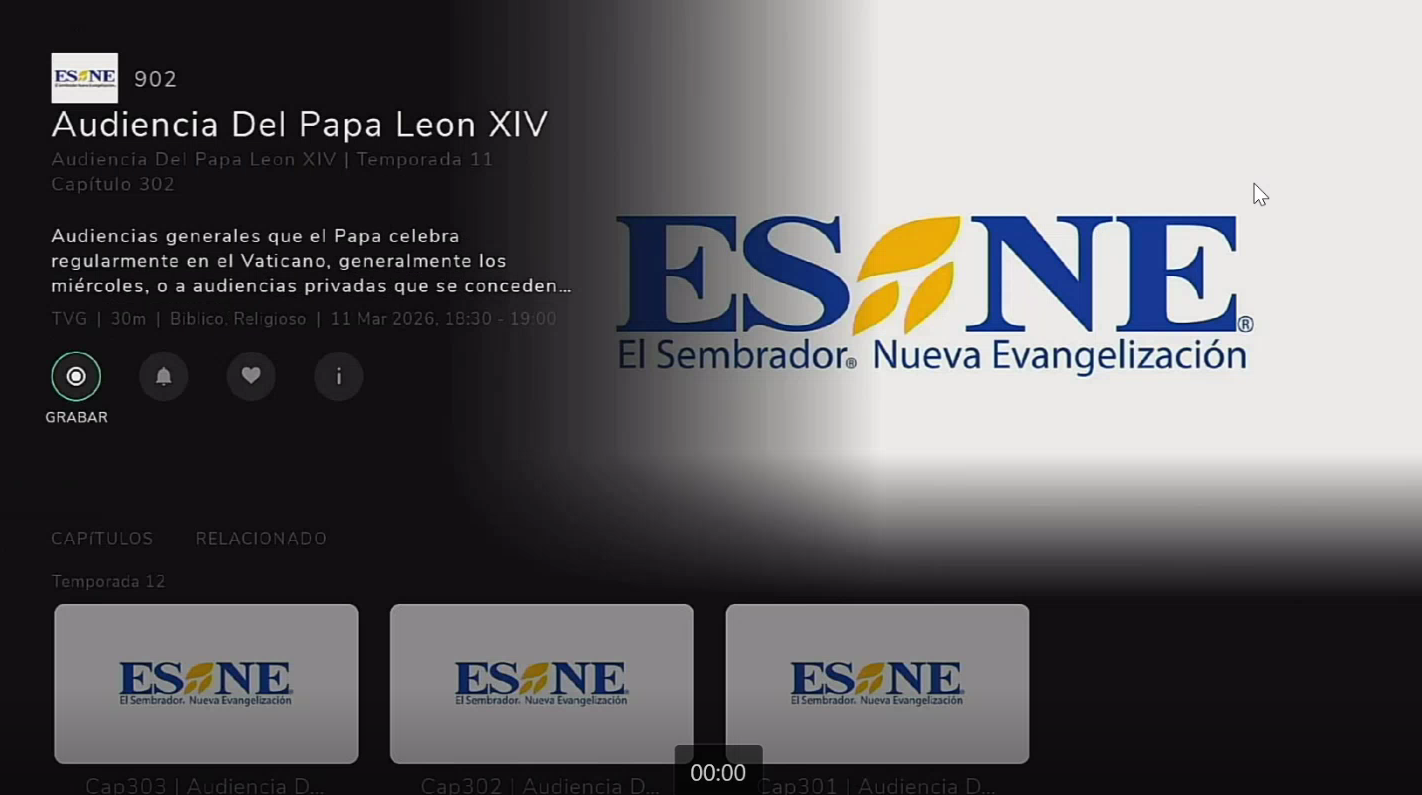
Rounded borders can be enabled for the screens created by rails builder and Mediacard screens.
From opcon the value roundedBorders which is a string should be sent as “true“ through mainMenuTemplate properties from the Hierarchy to enable the Rounded Borders for rails.
From platform config PlatformConfig.mainMenu.roundedBorders should be made true which is a boolean value
Supported for TV, Handheld and responsive web devices
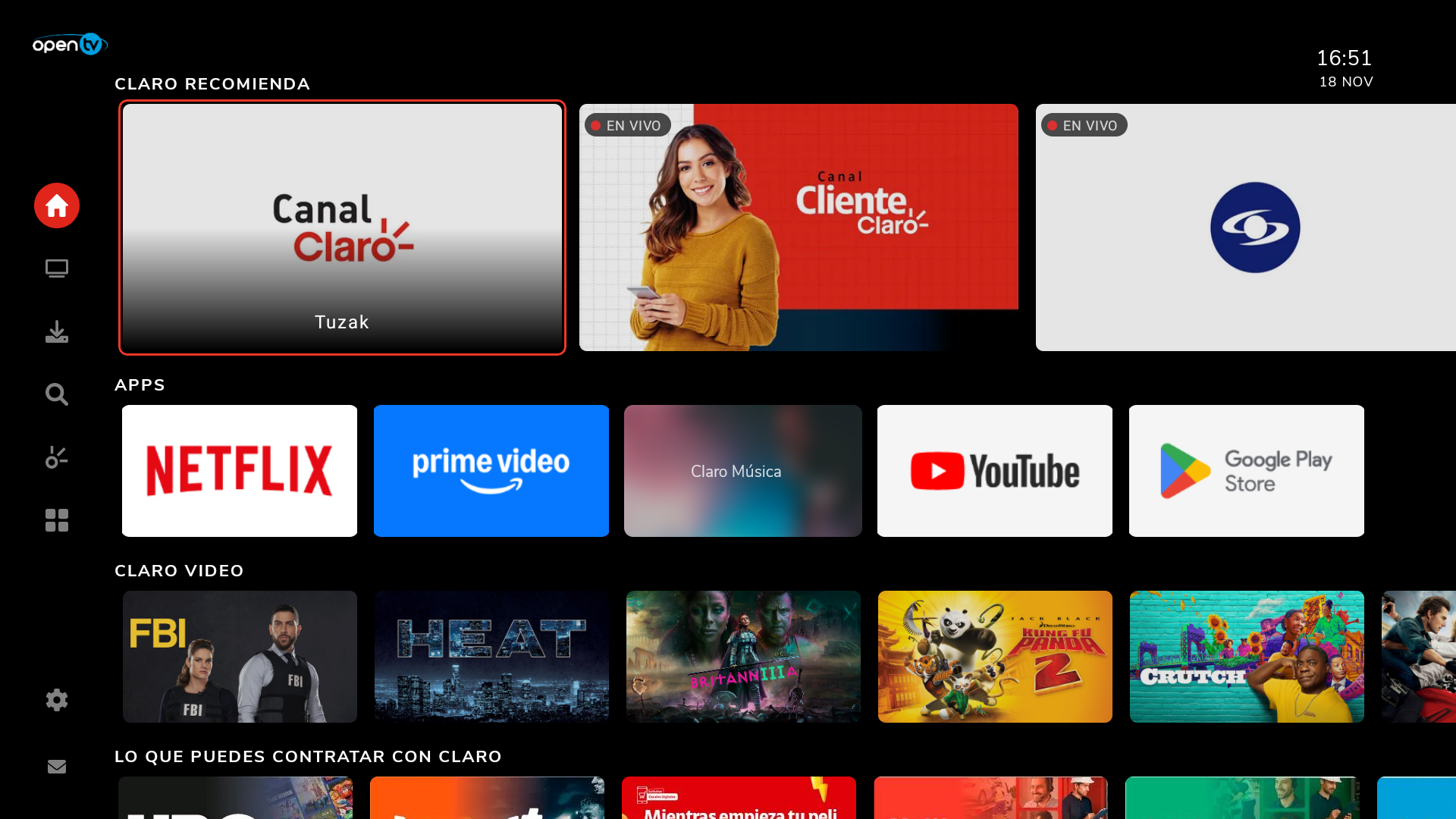
Mediacard:
User Profiles
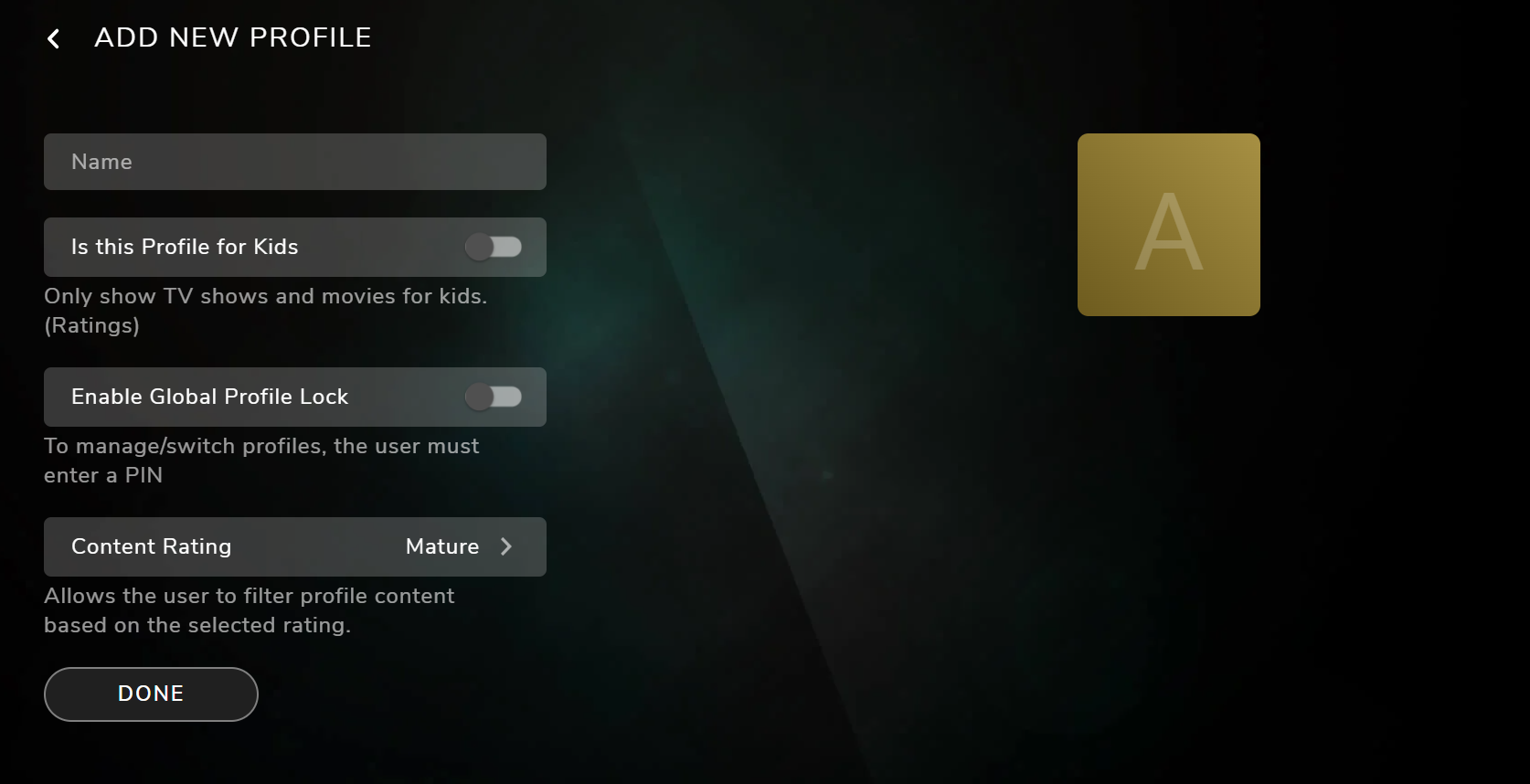
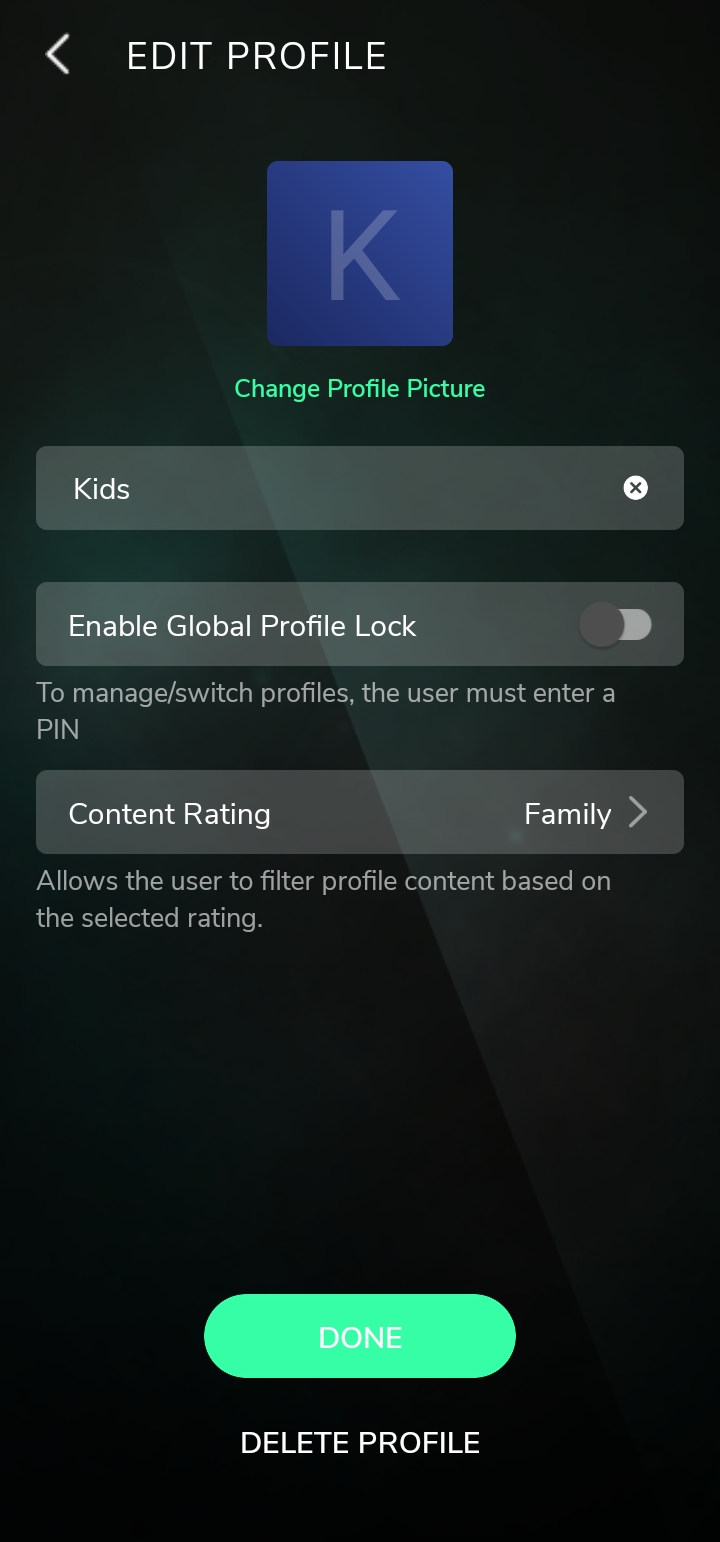
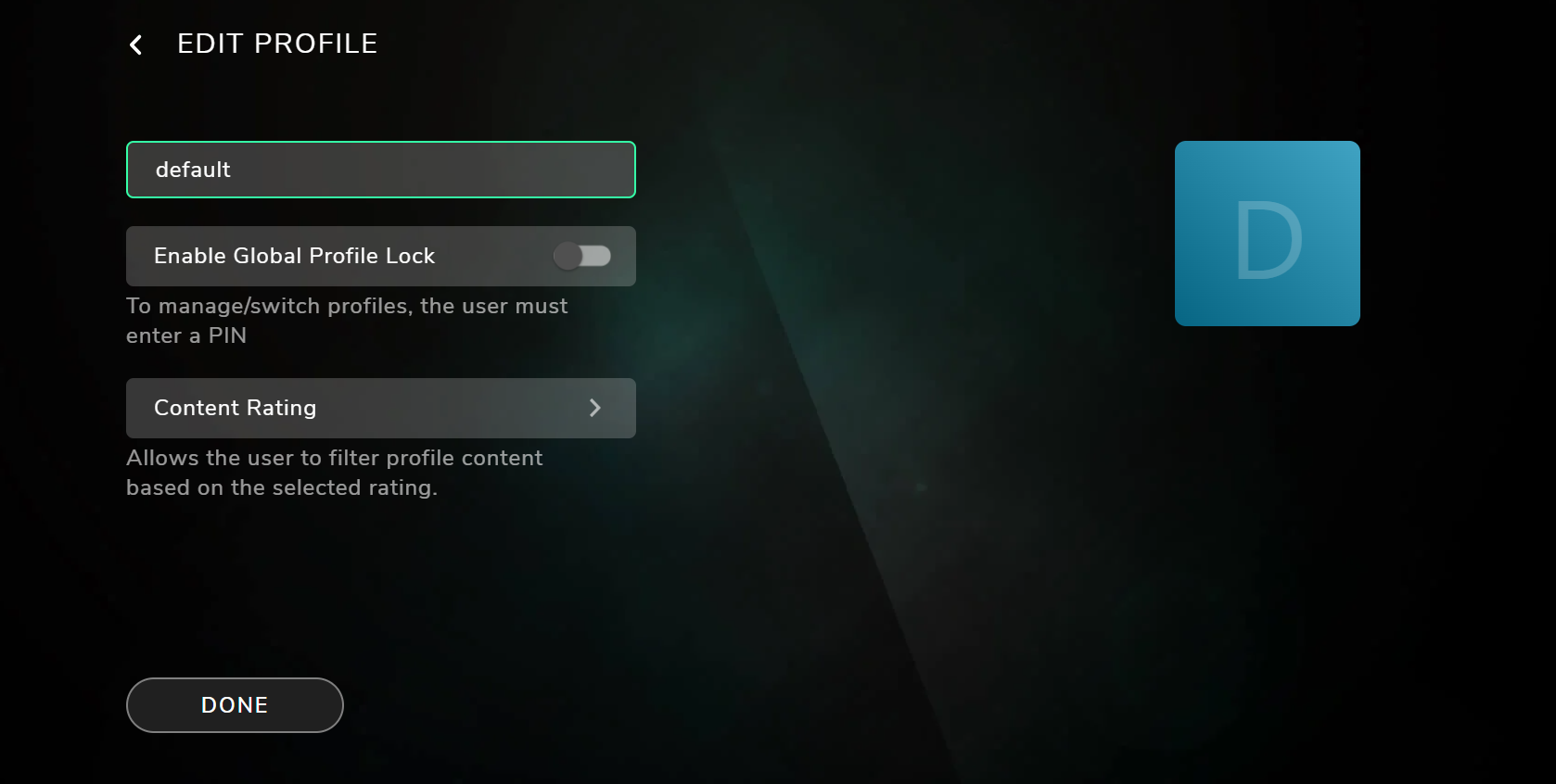
The User Profile enables personalized viewing experiences within a single account by allowing multiple profiles with customized settings, parental controls, and content filtering. Each profile ensures that users see content aligned with their preferences and appropriate rating levels.
This feature is supported on TV, Handheld and Responsive web devices.
Profile Management
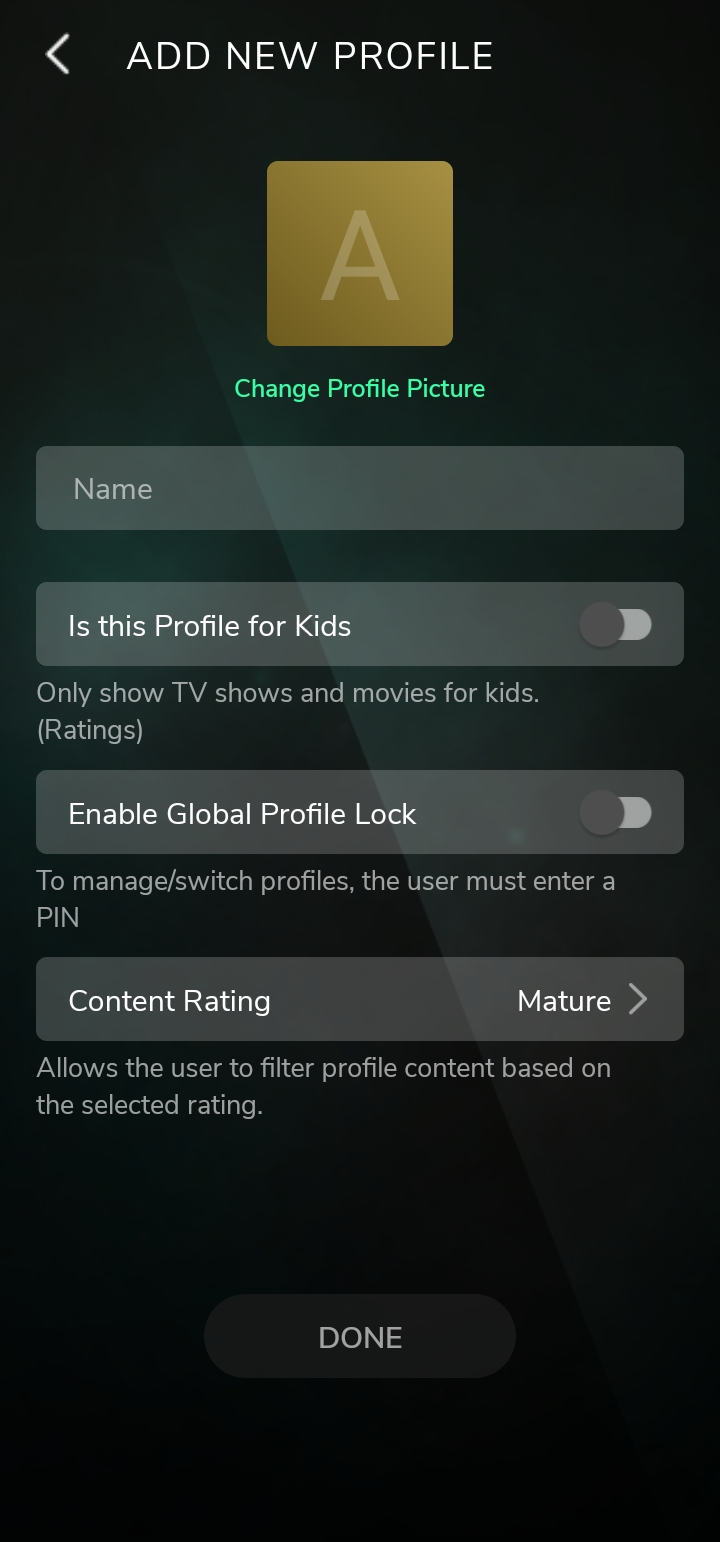
Create
-
Users can create:
-
Adult profiles
-
Kids profiles (with restricted content access)
-
Delete
-
Profiles can be deleted successfully with proper confirmation.
-
Restrictions apply for:
-
Kids profiles (based on parental control rules)
-
Currently active profile
-
Default profile (cannot be removed)
-
Profile-Based Content Personalization
When a profile is selected, the following sections dynamically adapt based on the profile’s rating and preferences:
-
Discover
-
Guide
-
Search
-
NPVR (Network Personal Video Recorder)
Profile Lock
-
A global profile lock mechanism ensures restricted access to protected profiles.
-
Lock status remains synchronized across:
-
Settings screen
-
Profile Add new/edit screen
-
Additional Behavior
-
Session Persistence
-
On app relaunch, foreground/background transitions, or standby wake-up, the last used profile is automatically logged in.
-
-
Single Profile Experience
-
If only one profile exists, users bypass the profile selection screen and are logged in directly.
-
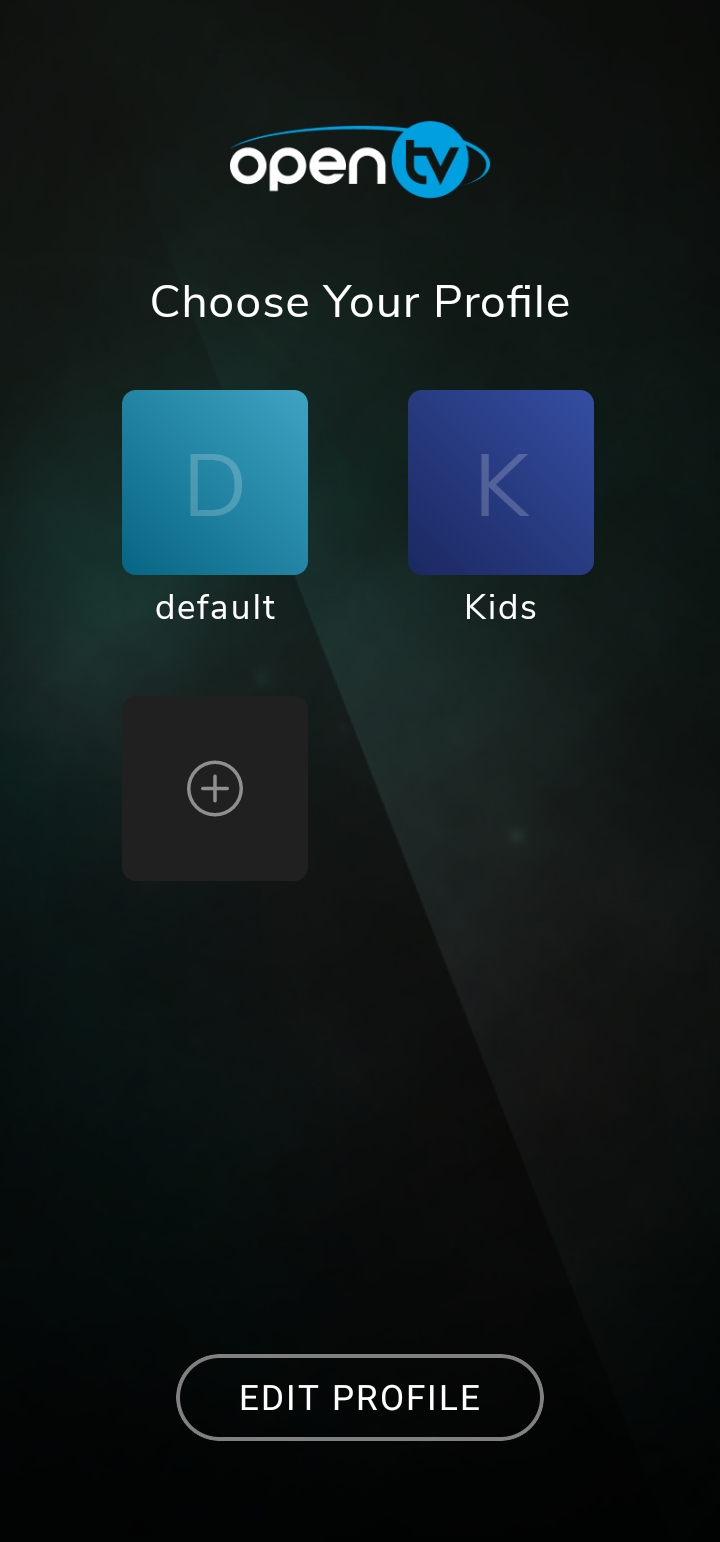
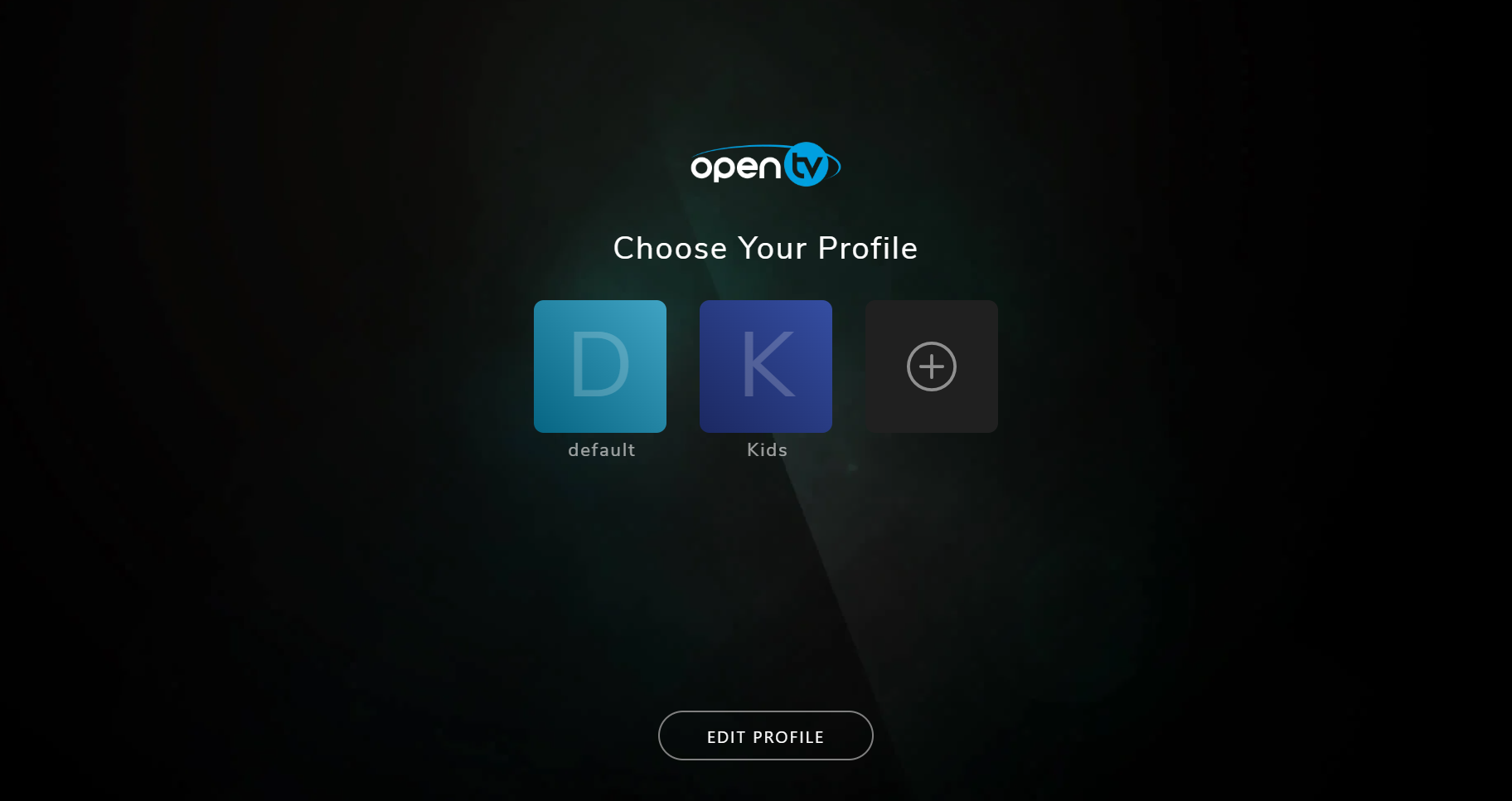
Screenshots
|
Profile list screens |
|
|
|
Add New |
|
|
|
Edit Profile |
|
|
|
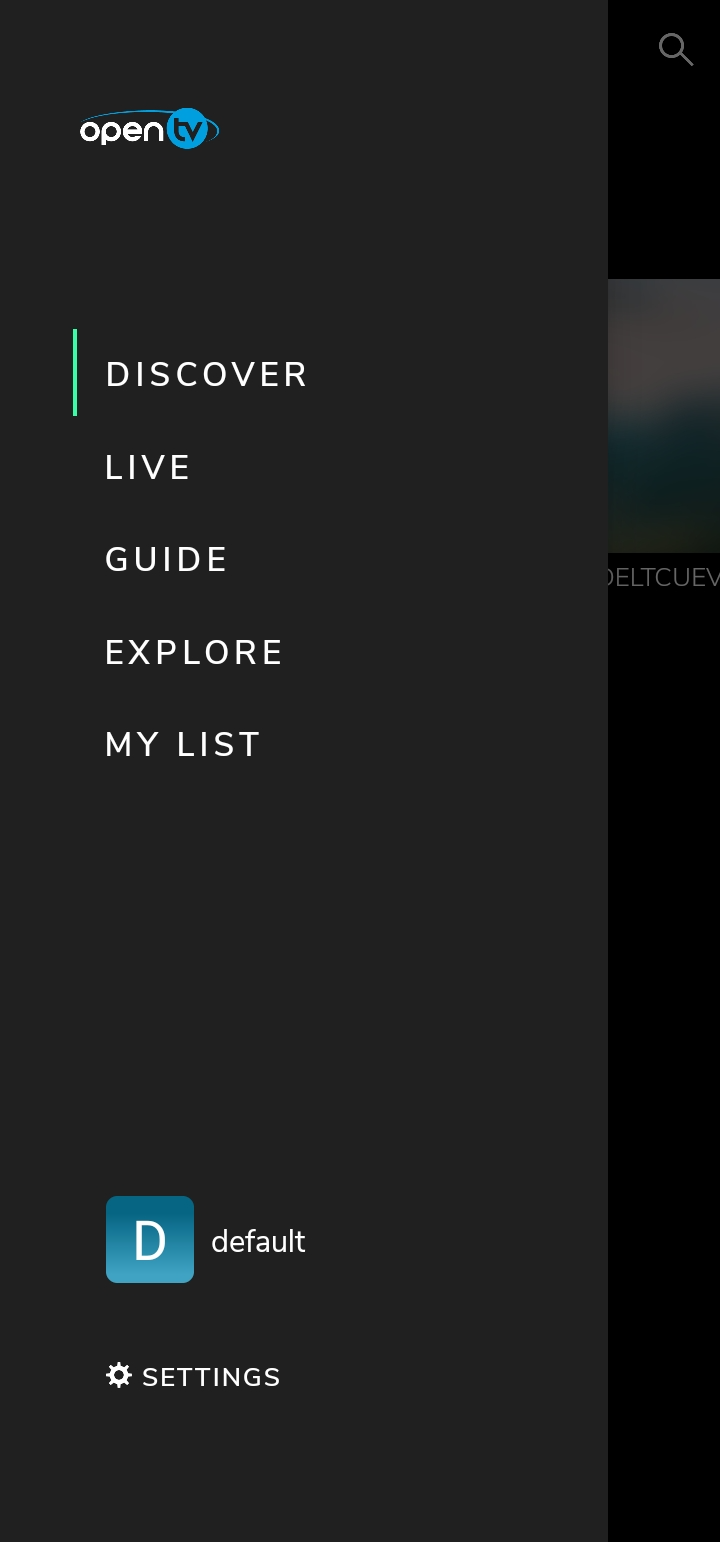
Access the profile list from the main menu |
|

|